Every item you offer on iNUPCO asks for facts you already know: what the product is, who makes it, how it is packed, what it costs, which documents prove it. In most supplier teams those facts live in a catalog, a spreadsheet and somebody's memory, and a person retypes them into the portal item after item, under a deadline. One wrong field can cost a rejection.
Claude can do the carrying. It reads the facts from ProcDuck, fills in the portal's forms in your own browser, asks you when a decision is yours and waits for your word before it submits. This post explains the idea and the habits that make it work. It stays general on purpose: the portal changes, and your setup is yours.
The idea in one picture
ProcDuck holds the facts and the documents: the product record, the manufacturer, the catalog and the certificates you stored. It also generates the quotation and its cover page. Claude connects to ProcDuck on one side and works in your browser on the other. In the middle it moves the facts from the first to the second, one item at a time.
You sign in to the portal yourself, in your own browser, and you watch. Claude fills in what it can, stops where it needs you and shows you the result before anything is submitted.
What you set up first
Four things, none of them exotic. First, a ProcDuck account complete enough to answer: products with their manufacturer, packaging and documents, and the tender's items marked with the ones you are bidding on. Second, Claude connected to your ProcDuck account (the setup guide on this blog walks through it). Third, Claude's browser extension, Claude in Chrome, installed in Chrome and given access to the portal. Fourth, your house rules written down as standing instructions, so every run follows the same conventions: defaults, wording and when to ask.
What a run looks like
You name the tender. Claude reads its items from ProcDuck and works only on the ones you marked as bids, not on every row the portal lists. It checks each product record and tells you what is missing, such as a catalogue number or a pack size. When a decision is yours it asks you with options: the price, the packaging, the authorization period. It writes your answers back to ProcDuck, so the next submission starts from them.
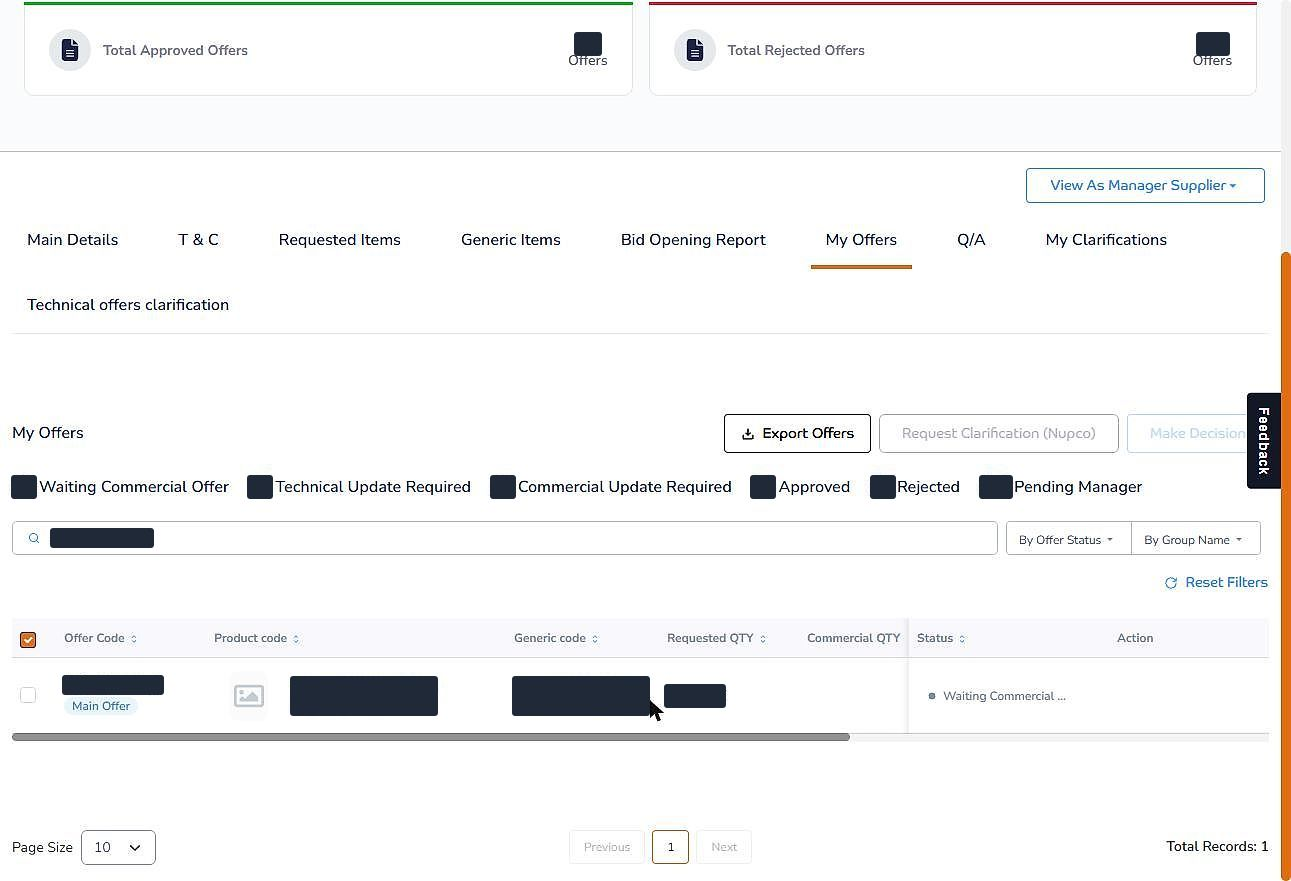
Then it works through the portal's forms, step by step, from the record. A bid usually has stages: the technical side first, then prices, then the approval your portal asks for. Claude takes them in the order you set, and you can stop it between stages to look. When it finishes a form it shows you what it entered. You read it the way you would read a colleague's work, and you correct anything that is off before it goes.
Fix ProcDuck first
The rule that saves the most time is to correct the data in ProcDuck before you generate any document, and only then fill in the portal. A value changed after a document was made means making the document again, and a value changed only in the portal is the one that is wrong next time. Ask Claude to write each correction back to ProcDuck as it goes, and tell it when you have edited a record yourself, so it reads the record again before it uses the value. The portal then becomes the last step, not the place where the truth lives.
You give the go-ahead
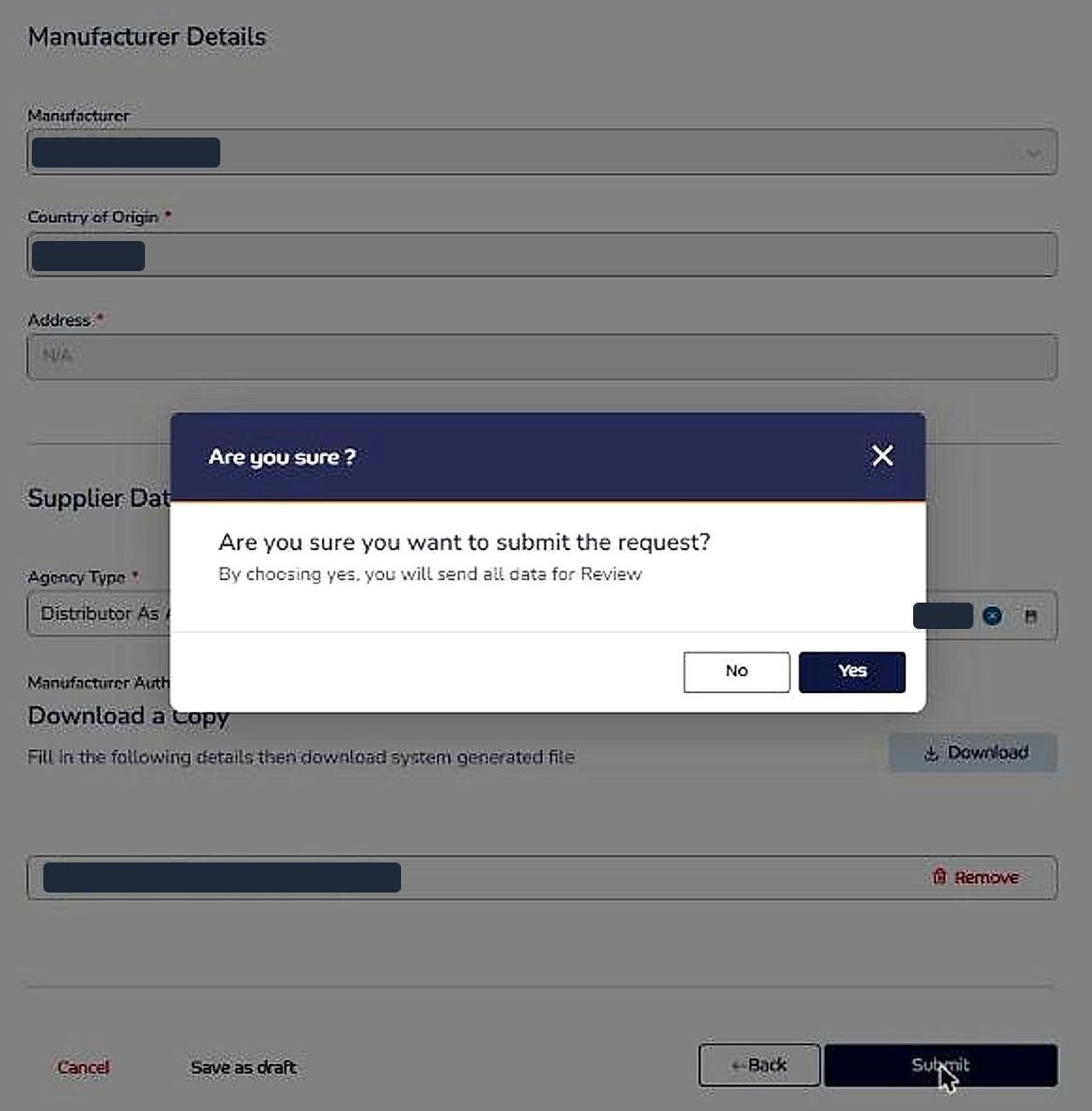
By default Claude fills in a form and stops. It submits only when you say so, for that item. If you are working through a long list and want it to go faster, you can give a standing go-ahead for the session: Claude then submits each item as it finishes, still confirming each one and reporting the confirmation it got.
Some portals also end with one final button that submits the whole bid. Keep that one for yourself, whatever you have allowed for the items. Claude brings the bid to the point where only that button is left, tells you so and waits. The decision to submit is yours, and so is the responsibility for what you submit.
Submit once
Portals can be slow to confirm. After a submission, look for the confirmation or open the portal's list of your requests before you try again. A blind retry can create a duplicate, and some portals do not let you cancel one. Before Claude creates anything new, have it check whether the portal already holds it: a product you registered earlier may be waiting to be picked. Put this in your instructions: check before creating, verify after any submit before retrying, and never submit the same item twice.
Ask what is left
Once a tender is under way, the most useful question is which items on it still have no offer. Claude compares the items you decided to bid on in ProcDuck with what the portal shows as submitted, and lists the gaps with the reason each one is stuck: no catalogue number, no manufacturer record, no authorization letter. Have it match items by product code, never by row number, because a portal's numbering rarely matches yours. Group the gaps by cause. One decision about one product family often unblocks a dozen rows, and the biggest quantities deserve your time first.
What to tell Claude never to do
Write into your instructions that Claude does not decide your price or invent a value your records do not hold, that it does not work around a portal's rules, that it tells you when a step fails instead of pushing through, and that it does not submit without your go-ahead. And because portals change, treat every run as supervised work rather than an unattended robot: watch the first runs closely, and end each run by asking Claude what went wrong and which line should be added to your instructions. A rule written once saves the next run.
Check the portal's own terms for how you may use browser assistants, and keep your sign-in to yourself. Claude works in your session, and you stay accountable for every submission.
Portal work is where a written-down process pays off most. We set up the pieces with you: Claude connected to ProcDuck, your rules written, Claude working in your browser and your team trained, so the portal stops being the slow part of every bid.
Book a demo