Features
Tender page
Everything you see and do on one tender's page: the key facts, the AI summary, the items table, participation, pricing, the NUPCO files, and requesting supplier quotes.
The tender page is where you work on one tender. Open it by clicking a tender's name in the search results, from your favorites, from the bid pipeline, from an alert notification, or from the quick search (Ctrl+K). At the top are the tender's details as its source published them, then an AI summary, then the items table where most of the work happens: deciding which items you will bid on, pricing them, reviewing their history, linking them to your products, requesting supplier quotes and generating the NUPCO files.
The sticky Sections bar at the top of the page jumps between its parts (Overview, Items and RFQ, plus Responses, Manufacturers and Quotations when they have content) and highlights the section you are reading.
The tender's details
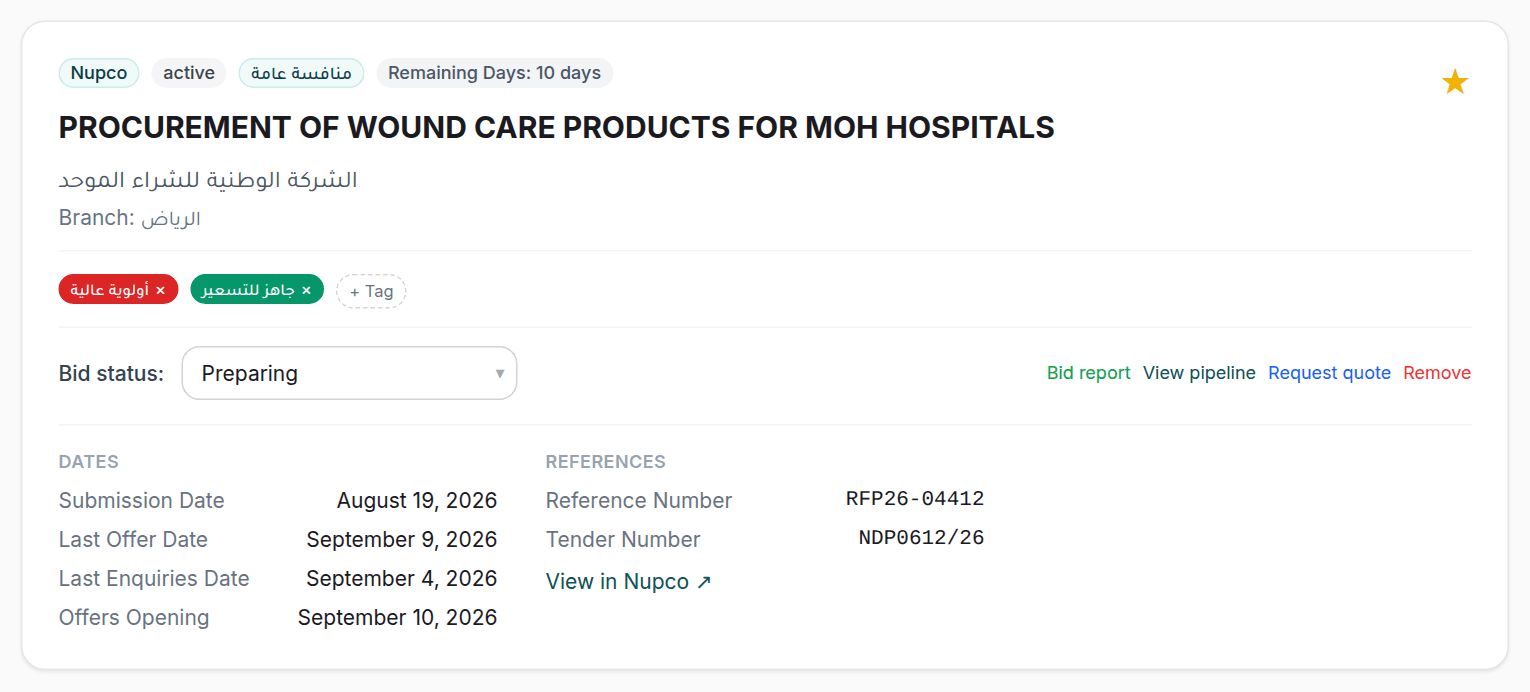
The first card opens with a row of badges: the source (Etimad, Nupco or Added manually), the tender's status and type as the source published them, and a Remaining Days countdown to the offer deadline. Orange with seven days or fewer left, red with three or fewer. Under them are the tender's name, its agency and its branch when there is one.
Then three columns of key facts, showing only what the source published:
- Dates: the submission date, the last offer date, the last enquiries date and the offers opening date.
- Costs & Fees: the buying cost, booklet price, financial fees and invitation cost, in SAR.
- References: the reference number and the tender number. Clicking either selects it whole for copying.
The View in Etimad or View in Nupco link under the facts opens the original tender on its portal in a new tab. The star in the card's corner adds the tender to your favorites or removes it. Favorites have their own page in the navigation bar and come first in the quick search. Beside it, All quotations (with their count) opens the quotations list filtered to this tender (every quotation your team created for it, with the list's bulk actions) for the roles that see pricing.
Tags
Under the facts is the tags strip. Press Tag to open your organization's tags: click one to assign it to the tender or remove it, or type a new name in the field at the bottom of the list and press Add to create it. Assigned tags show as coloured pills, each with an × to remove it. Tags are shared across your organization, and deleting a tag from the list removes it from every tender.
The bid pipeline
Add to pipeline creates a bid for this tender in the Reviewing stage, which puts it in the bid pipeline, on the dashboard and on the calendar. The button is then replaced by a Bid status: row with the six stages (Reviewing, Preparing, Submitted, Won, Lost, Cancelled) and picking one saves it at once. Beside it are Bid report (for roles that see pricing), View pipeline, Request quote, which jumps to the RFQ section, and Remove, which takes the tender out of the pipeline.
The AI summary
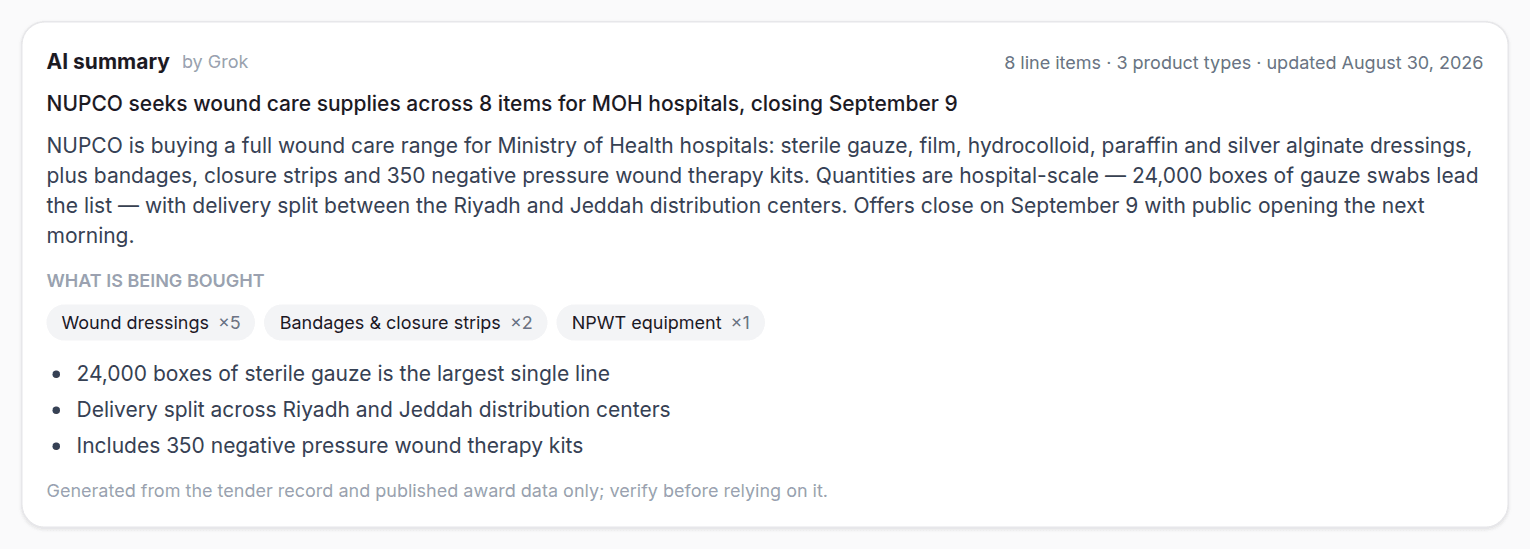
Under the details card is the AI summary card: a one-line headline, a paragraph on what the tender asks for, a few highlights, and a What is being bought section that groups the items into product families with a count for each ("Syringes ×20"), so you know within seconds whether the tender concerns you before reading hundreds of items. + more expands the remaining families. The summary is written for Etimad and NUPCO tenders in both languages, carries the date it was last updated, and is written once and then shown to everyone who opens the tender.
You never have to ask for it: when a tender has no summary yet, one is written as the page opens and the card shows "Writing the summary for this tender…" until it is ready. When none is available the card simply says so.
The items table
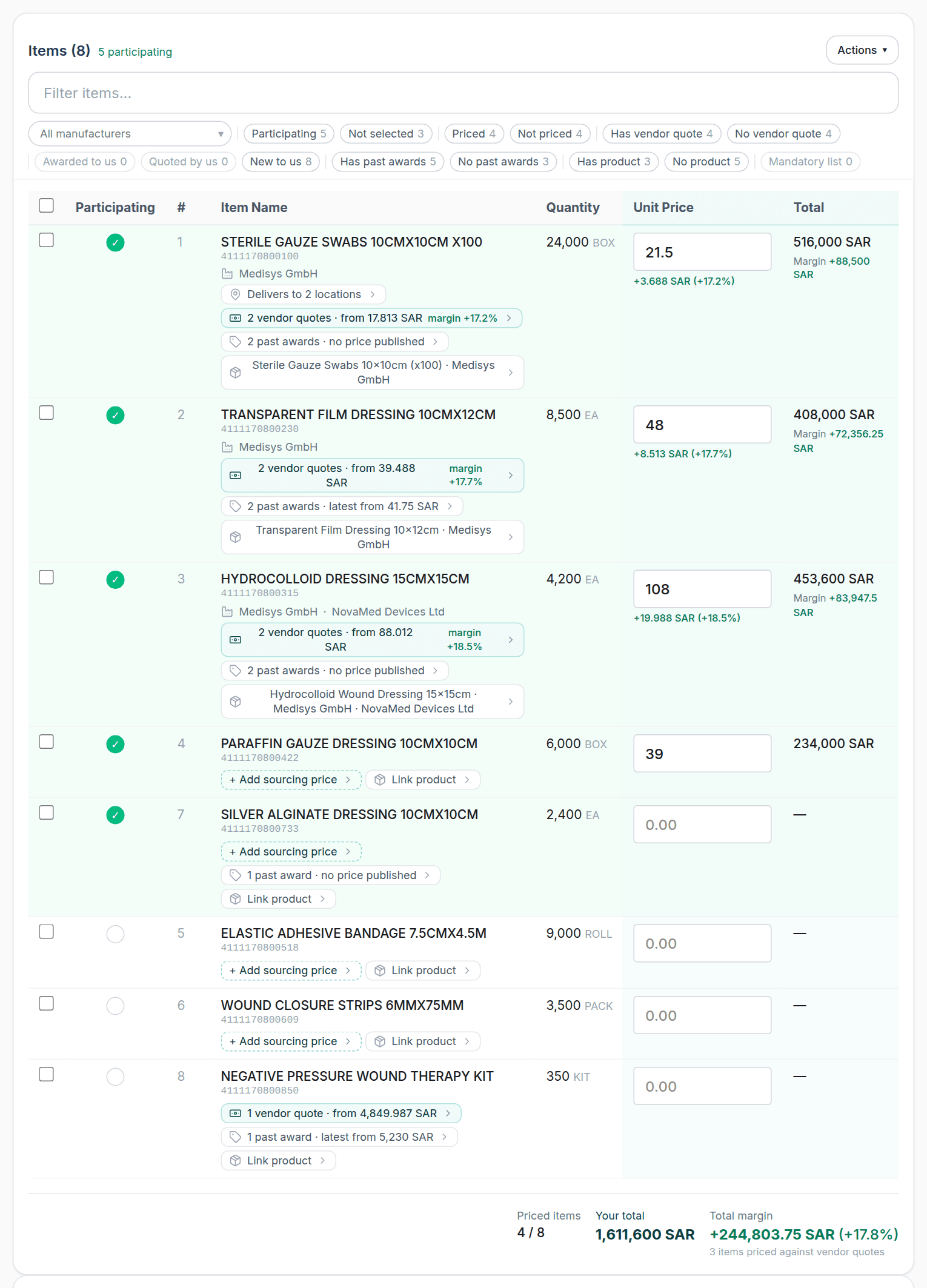
The Items card lists the tender's line items as the source published them, with their count in its title. Each item shows a participation button, its number, its name with the material code under it, a short description, the manufacturers linked to it and its insight pills, and the quantity with its unit. Show all columns in the Actions menu adds the unit, estimated price and Mandatory list columns, and Bid Pricing adds the Unit Price and Total columns (see Bid pricing). On a phone the items become cards that expand when tapped.
A ✓ in the Mandatory list column means the item is on the local-content mandatory list: the product offered for it must be made in Saudi Arabia.
Filtering the items
A NUPCO tender can carry hundreds of items, and the filter row above the table is how you reach the ones that concern you. The Filter items field understands the same search syntax (AND, OR, -, parentheses and quotes) and a bare word is searched in the item's name, description, unit, material code and linked manufacturers. The fields available here:
| Field | What it searches |
|---|---|
name: | The item name. |
desc: | The item description. |
unit: | The unit of measure. |
code: | The material code, such as code:42101504. |
manufacturer: | The manufacturers of the products linked to the item from your catalog. A field specific to this page. |
As you type, the field suggests the units, codes and manufacturer names actually present in this tender. When you open a tender from a search result marked Item match, your query arrives with you and is applied to the table, with a banner saying "Filtered to items matching your search:", the number of matching items and a Clear filter button.
Beside the field, an All manufacturers list narrows the table to one manufacturer's items (it appears once a linked product carries a manufacturer), and a row of facet chips with live counts:
| Group | Chips |
|---|---|
| Participation | Participating · Not selected |
| Pricing | Priced · Not priced |
| Vendor cost | Has vendor quote · No vendor quote |
| Our history | Awarded to us · Quoted by us · New to us |
| Market history | Has past awards · No past awards |
| Catalog | Has product · No product |
| Local content | Mandatory list |
Two chips from one group are alternatives; chips from different groups combine: Not priced with Has past awards gives you the items that were awarded before and that you have not priced yet. Priced counts a price above zero only: an item priced 0 sits under Not priced, as in the totals strip and the NUPCO files. The count on each chip is what the table would show if you pressed it. The text, the manufacturer and the chips are all kept in the page URL, so you can send a colleague a link that opens the table filtered exactly as you see it. Clear filters brings every item back.
Selecting items and bulk actions
The checkbox at the start of each row selects the item, and the one in the table header selects every item matching the current filter. All of them, not only the rows on screen. As soon as an item is selected, a bar shows how many are selected and the actions that apply to them:
- Participate / Remove participation. Mark the selected items as participating, or unmark them, in one go.
- Create RFQ: creates a request for quotation from the selected items and downloads its Excel file at once for sending to suppliers (see Requesting supplier quotes).
- One quote per selected item and One quote for all selected. Create quotations from the selected priced items: one per item (what NUPCO asks for) or a single one covering them all.
- Create products: creates a product in your catalog for each selected item, named and coded from it, and links the two, so your catalog grows out of the tenders themselves.
- Clear selection: deselects everything.
Participation
The first decision on any tender is which items you will bid on. The round Mark as participating button at the start of the row marks the item: its row turns green and the "participating" counter in the card title goes up. Participation is what the rest of the platform builds on: the two NUPCO files include participating items only, the quotation buttons count them, and the Bid Items page in the navigation bar gathers the participating items of all your tenders in one place.
To go through a long list one item at a time, choose Swipe review from the Actions menu (it appears while the tender still has unselected items). It opens a screen showing one item per card (its name, quantity, unit and estimated price) that you swipe right or press Select to participate, or Skip to move to the next, with Undo for the last decision; on a keyboard, → selects and ↓ skips. At the end the screen totals up the review and takes you back to the tender.
Bid pricing
Choose Bid Pricing from the Actions menu to show the Unit Price and Total columns (they open on their own when the tender already has saved prices). Type the unit price in SAR in the item's box; it saves when you leave the box, and Enter or ↓ moves to the next item's box and ↑ to the previous, so a whole list can be priced from the keyboard like a spreadsheet. The total is the price times the quantity.
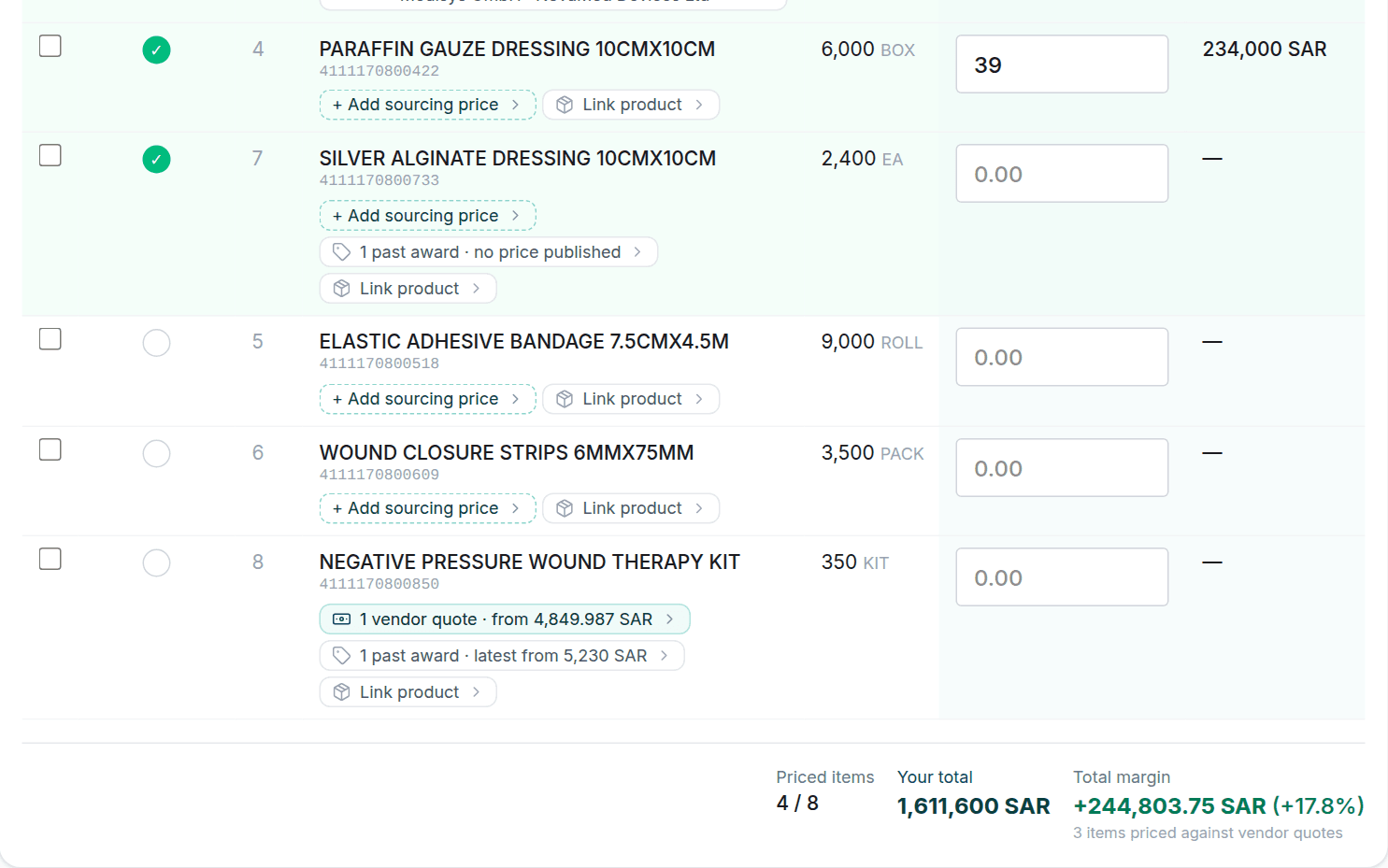
When an item has vendor quotes, a Margin appears under the price, the difference between your price and the lowest vendor cost for the item, as an amount and a percentage. It turns into a "Below vendor cost" warning if you price under it. At the bottom of the table is the totals strip: Priced items out of all items, split into participating and not participating (an item priced 0 counts as unpriced), the tender's Total estimated, Your total (the participating items only, the same set the NUPCO files take), with the amount of any priced item not marked as participating shown beside it in amber so the discrepancy is visible at once, the Difference between your total and the estimate as a percentage (green when you are under the estimate, red when over), and the Total margin over the participating items that have vendor quotes. Bid report in the details card opens the whole pricing as one analysis page.
Item insights
Under each item's name, small pills sum up what the platform knows about it, and clicking a pill opens a detail panel under the row (one open panel per item, closed with ×). A pill appears only when it has something to say:
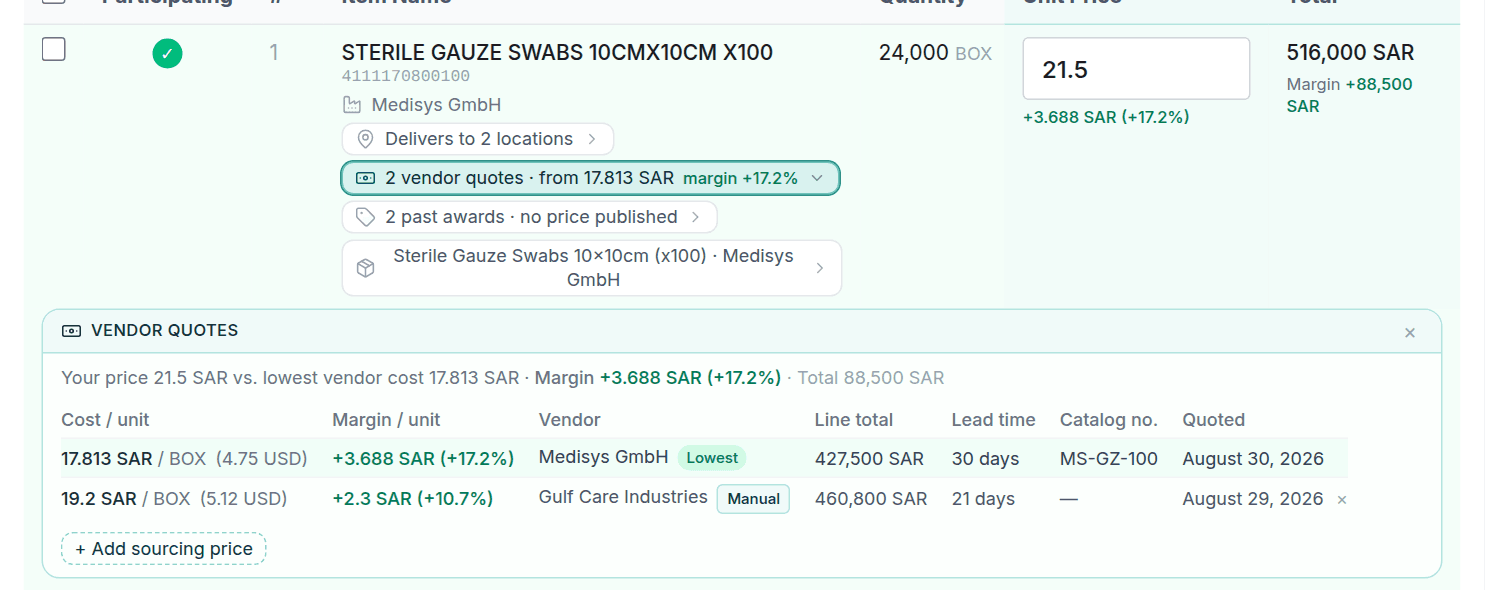
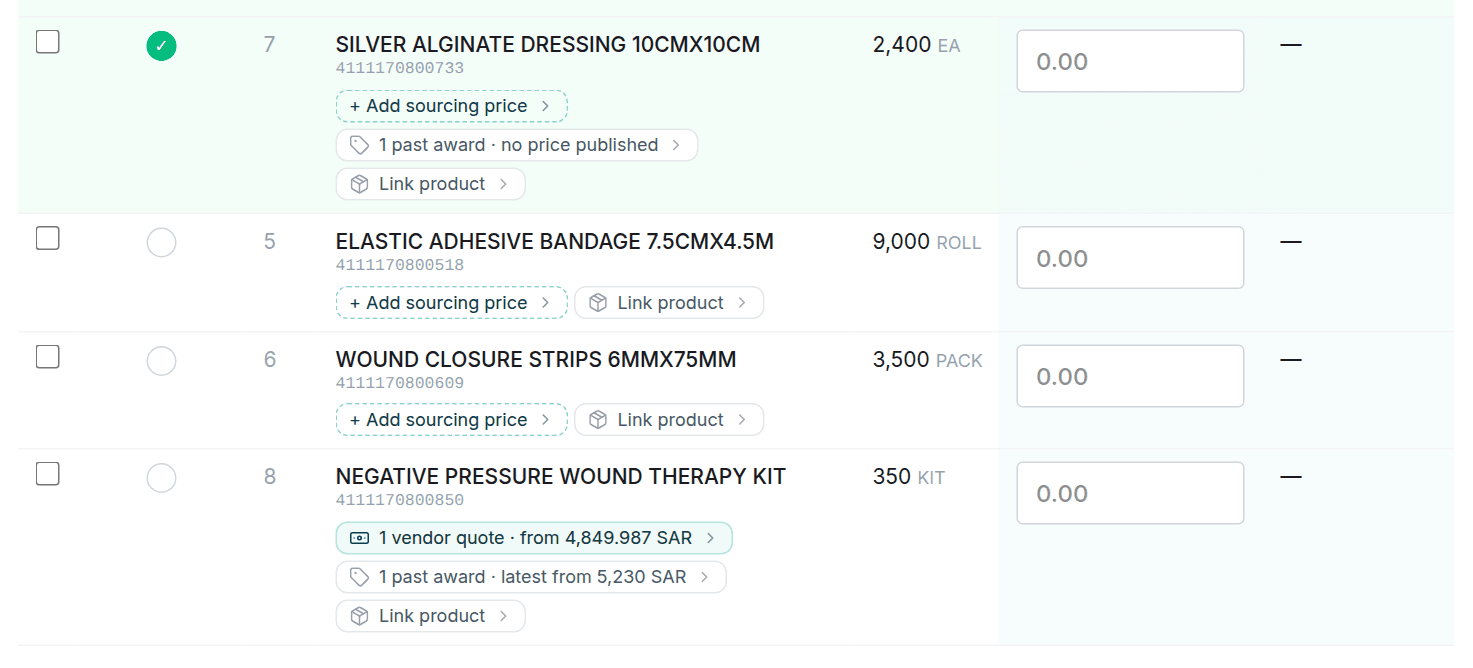
- Past awards: "N past awards · latest from price" means this material code was awarded in earlier tenders; the panel opens the awards grouped by period with the unit price, vendor, manufacturer, country and catalog number of each winner. Awards that went to your organization carry an Us chip and their count shows in green on the pill. An award published without a price shows a dash, never a zero.
- Our previous submissions: "Awarded to us N times · latest at price" or "Quoted before N times · last at price": your own earlier prices on the same code from previous tenders on the platform, with reference, date, price and status, so you price knowing what you offered before and what won.
- Vendor quotes: "N vendor quotes · from price" with a margin chip: every supplier price recorded for this item on this tender, with the cost per unit, line total, lead time, catalog number and date, the cheapest marked Lowest. Prices in other currencies are converted to SAR with the original in parentheses.
- Delivers to N locations: on NUPCO tenders that name delivery sites, the panel lists the plants, their addresses and the quantity due at each.
- Linked products: see below.
Recording a supplier price
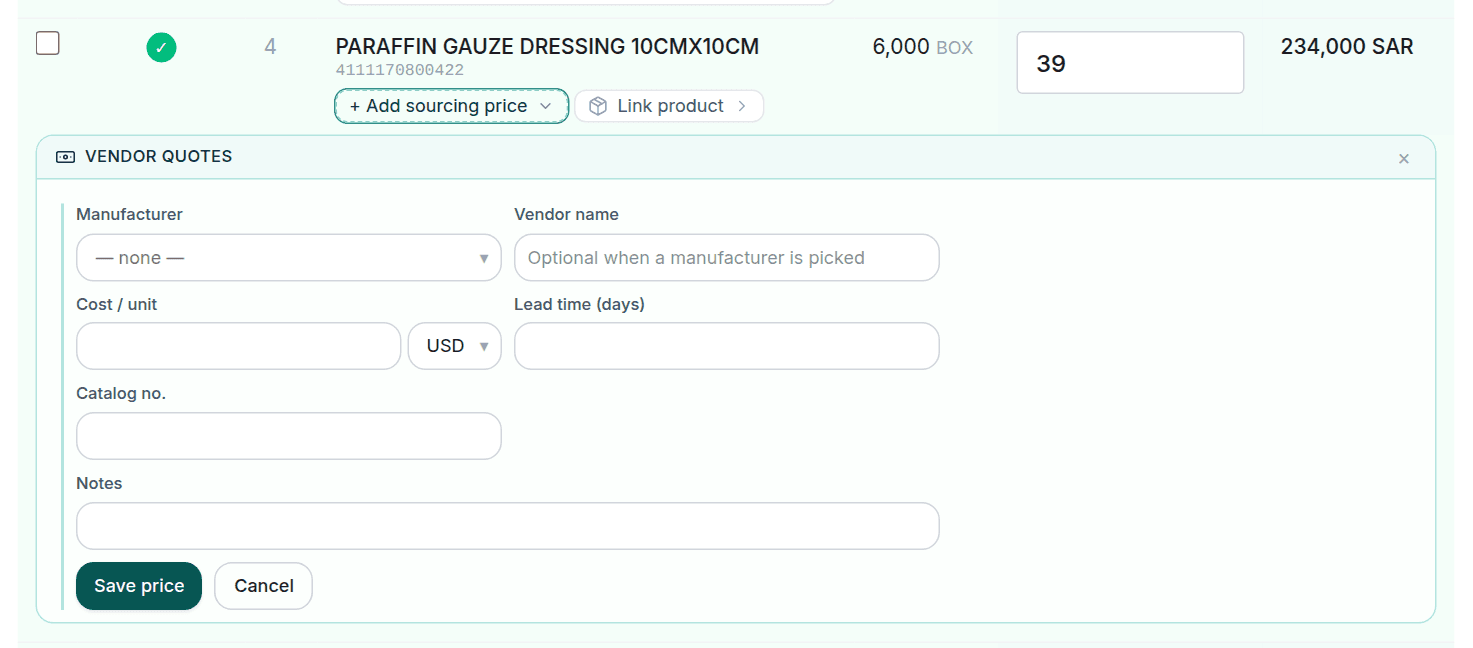
To record a supplier price for one item without a full RFQ, press the Add sourcing price pill (or open the vendor quotes panel). The form takes the manufacturer or vendor name, the cost per unit and its currency, the lead time in days, the catalog number, the quoted product and notes; press Save price. The panel also shows Prices from past tenders (the supplier prices you recorded on the same code in other tenders) and Use for this tender copies one of them onto this tender.
Linking an item to a product
The product pill under the item's name shows the product chosen for it from your catalog and its manufacturer, or "N linked products" when its code has several, or Link product when it has none. The panel opens the products linked to the code and a Search catalog products… field to search by name or NUPCO code; Use for this item picks a product (marked Selected) and Clear selection unpicks it. Picking a product also links it to the item's NUPCO code, and that link (the products on offer for the code) shows on every item carrying the same code on this tender and others; the pick itself is per item, and an item with no code is linked on its own.
If the product is not in your catalog yet, Create product from this item creates it at once with the item's name and code and links it, and Create new product opens the full product form with the code filled in and brings you back to this page after saving. The link is what gives the item its manufacturer in the table and the filter, and what fills the trade name, product data and VAT rate in the NUPCO response file.
The NUPCO files
Submitting on a NUPCO tender goes through the SRM portal with two files that are prepared from this page, for roles that see pricing: the response file with the prices, and the attachments file naming each item's documents. Both are in the Actions menu and open a panel inside the items card, and both cover priced, participating items only. An item priced 0 counts as unpriced and is left out.
The NUPCO response file
- Price the items you are bidding on and make sure each is linked to a product from your catalog.
- Download the tender's bid-response Excel file from the NUPCO portal. The template the portal itself provides, not any other file.
- Choose Fill NUPCO response file from the Actions menu, then Upload & fill template and pick the file.
- Read the report, then press Download to take the filled file and upload it on the portal.

The platform matches the template's rows to your items by material code and, in every priced, participating row, fills the columns NUPCO lets a supplier change: the price, the VAT rate (from the selected product: 15% unless the product says otherwise, and medical products in your catalog are zero-rated), the trade name, catalog number, manufacturer and country, SFDA registration details, lead time and the rest. Whatever is not filled stays as it came from the portal. The report says how many items were filled across how many rows, names the priced codes not found in the template, the priced items left out for not participating, the items priced 0 that were left out, and the rows still missing a mandatory field for you to complete by hand before uploading.
The NUPCO attachments file
The portal's second upload is a tab-delimited text file naming, for each item, its quotation PDF, catalog, SFDA certificate and MDMA annex. Choose Generate NUPCO attachments file from the Actions menu, type the RFx response number as the portal shows it, and press Generate attachments file. You get one ZIP holding the text file ready for upload together with every PDF it cites under exactly that name: the item's quotation (from the quotations you created for it on the platform), its product's cover page followed by the catalog stored on the product, and the SFDA certificate stored on the product or a generated compliance letter when there is none, so the extracted files go up beside the text file as they are.

The report names the lines missing a file and which slot is missing (an item with no quotation on the platform, for instance) and warns when a quotation is still a draft (it prints without the stamp). Create and approve the items' quotations before generating the file.
Requesting supplier quotes
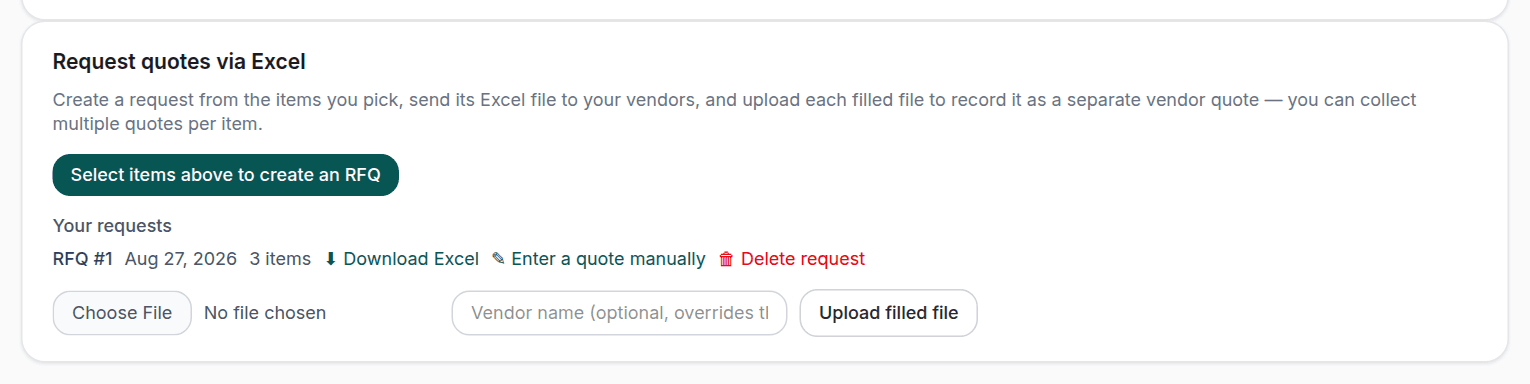
The RFQ section under the table collects supplier prices for this tender's items, and is shown to the roles that see cost pricing. The way it works: select the items in the table and press Create RFQ; the request is created and its Excel file downloads for you to send to your suppliers. Your requests lists them, each with Download Excel again, Enter a quote manually to record a reply that came by phone or email, and Delete request. When a supplier returns the filled file, upload it with Upload filled file (with the vendor's name if they did not write it in the file) and it is recorded as a separate response; you can collect several responses per item.
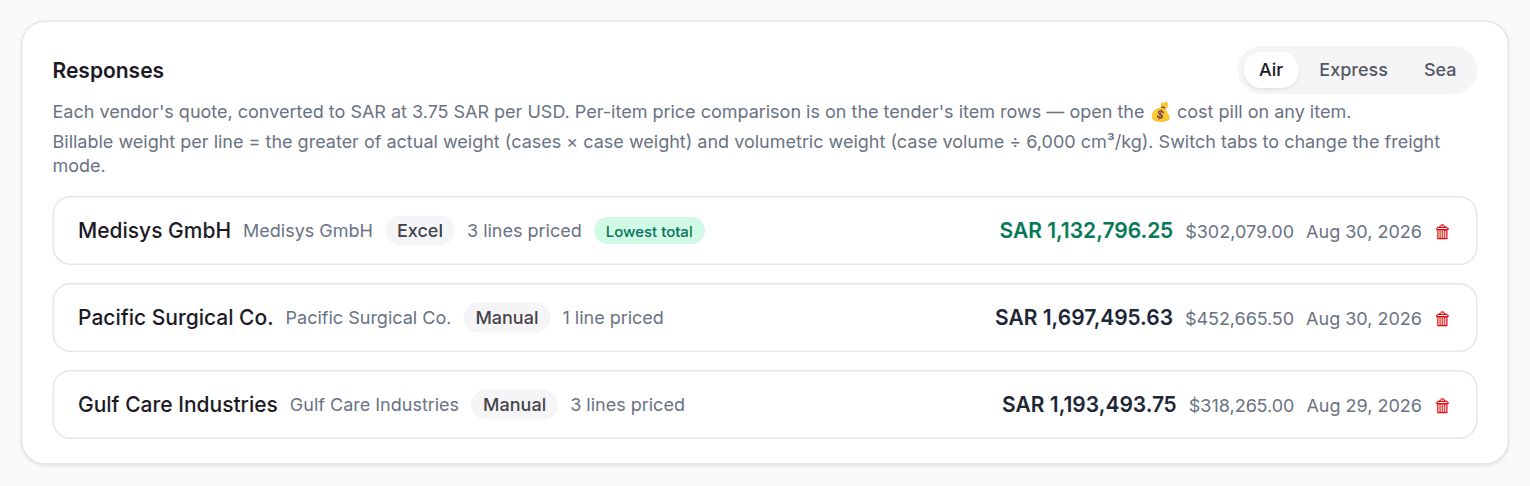
The Responses card shows each response as a table of its priced lines converted to SAR, with lead time, catalog number, packing and weight, the response with the lowest total marked Lowest total. The Air, Express and Sea tabs compute the billable weight for each shipping method. Every price that arrives here also shows in the Vendor quotes pill on its item and in the margin when you price.
The other cards
- Manufacturers: a collapsed card listing every manufacturer linked to the tender's items through your catalog, with each one's item count; the name opens the manufacturer's page, and clicking the count filters the table above to its items and takes you back to it.
- Delivery Locations: on NUPCO tenders that name delivery sites, a card with each location, its address and the number of items due there.
- Quotations: the quotations your team created for this tender, with number, date and total; each opens its page and has Download PDF, and Download all PDFs takes them all.

Requests added by hand
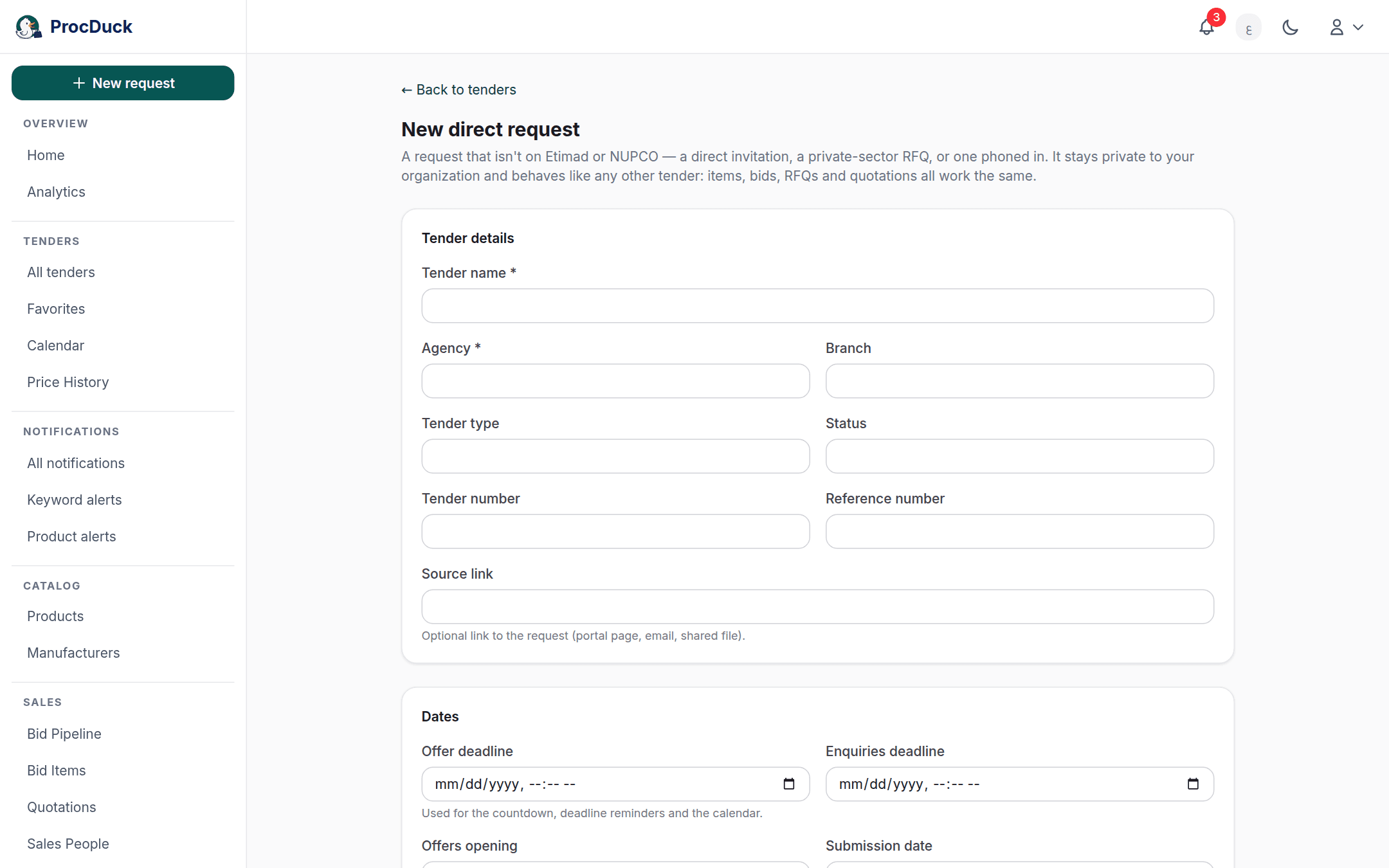
A tender your team added itself: a direct invitation, a private-sector request, or one phoned in. Through New request in the navigation bar carries the Added manually badge and behaves like any other tender: items, participation, pricing, RFQs and quotations. It is also the only kind you can edit: Edit request in the details card (for owners and admins) opens the Edit direct request page with the tender's details, dates, fees and its items grid, where you type, paste from Excel or import a file. Save changes saves, and Delete tender deletes it after a confirmation: together with everything attached to it, items, bid, prices, requests and quotations, with no way back.
Outside the browser
Everything on this page is available to your own software and to AI agents: the tender details endpoint returns the tender and its items, the bids endpoint returns your pipeline, and the matching MCP server tools cover participation, pricing, product links and the NUPCO files. The assistant, Haitham, can also open a tender by its number on WhatsApp or by email, answer questions about its items and price them for you. See Getting started.