Features
Calendar
The offer deadlines of the tenders you follow (your favorites and your bid pipeline) on one monthly calendar, with the ones closing soon highlighted.
The Deadline Calendar puts the offer deadlines of the tenders your team follows on one monthly grid, so you see what closes this week and the next at a glance. It is reached from Calendar under the Tenders section of the navigation bar, or from the Calendar button under the number tiles on the dashboard. Every tender on it opens the tender page.
What appears on the calendar
The calendar does not show every tender on the platform (that would be thousands of dates), only the tenders your team has said it cares about, from two sources:
- Favorites: every tender a member of your organization has starred.
- The bid pipeline: every tender your organization has a bid on, in any stage: Reviewing, Preparing and Submitted, but also Won, Lost and Cancelled. A settled bid stays on the calendar on its deadline day.
Each tender appears once, on the day its offer deadline falls, with tags saying why it is there: a yellow Favorite tag, and a tag with the bid's stage in the same colour the pipeline uses for it. A favorited tender that also has a bid carries both tags.
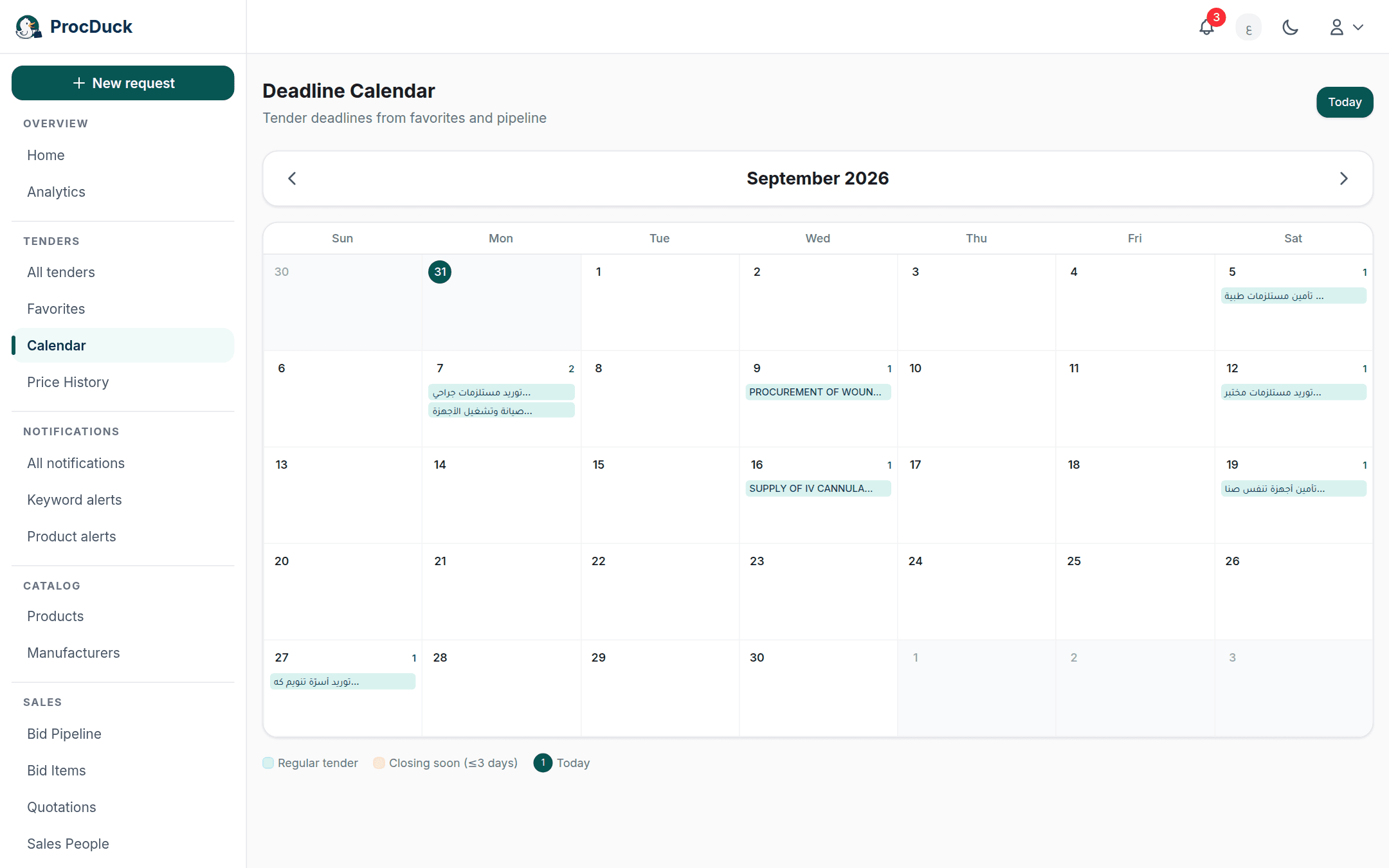
Reading the month
At the top of the page, Today brings you back to the current month, and under it a bar shows the month and year with arrows for the Previous month and Next month. The grid is whole weeks from Sunday to Saturday; the days of the neighbouring months that complete the first and last week appear greyed out but still show their deadlines. Today's date has its number in a circle in the brand colour.
A day with deadlines shows the count of its tenders in the corner, and under the number up to three shortened names (hovering a name shows it in full with its reference number), then +N for the rest. The name's colour is what separates the urgent from the rest, as the legend under the grid explains:
| Legend | Meaning |
|---|---|
| Regular tender | In the light brand colour: its deadline is more than three days away. |
| Closing soon (≤3 days) | In red: three days or fewer remain, and it stays red once the deadline has passed. |
| Today | The coloured circle around the current day's number. |
One day's tenders
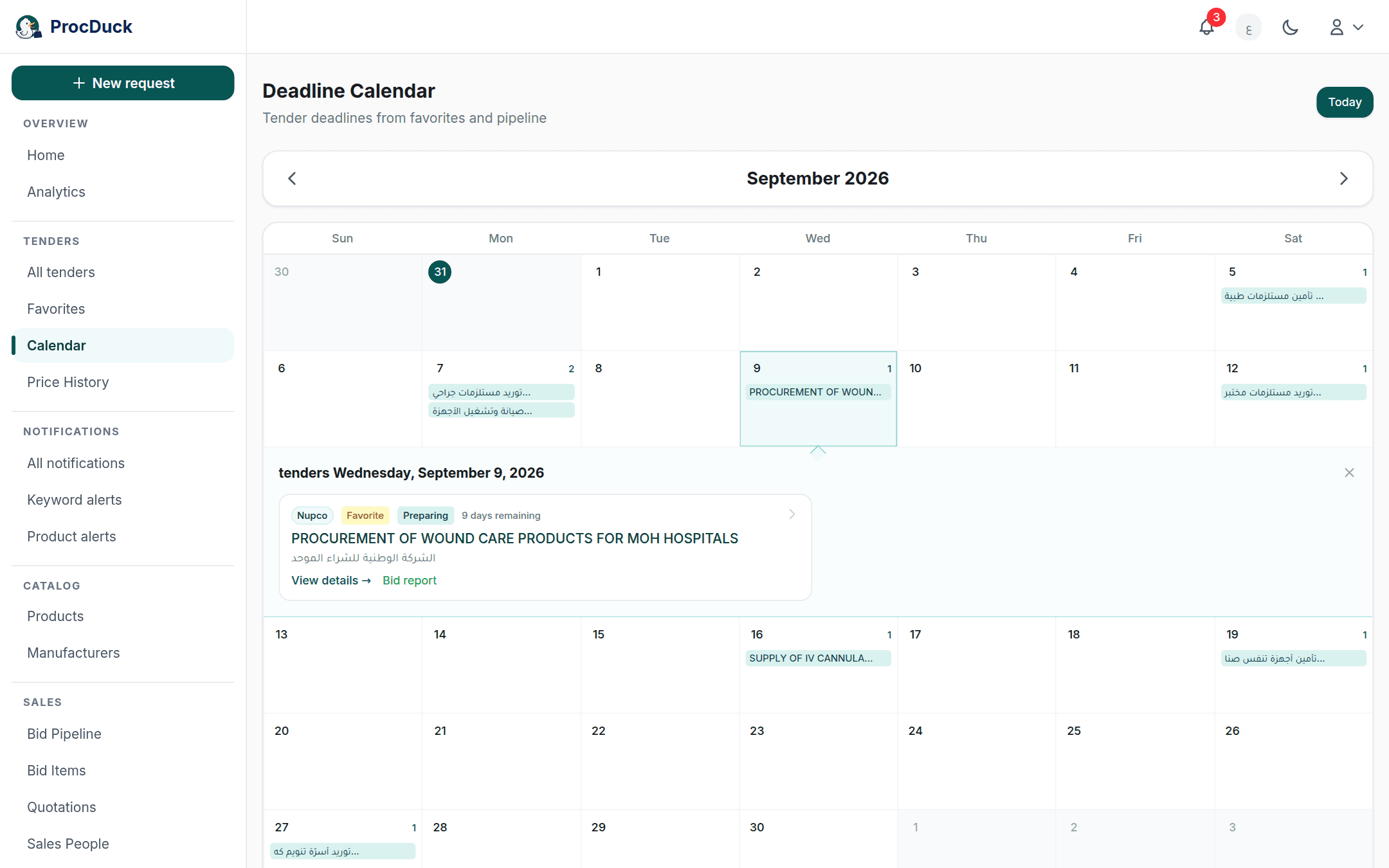
Clicking a day opens a panel under its week, headed with the full date and holding a card for each tender on it; clicking the day again or the close mark folds it, and so does moving to another month. An empty day says No tenders on this date. Each card carries:
- The source badge (Etimad, Nupco or Added manually) then the favorite and bid-stage tags.
- The days remaining until the deadline, as long as it has not arrived yet: grey, then orange at seven days or fewer, red at three or fewer.
- The tender's name, under it its reference number as the source published it (the tender number when it has no reference number), then its agency. Clicking the card, or View details, opens the tender page.
- A Bid report link, which opens your bid's report for this tender (its items and saved prices on a printable page) for the roles that see pricing.
Putting a tender on the calendar and taking it off
The calendar has no add buttons of its own; it mirrors what your team follows. To put a tender on it, star it from the tender page or the search results, or add it to the pipeline with Add to pipeline. See the bid pipeline on the tender page. To take it off, remove the star, or take it out of the pipeline with Remove; changing the bid's stage alone does not remove it, it only changes its tag.
Outside the browser
One month's deadlines (with the same tags and days remaining, over the whole weeks the grid shows) are available to your own software and to AI agents through GET /api/v1/calendar?year=2026&month=9 with the analytics.read scope, and through the calendar_get tool of the MCP server. See the API reference and Getting started.