Features
Products
Your organization's product catalog: record each product's data, prices and files once, and it finds its own matching tenders and fills your bids and documents wherever you need it.
The My Products page, under the Catalog section of the navigation bar. Is your organization's shared product record. A product recorded here works everywhere on the platform: it matches new tenders on its own (this page, the Product alerts page and the notifications), it is linked to tender items from the tender page, and its data (trade name, packing, registration and VAT rate) is pulled into the NUPCO files and quotation documents. The catalog belongs to the whole organization: what a colleague adds, you see.
The product list
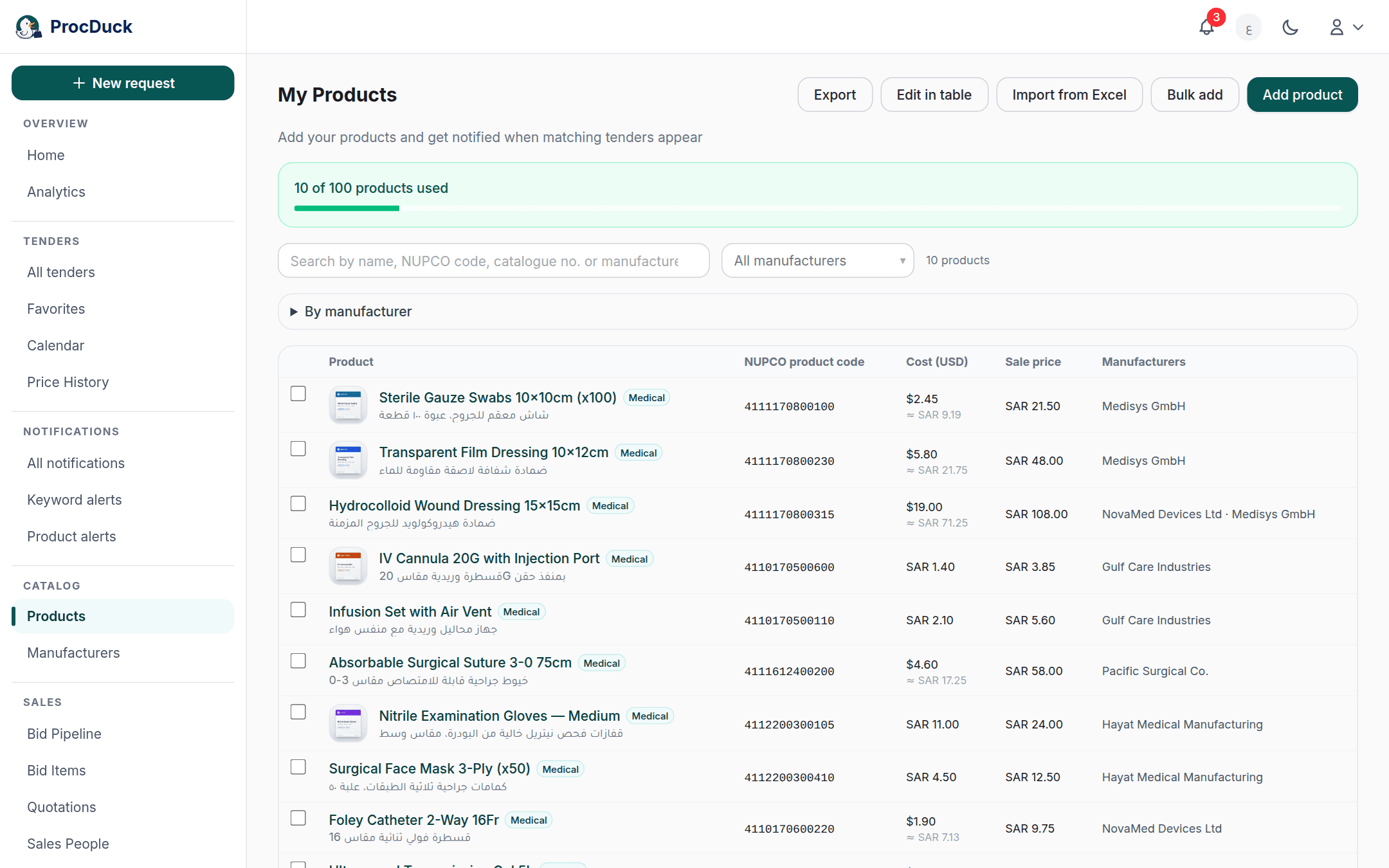
The table shows 50 products per page: the product's thumbnail and name (linking to its page) with a Medical badge where it applies, then the NUPCO product code, the Cost (USD) and Sale price columns for the roles allowed to see them (see roles) and the linked Manufacturers, each a link to its own page. Above the table a usage bar reads N of M products used: products count toward your organization's plan limit, and one moved to the trash frees its slot.
The search box: Search by name, NUPCO code, catalogue no. or manufacturer…. Looks for a plain word in those four fields at once, and understands a structured syntax in the style of the tender search bar with the catalog's own fields:
| Write | To find |
|---|---|
catheter | The word in the product's name, NUPCO code, catalogue number or a linked manufacturer's name. |
name:, description:, code:/nupco: or catalogue: | The word in that one field. A plain word does not search the description, so target it with description:. |
manufacturer:braun | Products linked to a manufacturer whose name contains the word. |
keywords:bandage | Products one of whose stored keywords is this whole word. This field matches an entire stored keyword, not a fragment of one. |
catheter OR tube, -veterinary, "exact phrase" | The same grammar: OR for either word, - to exclude, and quotes for an exact phrase. |
Beside the box an All manufacturers dropdown narrows the table to one manufacturer's products, and below it the collapsible By manufacturer panel shows a chip per manufacturer with its product count. Clicking one applies the same filter. The search, the filter and the page number all mirror into the URL, so a copied link opens on the same slice.
Adding a product
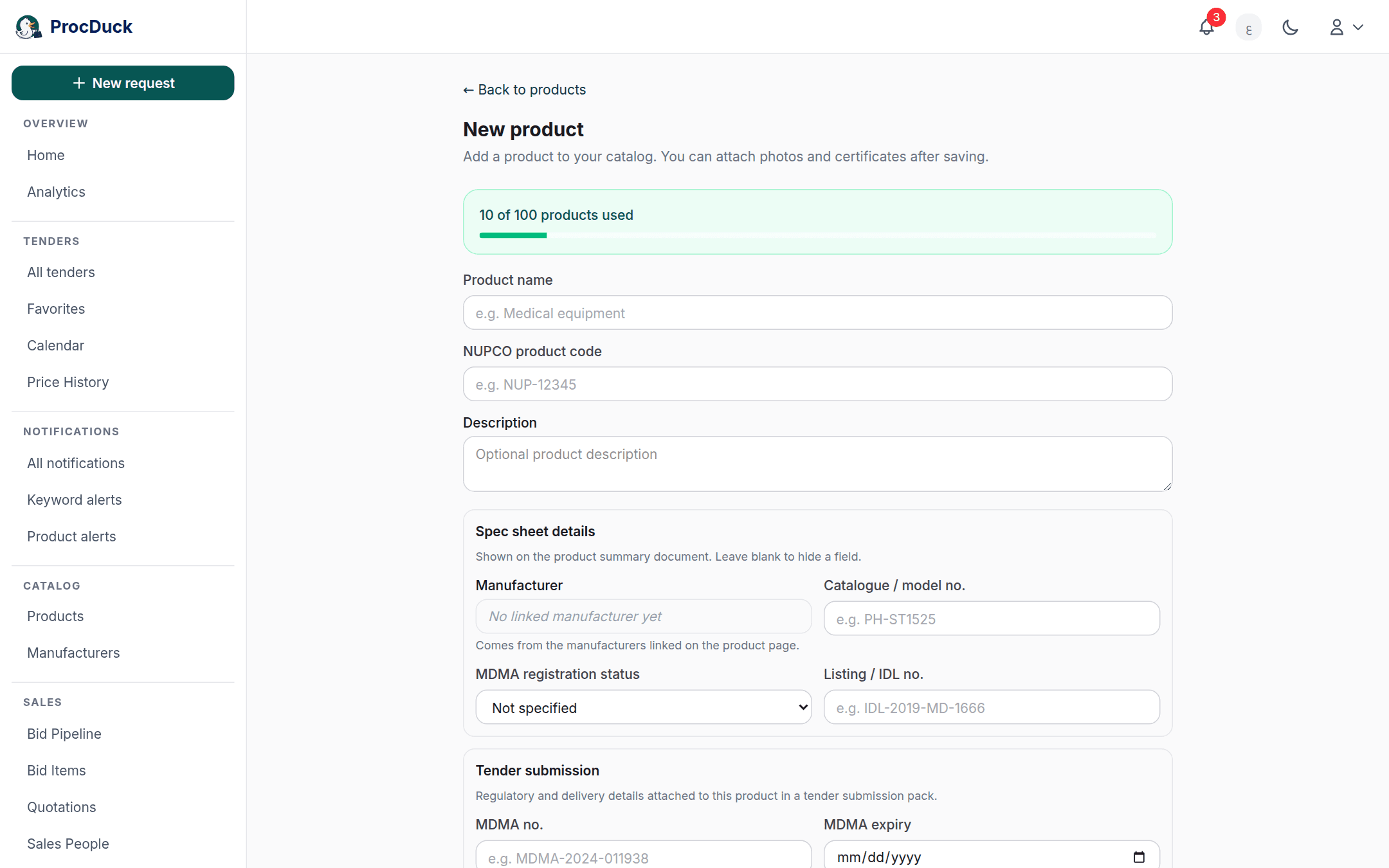
The Add product button opens the New product page with the full product form. Only the name is required; everything else is optional and can be left blank to be hidden from documents or to inherit defaults. The form is split into sections, each feeding a part of the platform:
- The basics: the product name, the NUPCO product code and the description. The code here is the product's primary one; extra codes are linked from the NUPCO codes card on the product page.
- Spec sheet details: what prints on the product summary document: the manufacturer (read-only, from the linked manufacturers), the Catalogue / model no., the MDMA registration status (Ready / Under registration) and the Listing / IDL no.. For a product Under registration, submission packs attach the generated bilingual registration-status letter instead of the SFDA certificate.
- Tender submission: what the platform writes into NUPCO response files and submission packs: the MDMA no. and its expiry, the Minimum order qty, the Shelf life, First delivery and Order delivery in days (leave them blank to inherit the organization defaults shown as a hint), volume and its unit, package type, size and packing UOM, the FOC %, the VAT %, and free-text additional information.
- Pricing: the Cost (USD) with its approximate SAR equivalent, the Sale price (SAR), and the Medical product checkbox. Marking a product medical switches the VAT to 0% automatically (qualifying medical goods are zero-rated in Saudi Arabia) and unmarking it back to 15%, with a note telling you so. A manual edit of the field afterwards is what sticks.
- Search query: the matching query, in the same input bar as the search page with field typeahead and live syntax validation. The how a product matches tenders section explains how it is used.
- Logistics: the unit's weight, dimensions and unit of measure, then Packing (per case): units per case with the case's weight and dimensions, the optional Inner packing, and the Country of origin. Used to compute shipment volumes and printed on documents.
Adding many at once
Three buttons beside Add product serve large catalogs, each for its own case:
Bulk add
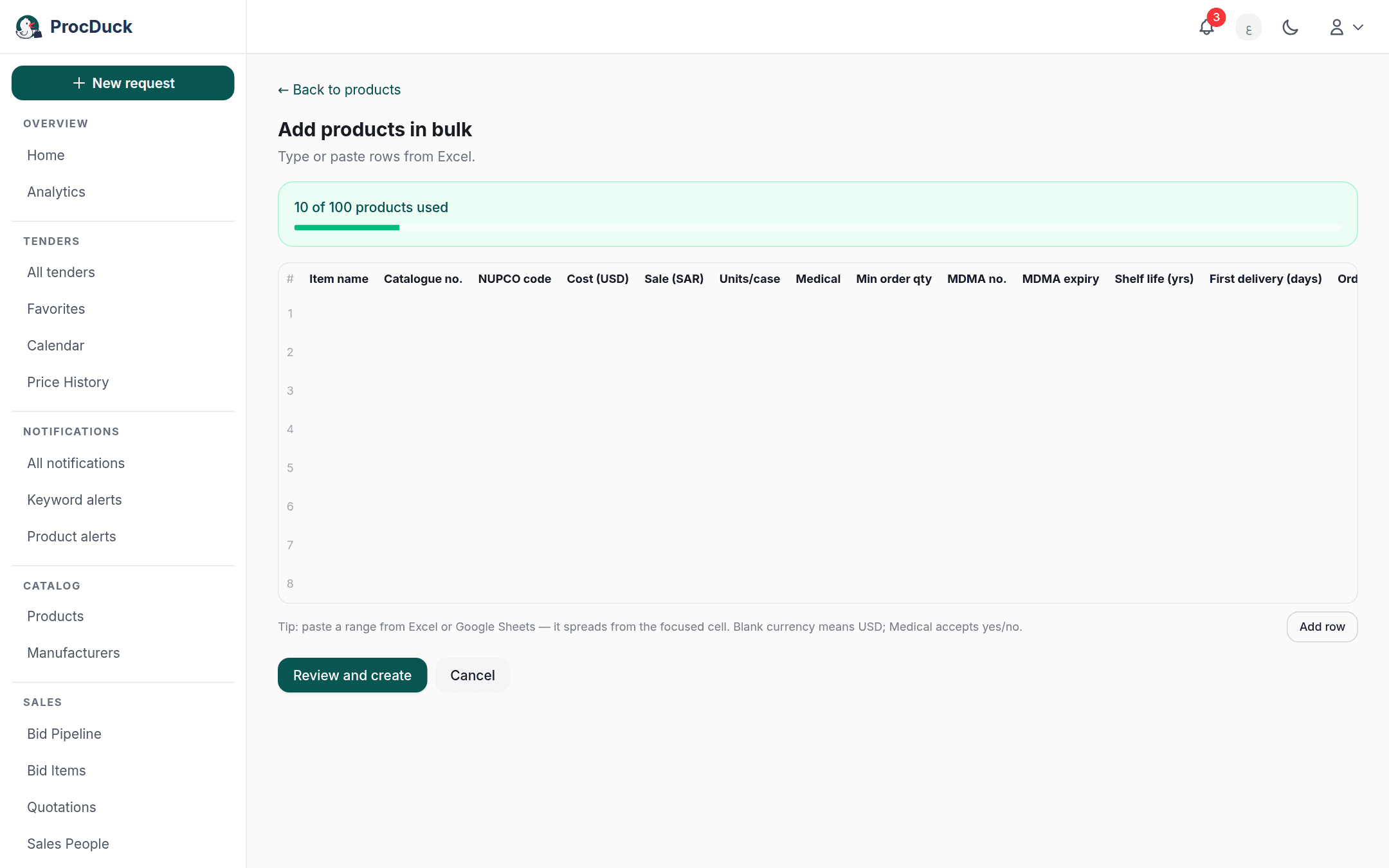
Bulk add opens an excel-like sheet you type into or paste rows into straight from Excel: name, catalogue number, NUPCO code, prices, packing and registration data, and the Manufacturers cell takes several names separated by commas (up to 20 per row); a name not in your directory gets a new manufacturer created, and the review card names them before saving. Each row has a photo column taking up to 5 images (JPEG/PNG/WebP/GIF, 5MB each). Review and create shows the summary, and Create everything saves the batch in one atomic request: either every row is created or nothing is. Photos upload after the create, and a failed one is retried on its own without repeating the batch.
Import from Excel
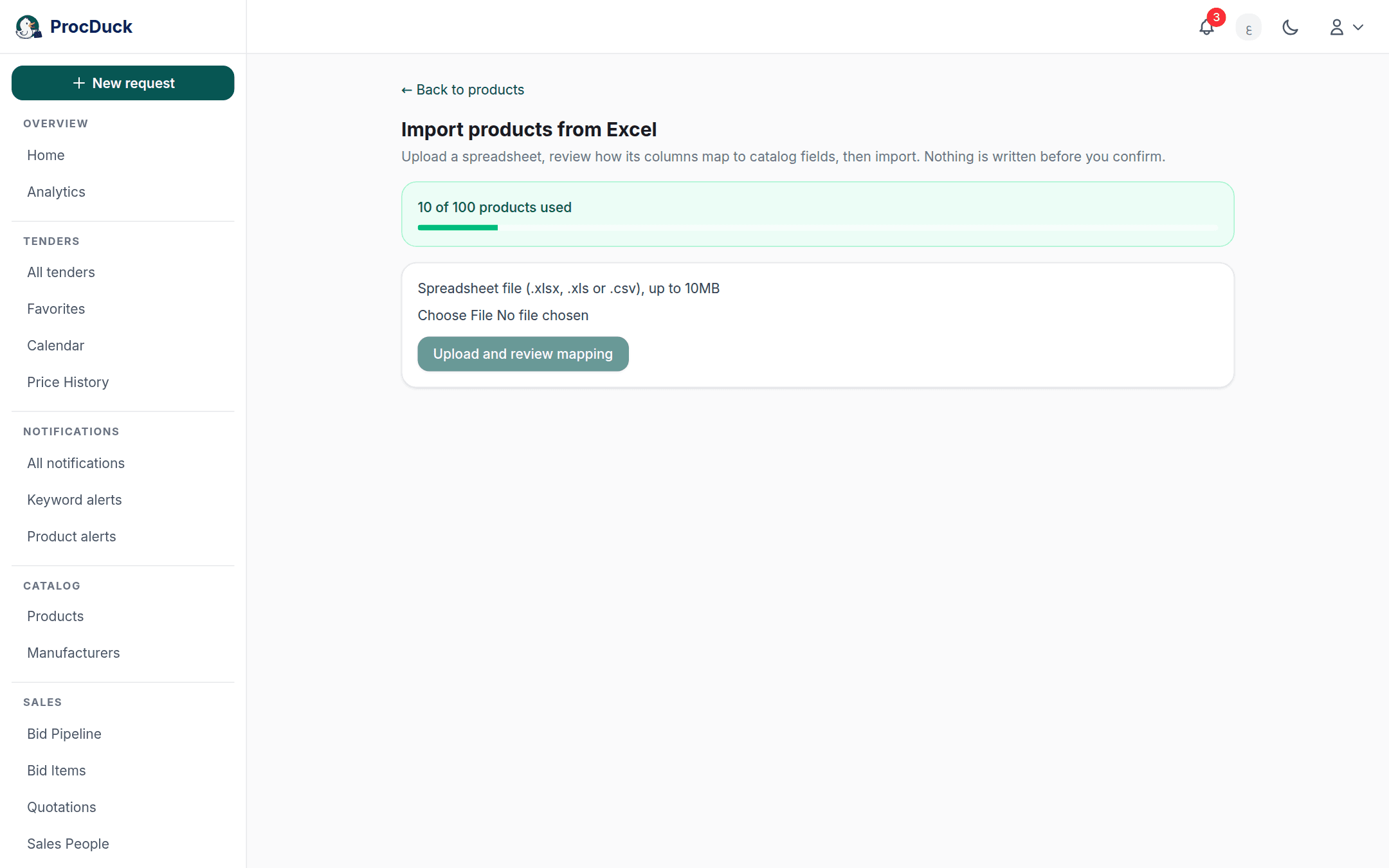
Import from Excel takes an .xlsx, .xls or .csv file up to 10MB with any column labels: your supplier's file as it is. After Upload and review mapping the page shows how each column was understood (the column, its header, and which field it imports as, or Ignore), with a confidence score, concerns and a preview of the first rows, and you can correct any column from its dropdown before pressing Import. Nothing is written before you confirm; empty rows, repeated headers and banner strips are skipped and counted, and up to 500 rows import per run. Unknown manufacturers are created here too, named by the completion report.
Edit in table
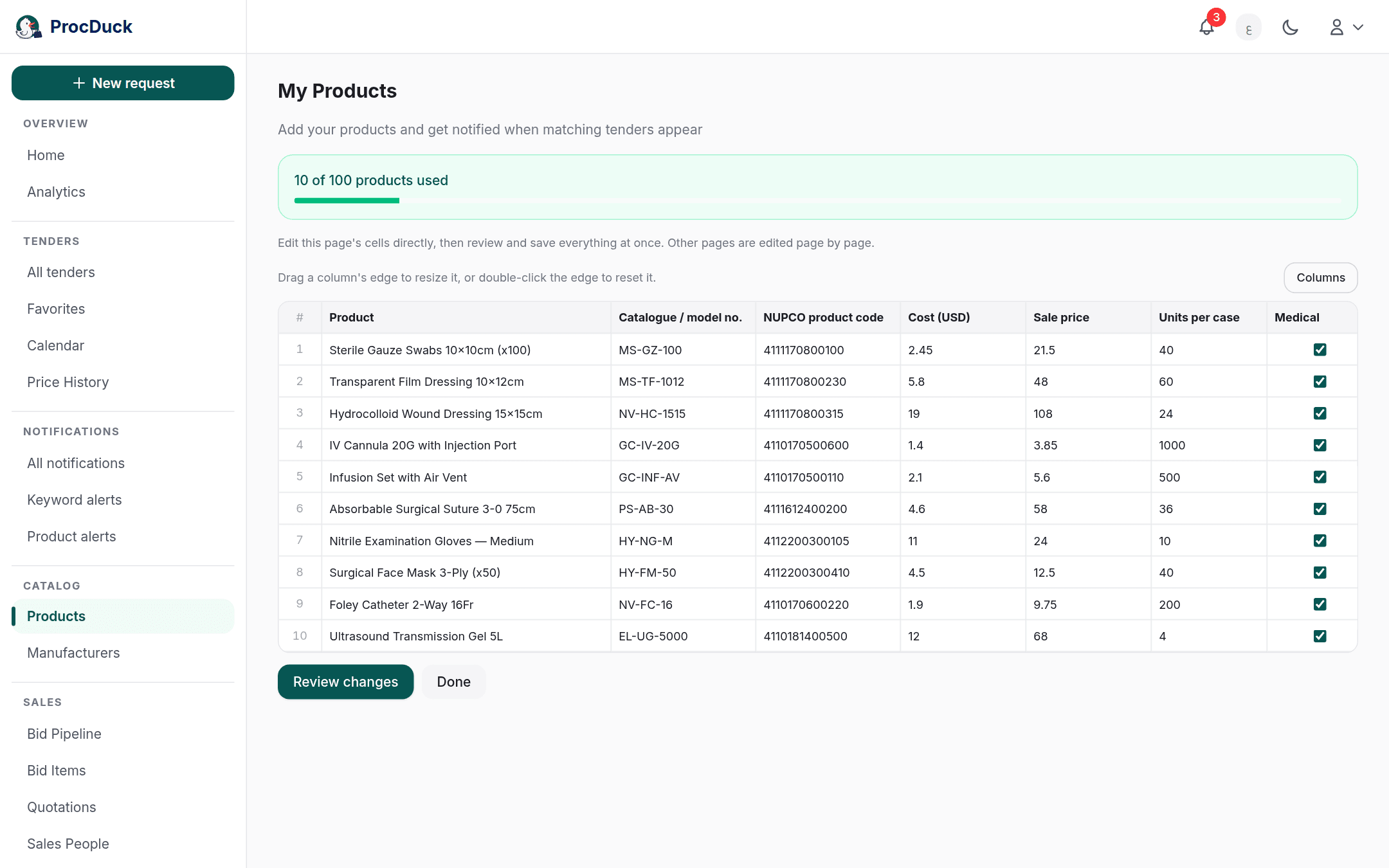
Edit in table turns the current list page into a sheet whose cells you edit directly. Name, catalogue number, NUPCO code, cost, sale price, units per case and the medical flag. Review changes shows how many rows changed and Confirm and save saves them together; other pages are edited page by page. Pricing columns your role may not see do not appear at all, and the server protects their values on save regardless.
The product page
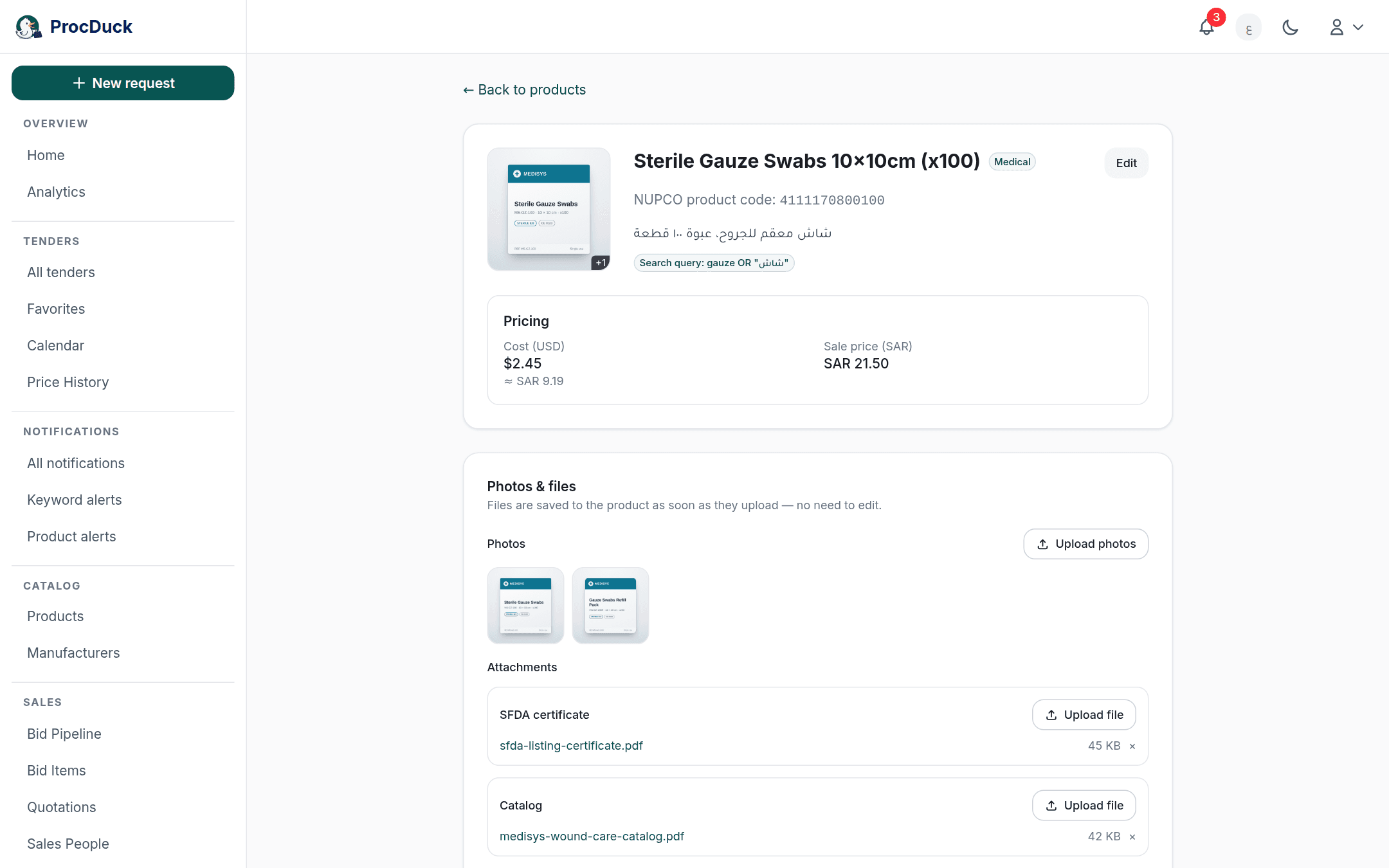
Clicking a product opens its page: the photo, name, Medical badge, NUPCO code, description and the search query when set, the Pricing card for the roles allowed, and an Edit button opening the full form in place, with the Delete product button inside it. Below the header come the product's cards:
Photos and files
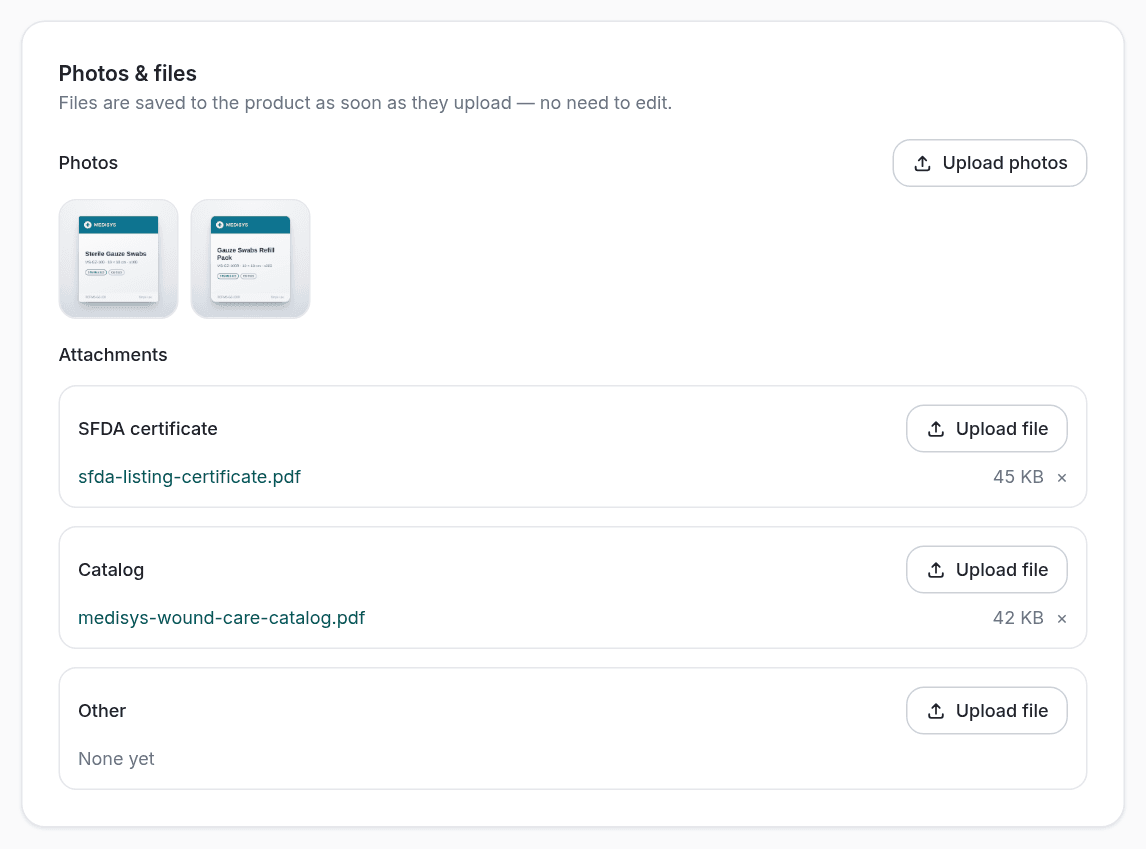
The Photos & files card uploads the product's photos and its attachments in three categories: SFDA certificate, Catalog and Other. A file is saved to the product the moment it uploads (no edit mode needed) and removed from the × beside it. The first photo is the list thumbnail, and the SFDA certificate and catalog are what quotation documents and the NUPCO attachments packet pull later, so uploading them here once saves attaching them to every bid.
NUPCO codes
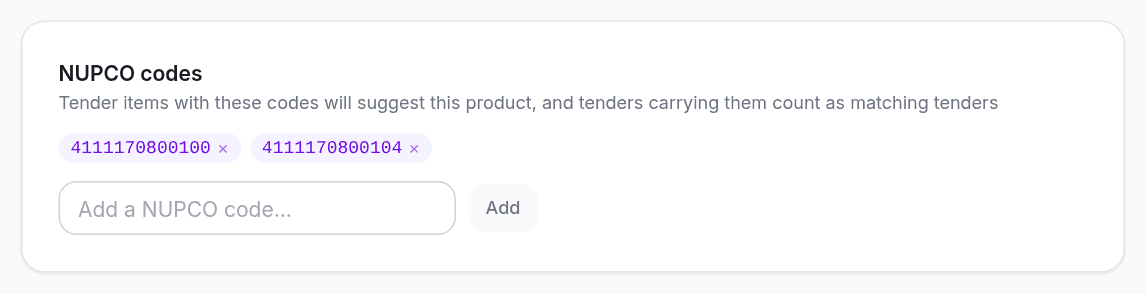
The NUPCO codes card links any number of material codes to the product beside its primary one, for a product that shows up in NUPCO tenders under more than one code. Tender items carrying one of these codes suggest this product in the linking panel on the tender page, and tenders carrying them count as its matching tenders.
Linked manufacturers
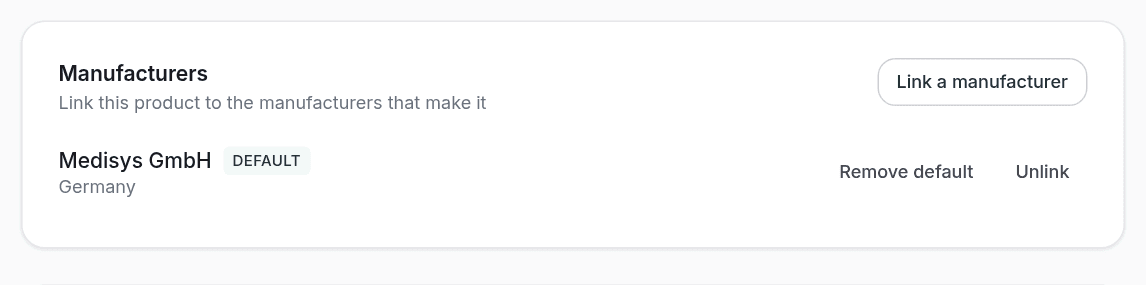
The Manufacturers card links the product to the companies that make it from your organization's directory: Link a manufacturer opens a picker searching by name or country, and each linked one has Set as default and Unlink. The Default manufacturer (at most one per product) is the one generated documents pick when none is specified, and the link is what shows the manufacturer's name in the list, its filter and the tender items table. Manufacturers have their own page and their own guide.
The two price histories
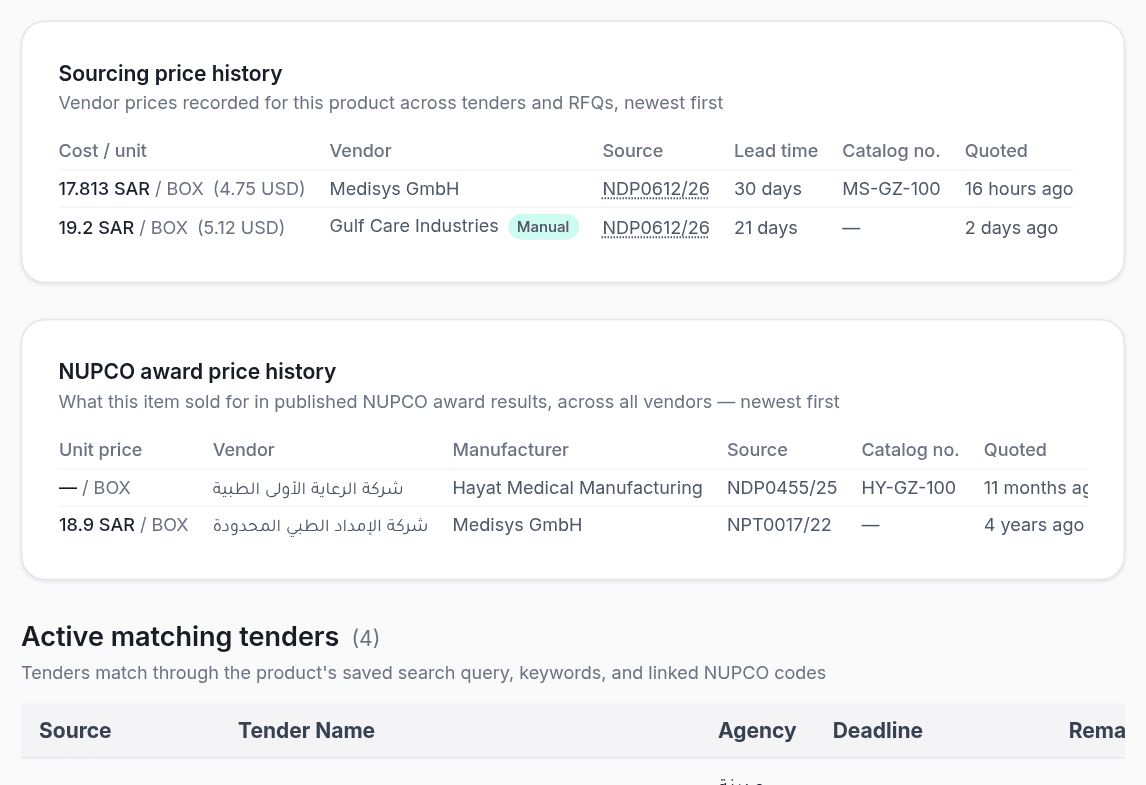
Two read-only cards appear when there is data: Sourcing price history, every supplier price your organization has recorded for this product across tenders and RFQs, newest first, and NUPCO award price history: what this product's codes were awarded at in published NUPCO results across all vendors, with a chip marking the rows your organization won, and a dash (never a zero) where no price was published. The second is the product's slice of the general Price History record.
At the bottom of the page sit Active matching tenders and Show past tenders: the tenders the product finds under the matching rules below, open ones then expired ones, with an item-match marker on those admitted through their items, and opening a tender from here opens its items table filtered to the same query.
How a product matches tenders
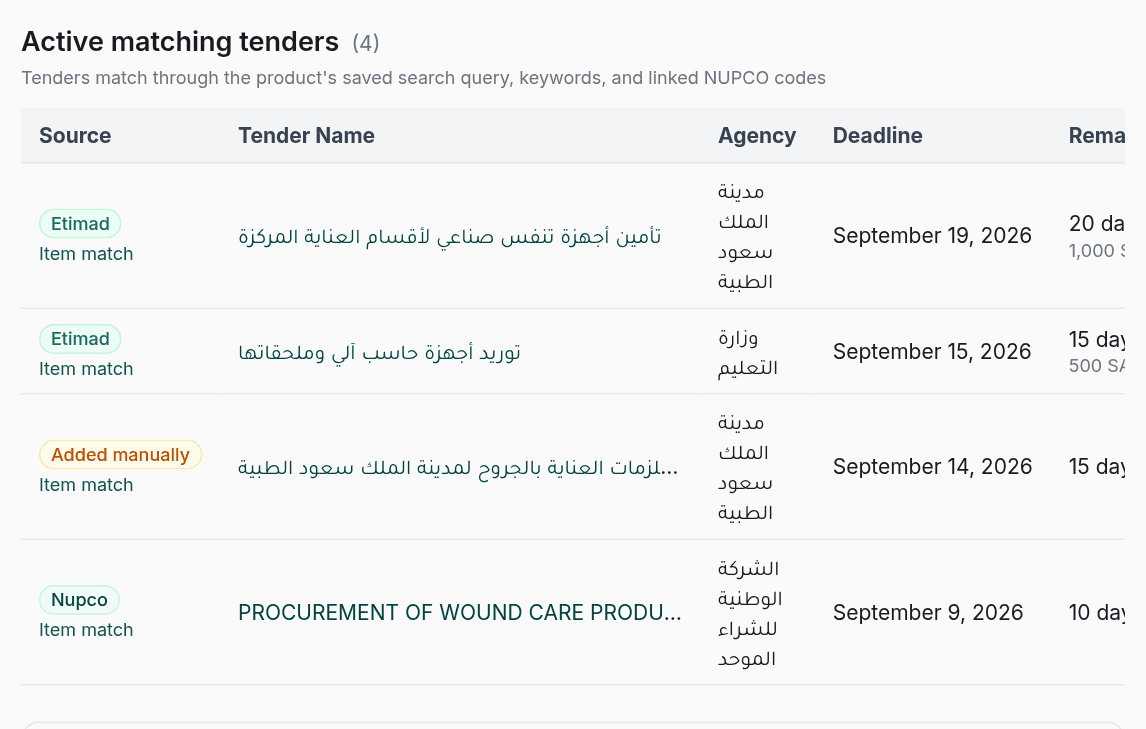
The matching rules are the same everywhere. The product page, the Product alerts page and the notifications never disagree:
- The search query first. When the product has a saved search query, that is the whole matching expression, in the full search-page syntax. When it has none, its stored keywords (from older imports) are searched as phrases, any one sufficing. Both empty? Only the third path remains.
- NUPCO codes always. A tender one of whose items carries the product's primary code or a linked one matches it with no query at all. The most precise path, and the one most worth maintaining.
- A bare-word query must hold within one item. Because a product is one line item in reality, a query written as bare words must hold entirely within a single item of the tender (or within its own name and agency).
catheter AND siliconedoes not match a tender where the two words sit on two different items. A query with explicit fields such asagency:anditem:( )runs exactly as written.
New matches enter the same scheduled check as keyword alerts: one Product match: notification per tender however many of your products match it, delivered on the same channels. In-app, by email to every member of the organization because products belong to the organization rather than one person, on WhatsApp for enabled numbers, and to your webhooks as a tender.matched event.
The Product alerts page
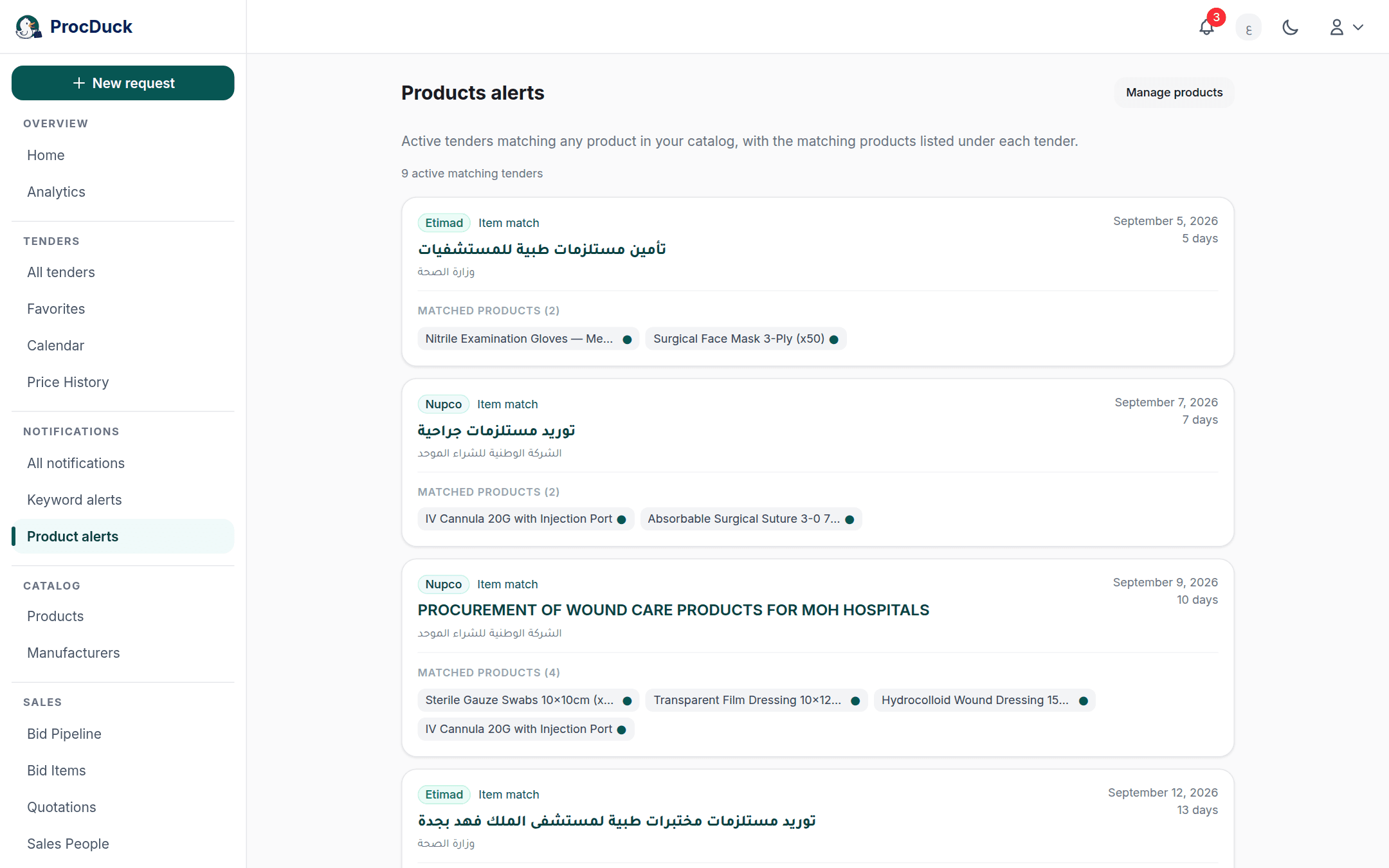
The Product alerts page, under the Notifications section. Is the live picture of the matching: the open tenders matching any product in the catalog, nearest deadline first, up to 200 tenders. Each card shows the source, name, agency, deadline and remaining days, and beneath it Matched products (N) as chips leading to each product, with a dot on those matched through a specific item. A tender closing today stays listed until midnight Riyadh time, and one with no deadline is treated as open. The list is computed ahead of time and refreshes after every tender scrape and on any catalog change, so editing a product's query shows its effect on the very next visit.
Exporting the catalog
The Export button: for owners and admins. Downloads the whole catalog as Excel (.xlsx) or CSV: every row with every field, pricing columns per your role and an empty cell, never a zero, for an unentered price. The file's headers deliberately match the import's labels, so an exported file goes back through Import from Excel with a fully confident column mapping. A practical way to edit the whole catalog in Excel and bring it back.
Deleting and the trash
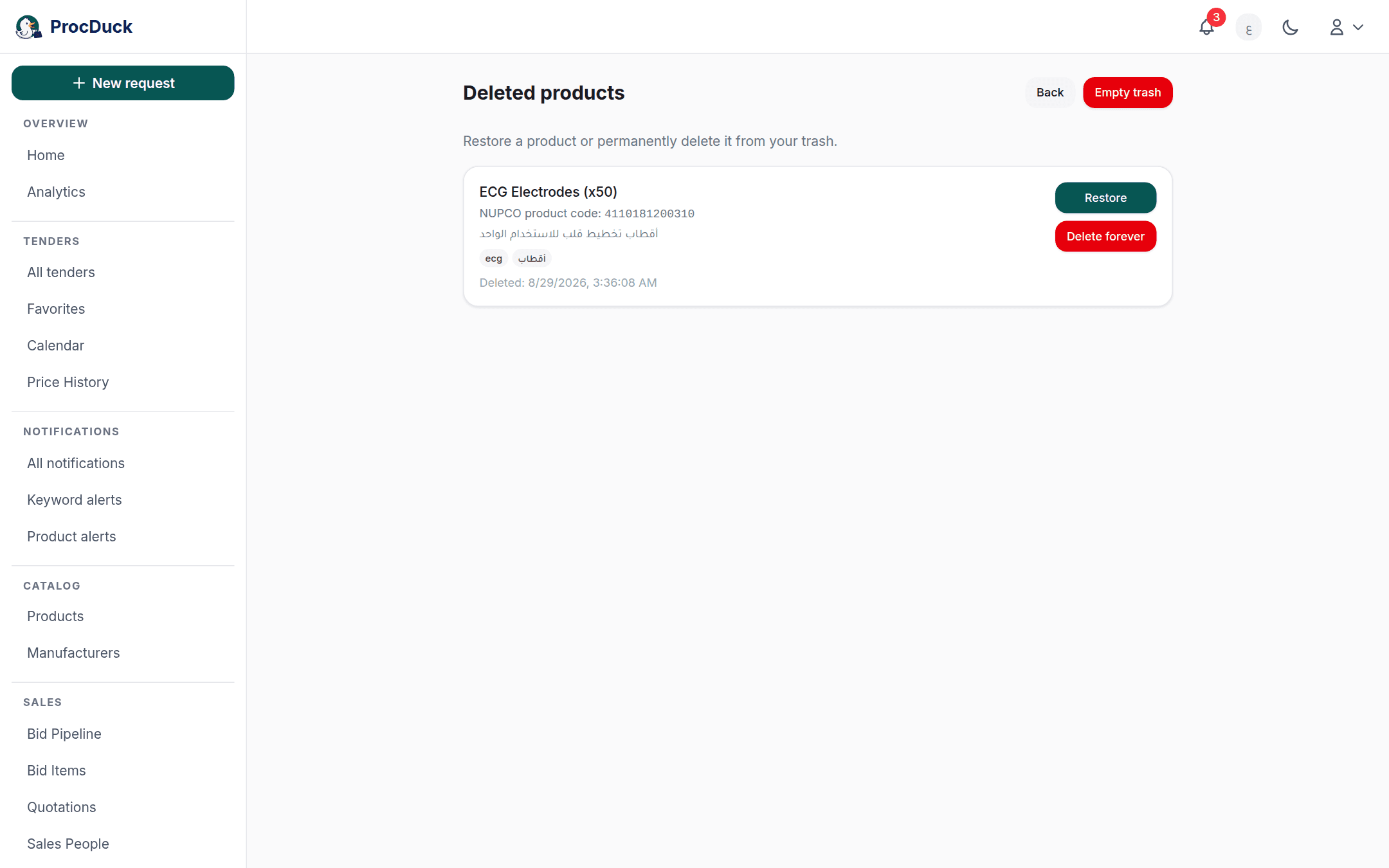
Deleting is always two steps. Delete product on its page, or ticking several in the list and pressing Delete. Moves them to the trash after a confirmation: they vanish from the list, the matching and the documents and free their plan slots, but nothing is lost. The Deleted products page at /products/trash shows them with all their data, each with Restore (which counts against the plan limit again) and Delete forever, plus an Empty trash button permanently deleting everything after a confirmation; the permanent kind has no undo.
Who sees and edits what
Every member sees the catalog itself; the differences run on two axes. Editing: the working roles. Owner, admin, sales and purchasing. Add, edit and delete; viewers and the technical role are read-only, and exporting is owner/admin only. Pricing: the viewer without pricing and technical roles see no price at all, and the sales role sees the sale price but not the cost. Withheld by the server, not merely the screen: hidden fields never arrive in any list, export or API response, and a role cannot write a field it cannot see.
Outside the browser
The whole catalog is on the API under the products.read and products.write scopes: listing and creating at GET/POST /api/v1/products (with the same structured q, the manufacturer_id filter and pagination), one product at GET/PATCH/DELETE /api/v1/products/{id} (where omitted PATCH fields mean "unchanged", never "clear") batches at POST/PATCH /api/v1/products/bulk, the trash at /api/v1/products/trash and POST /api/v1/products/{id}/restore, codes and manufacturers at /api/v1/product-nupco-links and /api/v1/product-manufacturers, photos and attachments at /api/v1/products/{id}/photo and /attachment, the matches at GET /api/v1/products/alerts, and the export at GET /api/v1/products/export with the export scope.
On the MCP server the same family exists as tools: products_list, products_get, products_create, products_update, products_delete, products_bulk_create, products_restore, products_alerts_list and their siblings, and the sheet_import tool with the products target imports an Excel file down the same path as the page. So send the WhatsApp assistant a price list from your supplier (a file or a photo) and say "add these products to the catalog", and it reads them and creates them through these very tools, under your same role and plan limits. See the API reference and Getting started.