Features
Searching tenders
How to search every tender and its line items: the query syntax, the filters, reading the results, and saving or exporting a search.
The All tenders page is where you find what to work on. It searches the tenders published on Etimad and NUPCO and the tenders your team added by hand, matching what you type against the tender name, the agency, the tender number and the reference number, and against the names and descriptions of the line items one by one, so a tender asking for your product is found even when the product is not in its title.
Open it from the navigation bar under Tenders; it opens on the open tenders, ordered by offer deadline. Type in the search bar, adjust the filters if you need to, and press Search.
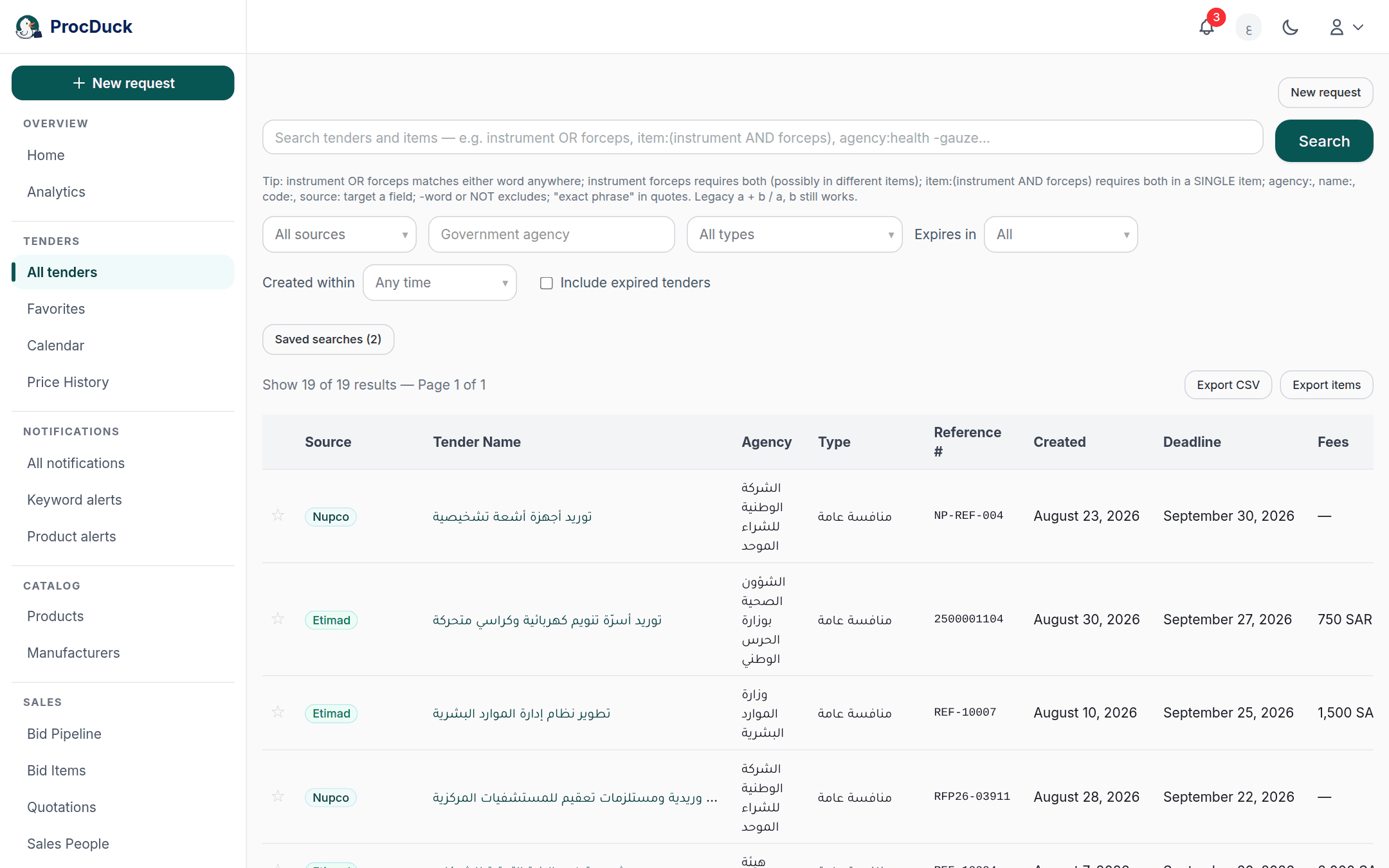
The search bar
The simplest search is a word or two. catheter finds every tender carrying that text in its name, its agency or one of its items, and urinary catheter requires both words somewhere in the same tender. Even in two different items. To search a phrase exactly as written, put it in quotes: "urinary catheter".
When you need more, the bar understands a structured syntax: fields that say where to look, the operators AND, OR and NOT in capitals, a - before a word to exclude it, and parentheses to group conditions. As you type, the bar suggests field names and values, colours the parts of the query, and warns under the bar about a syntax error or an unknown field.

| You type | You get |
|---|---|
a b | Tenders carrying both words, anywhere in the tender. |
a OR b | Tenders carrying either word. |
a -b or a NOT b | Carry the first word and not the second. |
"exact phrase" | The phrase exactly as written; commas and + inside it are searched literally. |
field:value | Restrict a word to one field. Such as agency:health. |
field:(a OR b) | Alternatives within the same field. |
item:(a AND b) | The whole condition must hold within one item, not spread across items. |
The older shorthand still works: a + b means both words and a, b means either. Matching is case-insensitive and finds a word inside a longer one.
Fields
| Field | What it searches |
|---|---|
name: or title: | The tender name. |
agency: | The government agency. |
number: | The tender number. |
reference: or ref: | The reference number. |
source: | The source: etimad, nupco, or manual for tenders your team added. |
type: | The tender type (open competition, direct purchase…). |
status: | The tender status as its source published it. |
code: | A line item's material code. An exact match, such as code:42101504. |
item: | Item text. item:forceps searches item names and descriptions; inside parentheses it accepts name:, desc:, unit: and code: to target one part of the item. |
NPT0002/26, NPT0002-26, NPT 0002/26 and NPT000226 all reach the same tender, even when its deadline has passed or it has none. Keep the number on its own. A number inside a whole sentence is searched as an ordinary word.4111610529900) to find the tenders asking for that item: a number of 8 digits or more is looked for in every item's material code as well as its name and description, and the tender is flagged as matched on an item. The usual default applies here, so open tenders show unless you ask for expired ones.Examples
| Query | What it finds |
|---|---|
item:(instrument AND forceps) | A tender with one item carrying both words. A tender saying "instrument" in one item and "forceps" in another does not match. |
catheter -pediatric | Catheters with no mention of pediatric anywhere in the tender. |
agency:health item:(suture AND absorbable) | Ministry of Health tenders asking for absorbable sutures in one item. |
source:nupco item:ventilator | NUPCO tenders only, with a ventilator among their items. |
(gauze OR gauze pad) AND item:(sterile AND 10cm) | Gauze under either name, with one sterile 10 cm item. The parentheses hold the alternatives and the scope holds the item condition. |
agency:(health OR defense) | Tenders from either agency. |
-gauze on its own, is refused with a clear message. Typing in stages is fine. An unfinished draft (a field with no value, a trailing AND, an open parenthesis) applies whatever is complete without an error.The filters
Under the search bar a row of filters is applied together with the query when you press Search:
- Source: Etimad, NUPCO, or the manual tenders your team added.
- Government agency: pick an agency from the list or type part of its name.
- Type: open competition, direct purchase, limited competition, or contest.
- Expires in: tenders whose offer deadline falls within 7 days, 30 days, or a year.
- Created within: tenders that appeared on the platform within the past day, 3 days, or 7 days; this is what the dashboard's "New tenders this week" tile opens.
- Include expired tenders: see below.
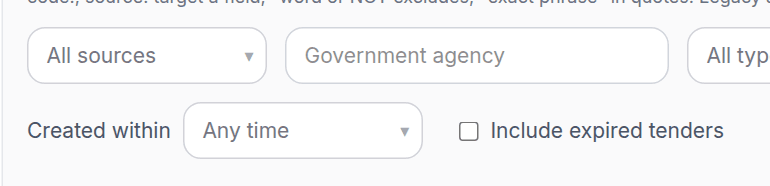
The filters are kept in the page URL, so you can copy the address from the browser and send it to a colleague to open the same results.
Expired tenders
By default the page shows tenders whose deadline has not passed, because expired tenders far outnumber open ones and would bury what you are looking for. Tick Include expired tenders to cover every tender. What you need when looking up an old tender or reviewing a past award. Tenders your team added by hand always show, even without a deadline.
Reading the results
The results are a table of twenty tenders per page, each with its source, name, agency, type, reference number, creation date, offer deadline, fees and remaining days. Click the tender name to open its page. Under the name, tenders that have an AI summary show a one-line headline.
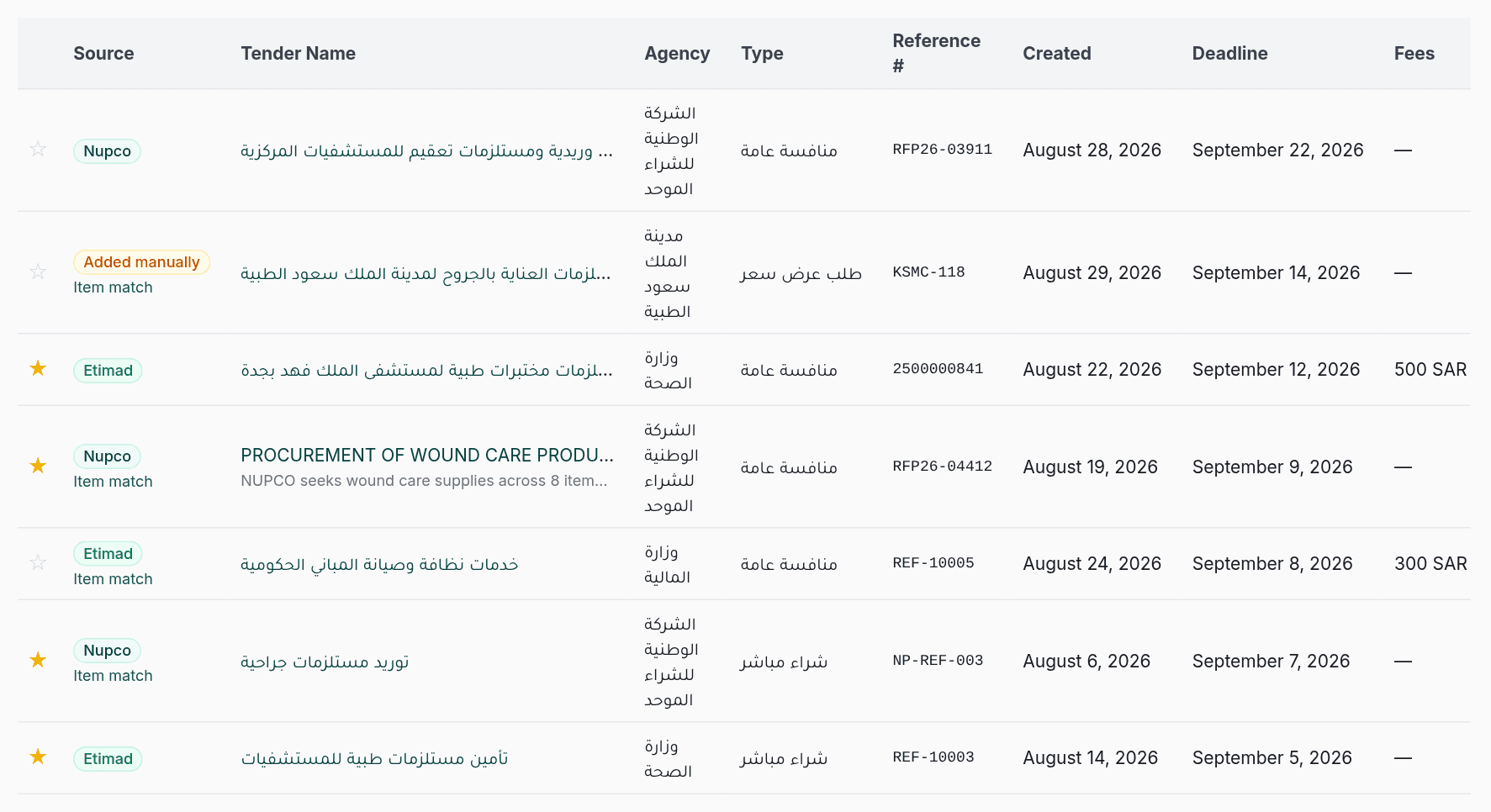
- Item match under the source badge means your search matched the tender's items rather than its title. Opening the tender from that row carries your query with you and filters its items table to the matching items, so you see at once what was found.
- The star at the start of the row adds the tender to your favorites or removes it; favorites have their own page in the navigation bar.
- Add to plan at the end of the row creates a bid for the tender in the "reviewing" status so it shows in the bid pipeline; tenders already in the pipeline show a link to it instead of the button.
Saved searches
A search you come back to every week is worth saving. With the query and filters set, press Save current search, name it, and save. The name keeps the query, source, agency, type and expiry window. The Saved searches button then opens your list: click a name to run it, or the × to delete it.

Exporting
Above the results table two buttons export all the results of the current search with its filters, not only the page on screen: Export CSV gives one row per tender, and Export items one row per line item of those tenders together with its tender's details. The file opens in a new tab and is ready for Excel.
Quick search
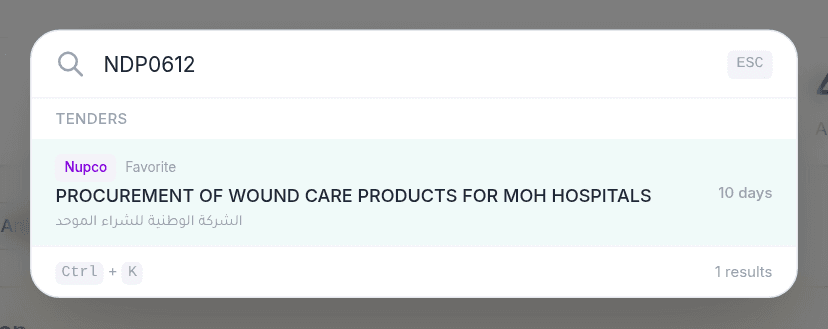
From any page inside the platform press Ctrl+K (or ⌘K on a Mac) to open the quick search palette. Type part of a tender's name, number or agency and jump straight to it without going through the search page; your favorites and the tenders in your bid pipeline come first, then the other open tenders. The same palette takes you to the platform's pages when you type a page name. The palette is for reaching what you already know; the detailed search with fields and filters stays on the All tenders page.
Outside the browser
The same search, with the same syntax, is available to your own software and to AI agents through the API's tenders list endpoint and search endpoint and their MCP server tools. The assistant, Haitham, can also search for you in plain language on WhatsApp and by email. See Getting started.