Features
Home dashboard
The page you land on after signing in: quick numbers, the bids that need your attention, the pipeline, upcoming deadlines and the newest notifications.
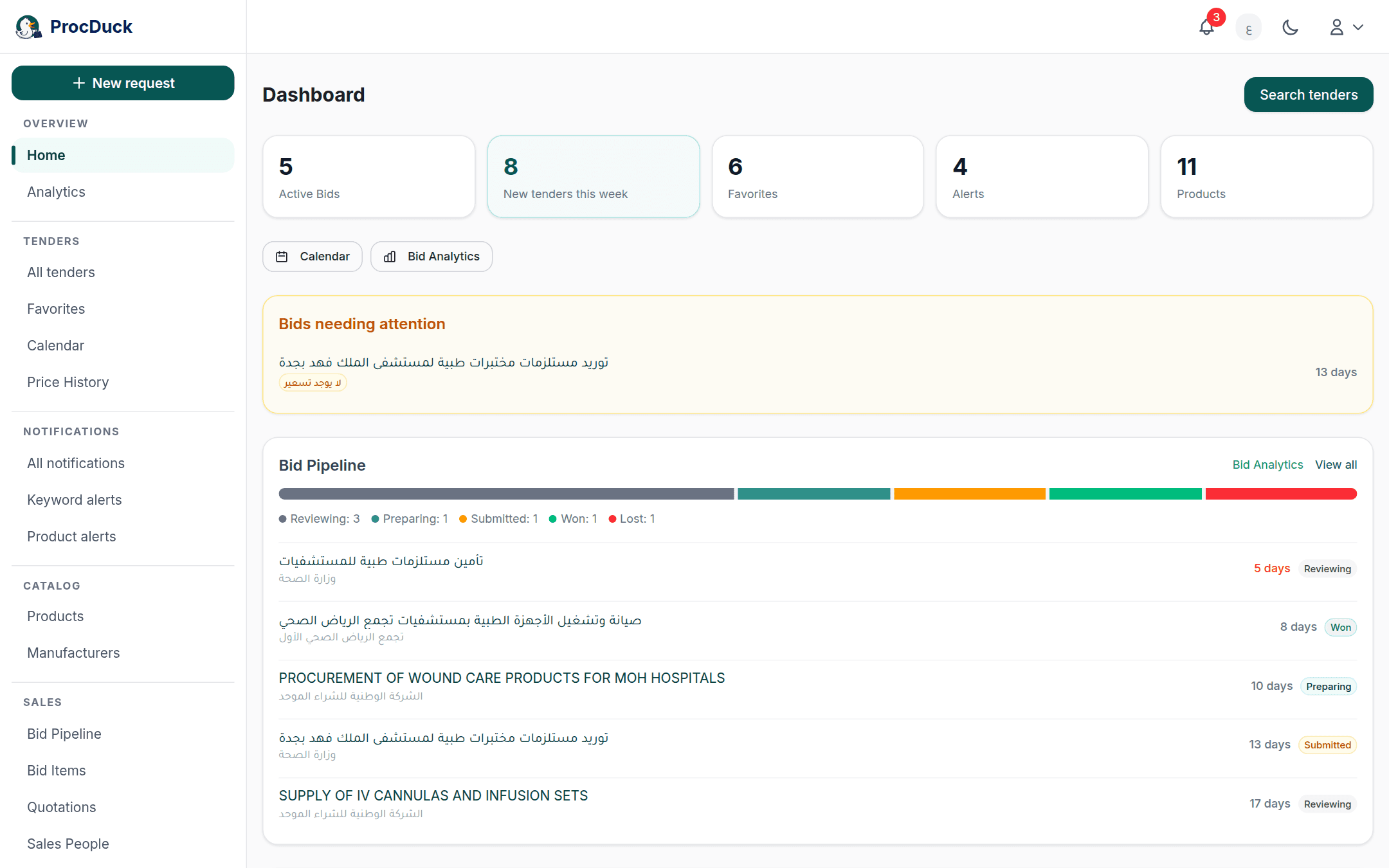
The dashboard is the first thing you see after signing in, and Home in the navigation bar brings you back to it at any time. It sums up your working day on one screen: five number tiles at the top, then cards that appear only when there is something to act on. Bids with no pricing, the pipeline, deadlines coming up, and unread notifications. Every tender name on it opens the tender page, and the Search tenders button at the top takes you to the search.
The number tiles
The first row is five tiles, each a number with a label; clicking a tile opens the page the number comes from:
| Tile | What it counts | Where it goes |
|---|---|---|
| Active Bids | Your organization's bids that are not settled yet, every stage except Won, Lost and Cancelled. | The bid pipeline. |
| New tenders this week | The tenders added to the platform in the past seven days, from Etimad and NUPCO, plus any your team added by hand. The tile takes the brand colour whenever the number is above zero. | The search filtered to Created within: Past 7 days with expired tenders shown. |
| Favorites | The tenders your team has starred. | The favorites page. |
| Alerts | Your active keyword alerts. A paused alert is not counted. | The keyword alerts page. |
| Products | The products in your organization's catalog. | The products page. |
Under the tiles are two quick buttons: Calendar shows the deadlines of the tenders you follow on one calendar, and Bid Analytics shows your win rates, bid values and your team's performance over time.
Bids needing attention
An amber card that appears when a bid in your pipeline is in the Preparing or Submitted stage and none of its tender's items has been priced yet. Each line is the tender's name with a no pricing badge and the days left. Orange with seven days or fewer, red with three or fewer. The card lists up to five bids, most recently updated first. Open the tender and price its items under Bid pricing; as soon as one price is saved, the bid leaves this card.

Bid Pipeline
This card appears as long as your organization has at least one bid. At the top, a coloured bar splits all your bids across the six stages in proportion: Reviewing grey, Preparing in the brand colour, Submitted amber, Won green, Lost red, Cancelled light grey, with a legend under it giving the count in each stage. Empty stages are not shown. Hovering over a segment of the bar shows the stage's name and count.
Under the legend are five bids: the tender's name and agency, the days left in the same colouring, and a badge with the bid's stage. They are ordered by deadline (ending soonest first) with bids whose deadline has passed or that have none at the end. View all opens the pipeline with all your bids and their stages, and Bid Analytics opens the analytics page.
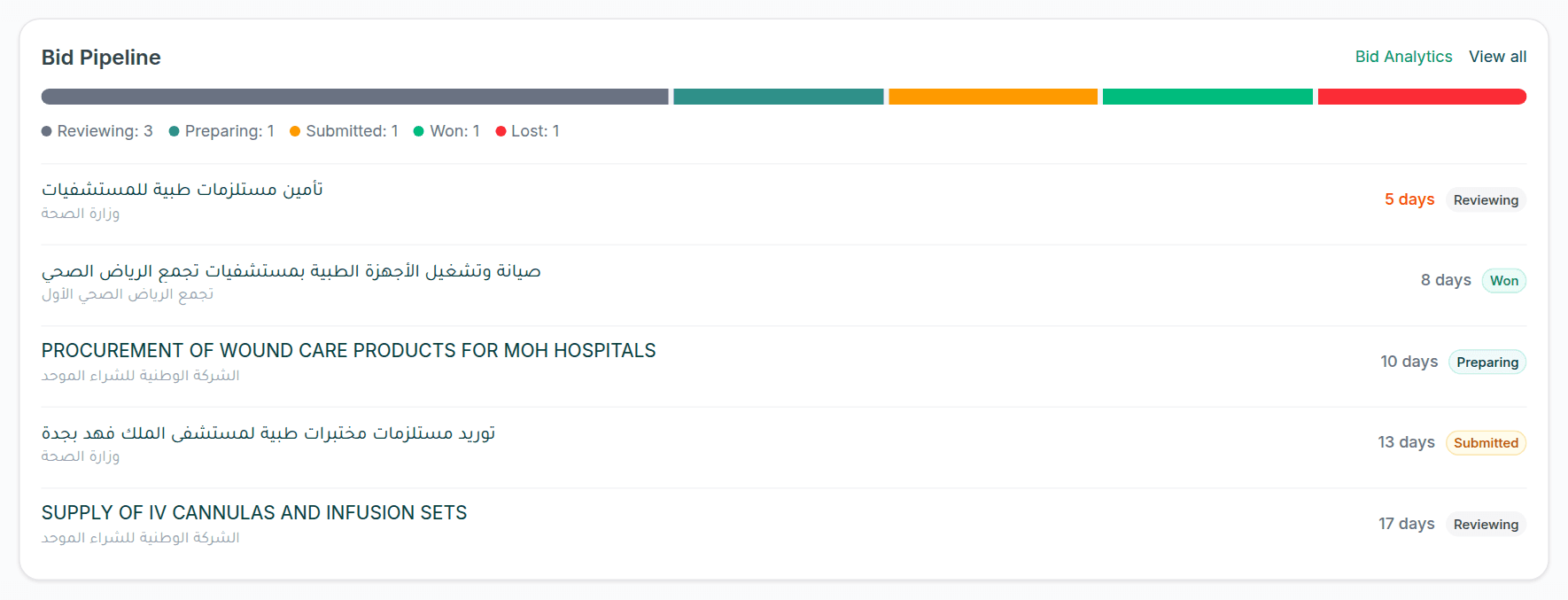
A bid enters the pipeline from Add to pipeline on the tender page, and its stage is changed there or on the pipeline page itself. See the bid pipeline on the tender page.
Upcoming deadlines
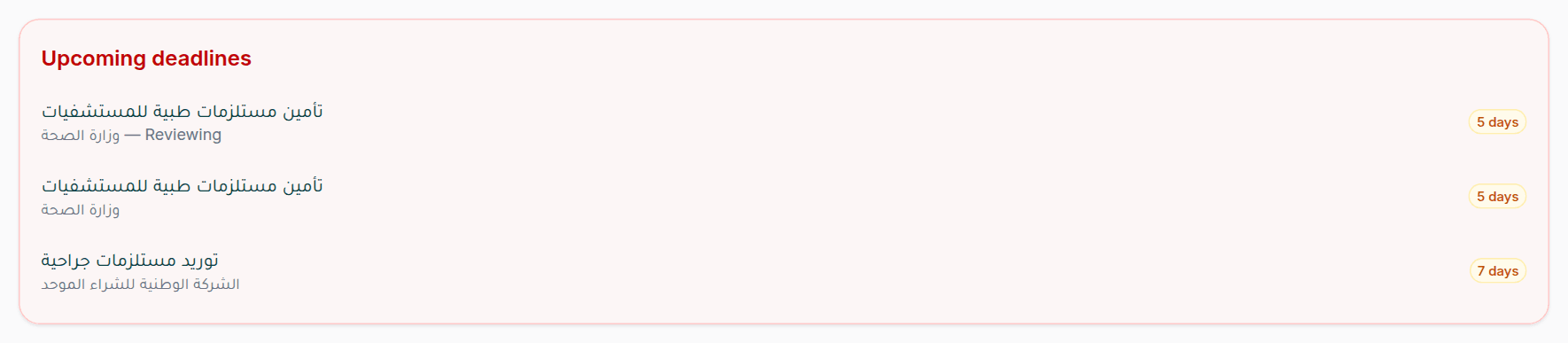
A red card that appears when a tender you follow is approaching its offer deadline. Seven days or fewer away. It gathers two kinds of tenders: your bids in the Reviewing or Preparing stage (listed first, with the bid's stage beside the agency name), then the tenders in your Favorites. Each line carries a badge with the days left: orange, turning red at three days or fewer. The card shows up to five of each kind, ending soonest first.
New notifications
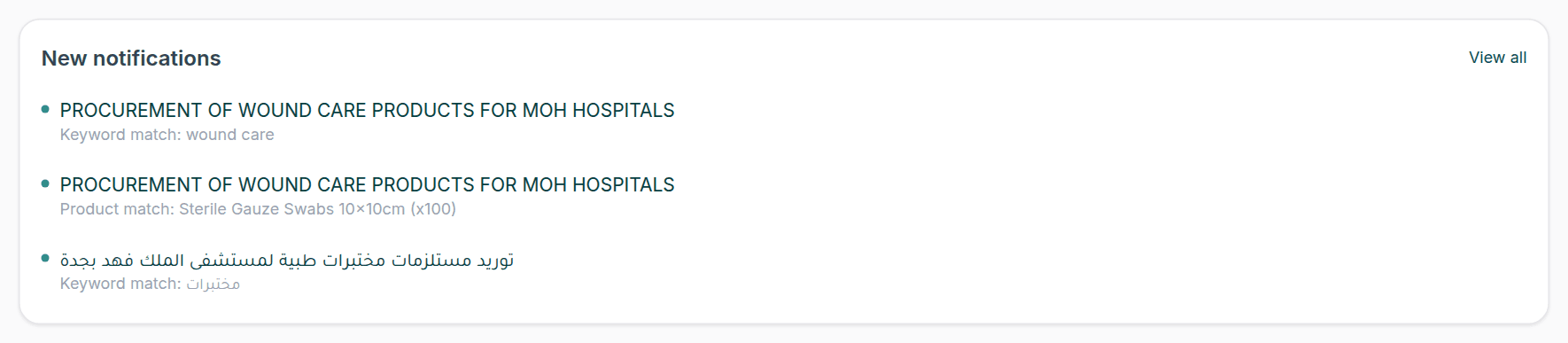
This card appears when your organization has unread notifications and shows the newest five: the tender's name, and under it the reason for the notification. Keyword match: and the keyword the tender matched, Product match: and the product's name, or a reminder of an approaching deadline. Clicking the name opens the tender, and View all opens the notifications page, where you mark them read or clear them. Notifications come from the keyword alerts and product alerts your team sets up, and also reach you by email and on WhatsApp when enabled.
Starting from nothing
A new organization (no bids, no favorites, no notifications) sees a Welcome to ProcDuck message in place of the cards, with two buttons: Search tenders to start from the search, and Add products to build the catalog that product alerts work from. The number tiles stay in both cases. The first tender you star or add to the pipeline fills the dashboard in.
What each role sees
Every member of the organization sees the same dashboard with the same cards. The one difference is in bid amounts: they come with the dashboard data only for the roles that see sale pricing and are withheld from the rest. The per-role detail is in the API reference.
Outside the browser
The same dashboard summary (bids by stage, upcoming deadlines, unread notifications, the counts and the bids needing attention) is available to your own software and to AI agents through GET /api/v1/dashboard with the analytics.read scope, and through the dashboard_get tool of the MCP server. See the API reference and Getting started.