Features
RFQs
Collect supplier prices for a tender's items: create a request for quotation from the items you pick, send its Excel file to your vendors, record every reply (a filled file or a manual entry) then compare the quotes with freight-aware billable weights and track your vendors' prices over time.
A request for quotation (RFQ) is the buying side of a tender: before pricing your bid, you ask your suppliers "what will you sell us these items for?". The request lives in the Request quotes via Excel section of the tender's page, and its supporting pages sit in the navigation bar under the Procurement section: Import RFQ Response for uploading any filled file, and RFQ Responses, which gathers everything your organization has recorded in one place, grouped by product or listed line by line. The prices recorded here are what shows in the Vendor quotes pill on each item and in the margin computed under bid pricing.
Creating a request
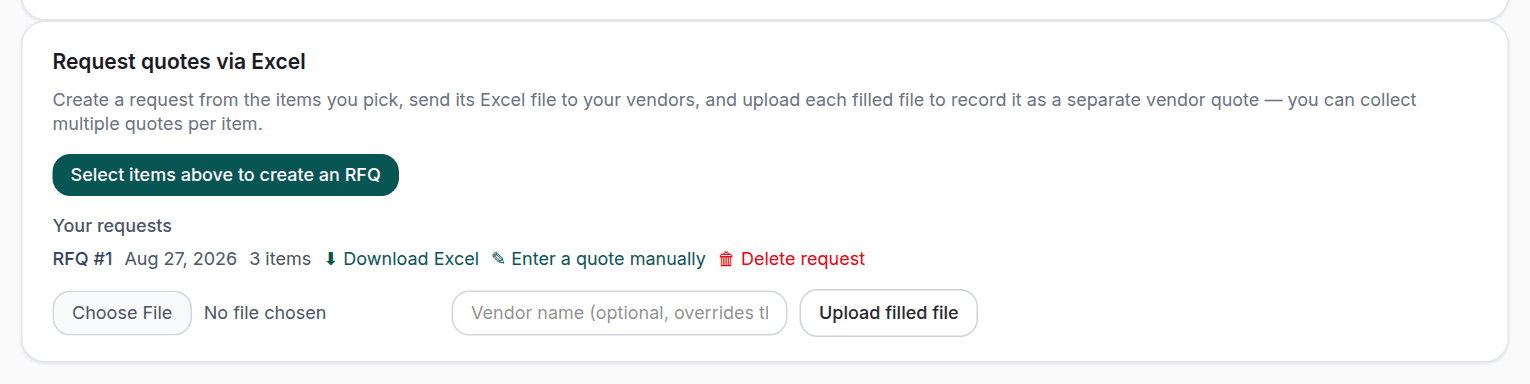
A request starts from the tender's items table: select the items you want priced and press Create RFQ in the actions bar; the request is created and its Excel file downloads at once for you to send to your suppliers through your own channels. The platform stores no recipient list and does not send the file itself. The request's item list is frozen at creation time: editing the tender's items later never changes an issued request, so the file in a vendor's hands stays matched to what was recorded. You can create several requests on one tender (a different item set per supplier, say) and each request takes at most 2,000 items.
Beneath the section, Your requests lists each request with its number, date and item count, a Download Excel button regenerating the same file whenever you need it (a fresh copy carries the same request identity, so its replies still match automatically) plus Enter a quote manually and Delete request. RFQs are a feature of the plans that include them; if yours does not, a dialog tells you so when you try.
The Excel workbook
The file a supplier receives is a single ready-to-fill sheet, generated in Arabic or English following your interface language at download time. At the top sit the Your details cells the vendor fills in: name (required), company, email, phone, Incoterms and overall notes. Then one row per item with its serial, description, quantity and unit, and the columns the vendor completes: the unit price in USD (plain numbers only. Every price is asked for and stored in US dollars), the lead time in days, the catalog number, the weight and packing columns: unit weight, units per case with the case's dimensions and weight, and the inner pack. Which later feed the billable freight weight, and per-line notes.
Recording supplier quotes
Every supplier reply is recorded as a separate quote with its priced lines, and you can collect several quotes per item, from different vendors, or from the same vendor on different dates. There are three ways to record one.
Uploading the filled file
When a supplier returns the filled file, upload it with Upload filled file in the tender page's requests section. The vendor's name is read from the file's "Your details" cells, and the optional Vendor name field beside the upload overrides what the file says or covers its absence. Blank lines are skipped (leaving an item unpriced means the vendor did not quote it) and rows that cannot be read are skipped with a warning instead of failing the whole upload.
The import page
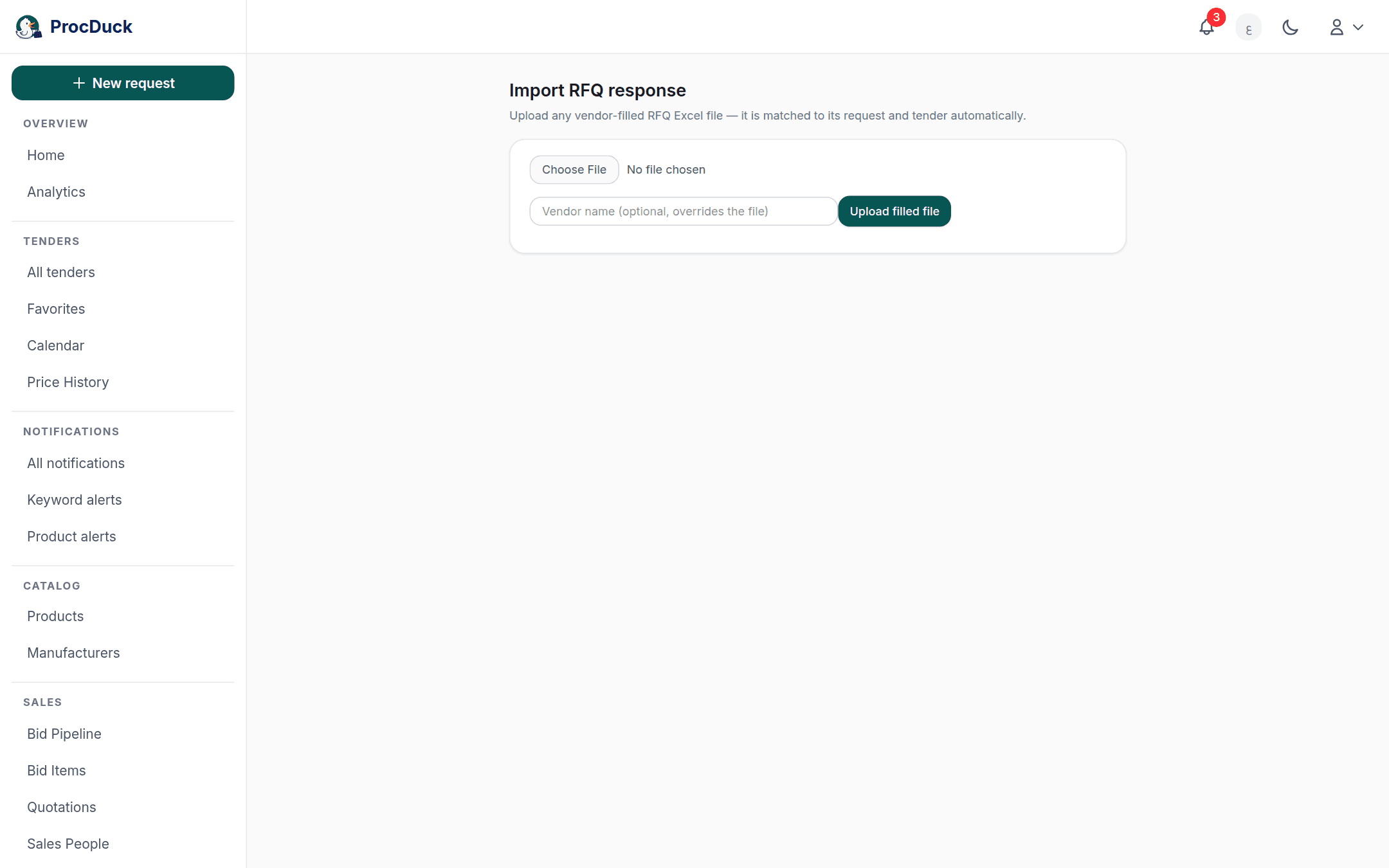
The Import RFQ Response page in the navigation bar accepts any filled request file without you knowing its tender: upload the file and the platform matches it to its request and tender automatically from its hidden identity, then reports "Imported N quoted lines from the vendor" with a View tender link taking you to that tender's requests section. This is the comfortable path when filled files arrive by email in a batch, from several vendors across several tenders. A file whose hidden sheet was stripped no longer knows its request. Upload that one from its tender's page instead.
Entering a quote manually
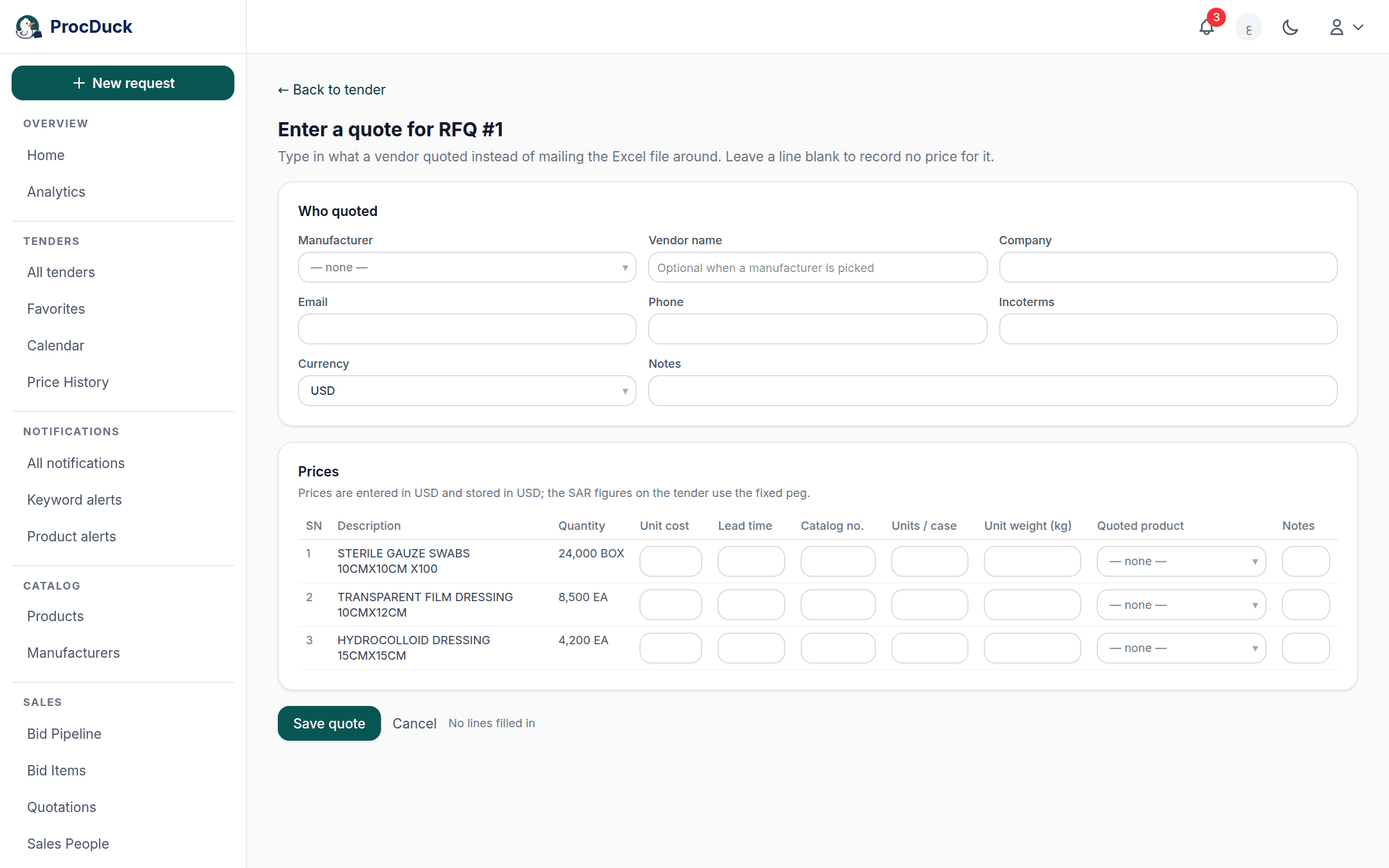
A reply that came by phone or text message needs no file: Enter a quote manually beside the request opens a full page with a Who quoted section: pick a manufacturer from your manufacturers directory or type a free vendor name, with company, email, phone and Incoterms, and a Prices section holding one row per item of the request: unit price, lead time, catalog number, units per case, unit weight, the quoted product from your catalog and notes. The currency toggle takes input in USD or SAR. Storage is always USD at the fixed peg. Leave any unpriced line blank, and press Save quote.
Single-item sourcing prices
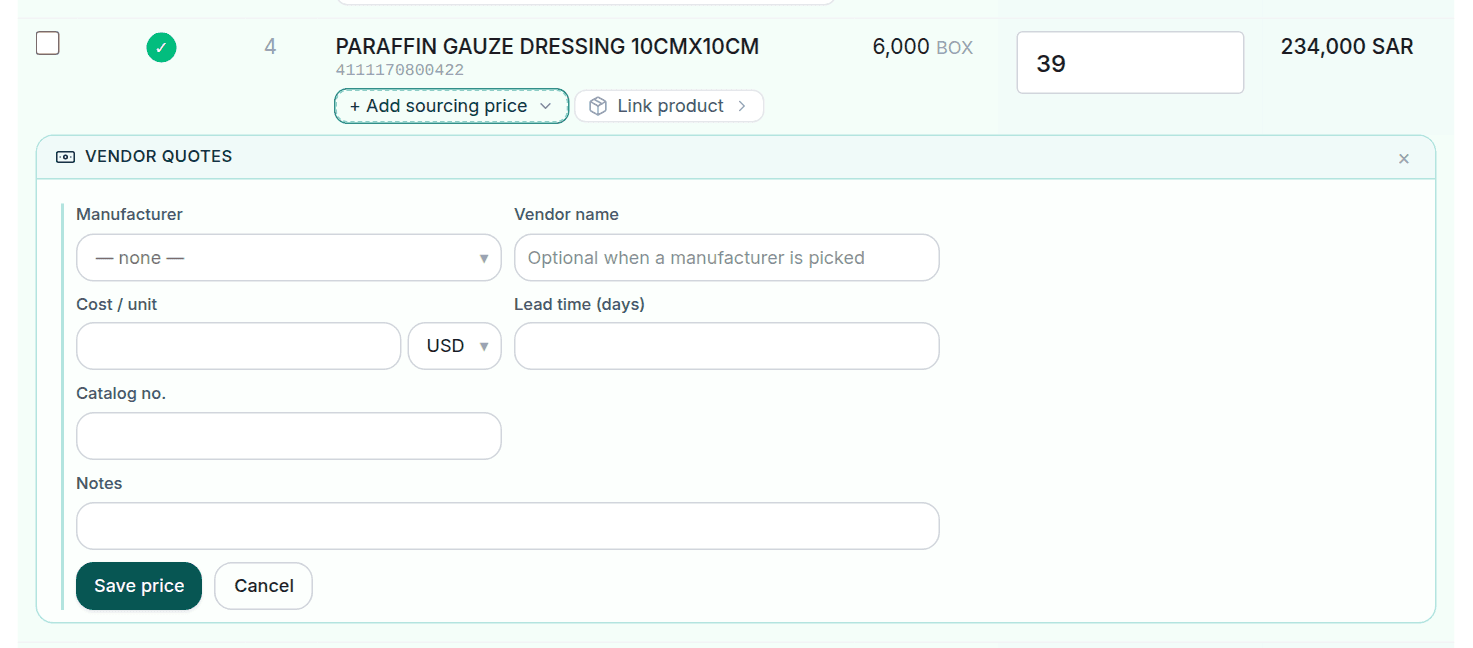
You do not need a whole request to record one price: the Add sourcing price pill on any item in the tender's table opens a short form. It takes the manufacturer or a vendor name, the cost per unit and its currency, the lead time, catalog number, quoted product and notes, and Save price records it as a quote like any other, showing in the same panel, comparisons and margin. The item's panel also shows Prices from past tenders, which is what you recorded on the same NUPCO code or the same product in other tenders, and Use for this tender copies one of them onto this tender as a fresh quote; a historical price only enters your numbers when you adopt it explicitly.
Comparing the responses
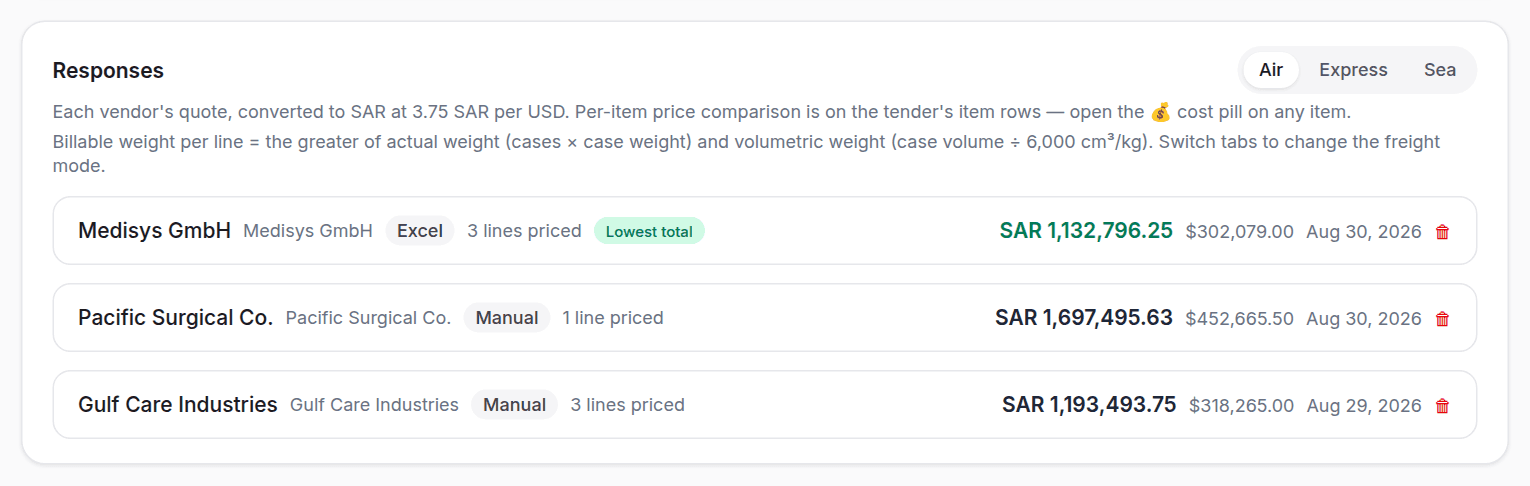
The Responses card on the tender's page shows each vendor quote as a collapsible entry: the vendor's name, company, the quote's source (Excel or Manual), how many lines it priced, and its total in SAR and USD, with the cheapest overall marked by a Lowest total chip. Opening a quote lays out its lines (description, quantity, unit cost, line total, lead time, catalog number, packing and weights) with the cheapest unit price per item highlighted. Every price is converted to SAR at the fixed peg with the USD original shown beneath.
The Air, Express and Sea tabs above the card recompute the billable weight column: per item, the higher of the actual weight (cases × case weight) and the volumetric weight from the case dimensions over the chosen freight mode's divisor, with the total billable weight in the table's footer, so you compare vendors by what shipping them will really cost, not by unit price alone. Item-by-item comparison lives in the Vendor quotes panel on the item's own row, with cost, vendor, line total, lead time and the margin per unit against your recorded sale price, and the Has vendor quote / No vendor quote facet chips above the table isolate the items still waiting for a price.
The RFQ Responses page
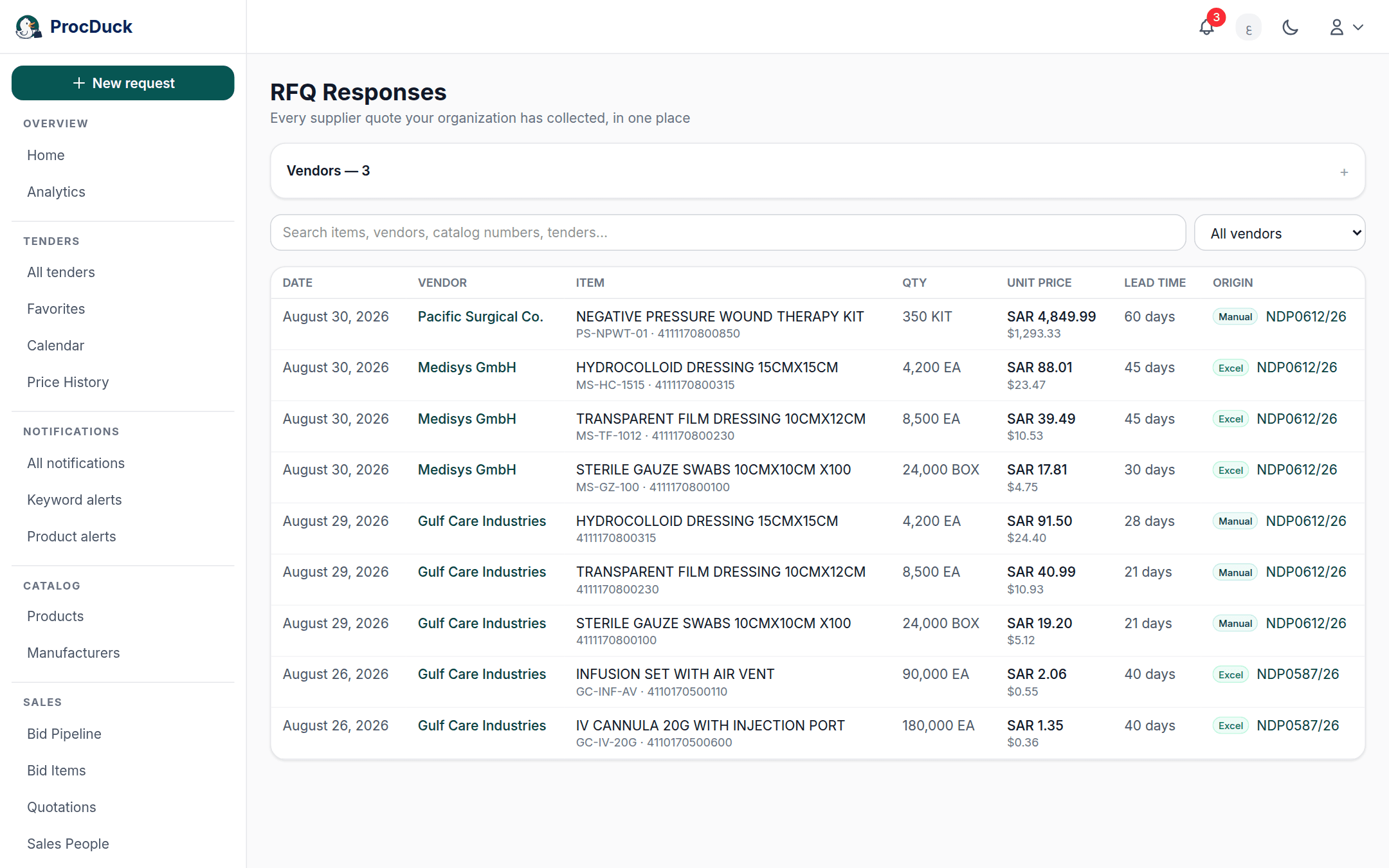
The RFQ Responses page in the navigation bar is your whole organization's purchasing memory, read two ways from the two tabs at its top, each with its count: By product, which the page opens on, and All quotes. The filters are shared by both tabs. The Vendors card holds a button per vendor with its quote, response and product counts and its last-quote date; press one and the table filters to it. The search field looks across products, codes, vendors, catalog numbers and tenders at once, and the source selector narrows to Excel, Manual or Web quotes. Each table shows 50 rows a page, with "Showing 1–50 of …" and the Previous and Next buttons underneath. The filters, the sort and the page number are kept in the page's address, so a copied link opens the same view, and all of it works on the loaded list without reloading it.
The All quotes tab puts every price line you have collected (from any request, any tender, any single sourcing price) in one table with date, vendor, item, quantity, unit price, lead time and origin, newest first. The Origin column ties each line back to where it came from: its tender or request, an Excel or Manual badge, and "Sourcing prices" for the single-item ones.
A vendor linked to a manufacturer in your directory opens its page from its name, and selecting it here shows the same Sourcing intelligence panel found on the manufacturer's page: quote-line, response and product counters, the median price change, and the Biggest price increases and Same product, different prices tables (all computed from the recorded quotes alone) with an optional AI summary written on request. The same record also surfaces on each product's page as its sourcing price history across tenders.
The By product view
The By product tab is the same record read the other way (it was once a page of its own, the Vendor price book, and its old address now opens this tab): one row per product a vendor or manufacturer has ever priced for you (an Excel reply, a single sourcing price typed on an item, a legacy web response alike), with the vendors that quoted it nested underneath. Each product row shows how many vendors and quotes it has, the best latest price and who gave it, the price range across every quote, the date of the last quote and the sources the prices came through; open a row and every vendor is listed with its latest price in riyals and dollars, its own range, its quote count, lead time, catalog number and the tender or request the latest quote came from, cheapest first. This tab alone has the Sort selector (latest quote, name, most vendors, lowest price) and the Expand all button, which opens every row on the current page at once.
What counts as one product is the catalog: a quote is filed under the product it was tagged with or that you selected on the quoted item, and a line that carries only a NUPCO code joins the one catalog product claiming that code (its own code or a linked code), so a price typed with the product and another imported from a workbook land on the same row. A code that two products claim, or none, stays a row of its own marked NUPCO code and named by the tenders' description of it, and a line with neither a product nor a code is grouped by description; link the code to a product from the product's page and the row files itself under the product from then on.
Who sees and edits what
Supplier quotes price what you buy, so they follow the cost-pricing rule. Narrower than the sale-pricing rule customer quotations follow: the sales role sees neither the requests section, the responses, nor the Procurement pages in the navigation bar, just like the viewer without pricing and technical roles. Owner, admin, purchasing and viewer see the data; creating, uploading, entering and deleting is for owner, admin and purchasing. A viewer reads but never writes. Supplier replies arriving by email fall under the organization inbox's own rule, which likewise withholds it from sales and technical.
Outside the browser
The whole process is on the API under the rfqs.read and rfqs.write scopes: the request list at GET /api/v1/rfqs, one request with its responses at GET/DELETE /api/v1/rfqs/{id}, a tender's requests and creating a new one at GET/POST /api/v1/tenders/{id}/rfq, the Excel file at GET /api/v1/rfqs/{id}/excel, recording, patching and deleting a vendor quote at POST /api/v1/rfqs/{id}/responses and PATCH/DELETE /api/v1/rfqs/{id}/responses/{responseId}. Where omitted PATCH fields mean "unchanged", every org-wide price line at GET /api/v1/rfq-responses (and the same lines grouped per product at GET /api/v1/rfq-responses/price-book), and the single-item sourcing price at POST /api/v1/tenders/{id}/sourcing-prices. That one alone under the tenders.write scope.
On the MCP server the same family exists as tools: rfqs_list, rfqs_get, rfqs_create, rfqs_delete, rfq_excel_export, tender_rfq_matrix: a tender's every request with its responses in one call. Plus rfq_responses_list, rfq_price_book, rfq_responses_add, rfq_responses_update and rfq_responses_delete, with the single-item sourcing price through tenders_sourcing_price_add and its history through tenders_sourcing_history and products_sourcing_history. So tell the assistant, Haitham, on WhatsApp or by email "create an RFQ for this tender and send me the file" and it creates one from the tender's items and hands you the Excel file right in the chat (under your same role limits) or send it a vendor's filled file and it records the quote. See the API reference and Getting started.