Features
Keyword Alerts
Save a search query that runs on its own: every new tender it matches reaches you in-app, by email and on WhatsApp, without you repeating the search every morning.
A keyword alert is a saved search query the platform runs for you: every day the new tenders are checked, and every tender that tender search would have shown for that query becomes a notification that reaches you in-app, by email, and on WhatsApp when enabled. The page is reached from Keyword alerts under the Notifications section of the navigation bar. The list is shared by every member of your organization: what a colleague adds, you see, and you can pause or delete it.
Creating an alert
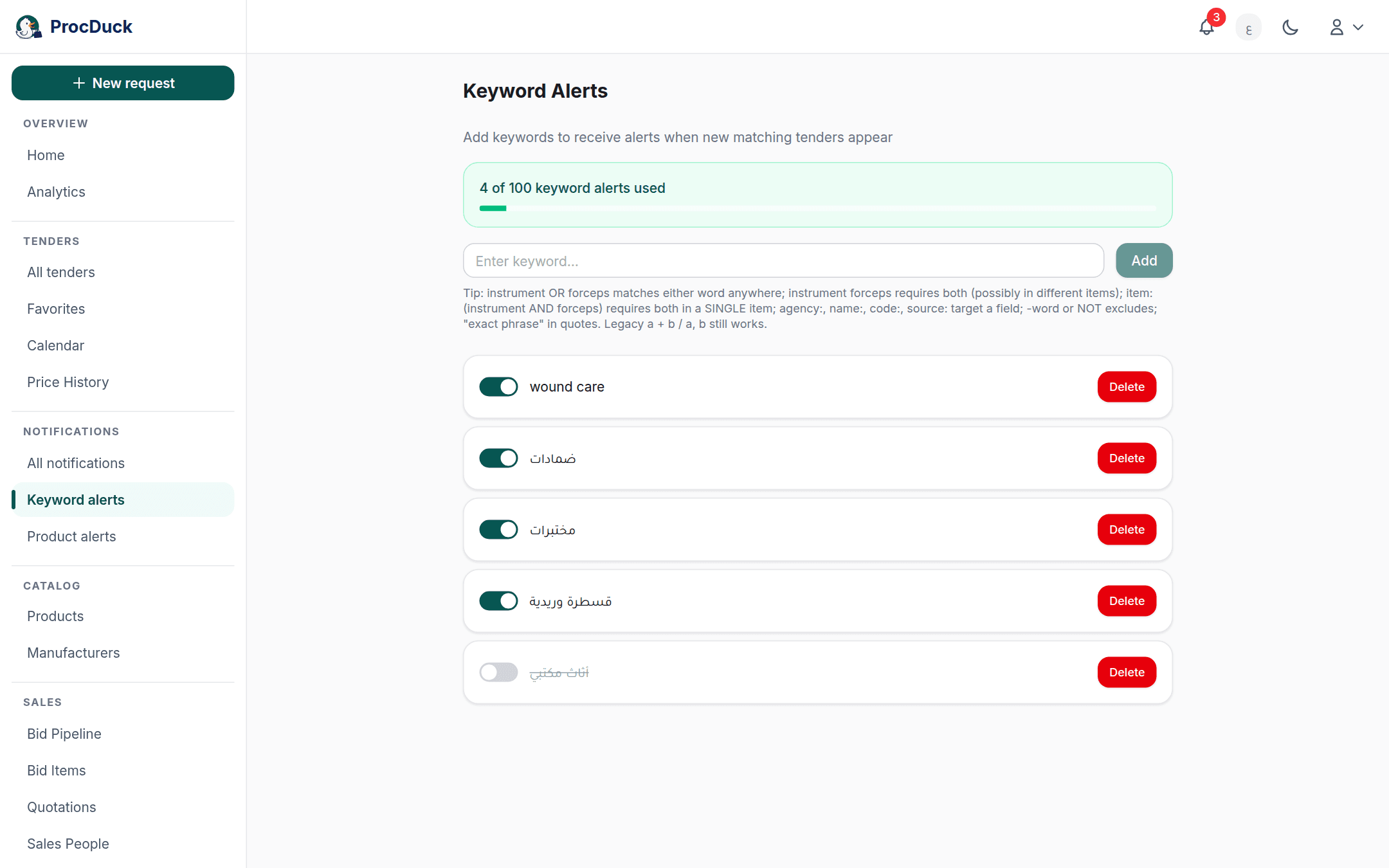
At the top of the page is a single box labelled Enter keyword... and an Add button. Type the query and press the button or Enter; the alert appears at the top of the list, active from the start, and the next check begins matching it. Under the box is a short reminder of the syntax, which the next section explains in full.
Above the box a usage bar reads N of M keyword alerts used: alerts count toward your organization's plan limit, and only active ones are counted. Pausing an alert frees its slot. At the limit, Add opens a You've reached your plan limit message instead of saving, from which you can upgrade.
Writing the query

The keyword need not be one word; it is a full search query in the same syntax the search bar understands, up to 200 characters. A plain word is looked for in the tender's name, number and reference number and in every item's name, description and material code, not in the agency name (to follow an agency, write agency:); several words require all of them, even spread across different items. The structured syntax works to the letter:
| Write | To fire when |
|---|---|
catheter | The tender contains the word anywhere. Its name, its agency or one of its items. |
catheter OR tube | It contains either word. |
item:(catheter AND silicone) | A single item carries both words, not two different items. |
agency:health catheter | The agency contains the first word and the tender the second. The other fields. name:, code:, source: and the rest. Are in the field list. |
catheter -veterinary | It contains the first and not the second anywhere in it. |
"portable ventilator" | It contains the exact phrase. |
NDP0585/26 | The tender carries that number or a reference number containing it, in any spelling: NDP0585-26, NDP0585 26 and ndp058526 all find the same tender. |
A query that cannot be matched safely is refused at save time with a red message under the box, rather than saved silently and never fired: an unknown field (Unknown search field), a query that is all exclusion with no positive word (-veterinary alone would have matched every new tender), or a syntax error such as an unclosed parenthesis. Correct the query and add it again.
agency: explicitly.Pausing and deleting
Each alert in the list is a card with a toggle switch on one side and a Delete button on the other, newest first. The switch pauses and resumes the alert: a paused alert stays in the list struck through in grey, does not fire, and does not count toward the plan limit. Right for a seasonal query you will come back to. Delete removes the alert at once, with no confirmation; the notifications it fired before stay on the notifications page.
A saved alert's text cannot be edited from the page: delete it and add the corrected query. (The API can edit the text in place, as the last section shows.)
When an alert fires
The check runs three times a day, at 8:30 AM, 1:00 PM and 4:30 PM Saudi time, not the moment a tender is published. On each run every active alert is tested against the tenders added to the platform since the previous run (from Etimad and NUPCO, together with the requests your team added by hand) and against older tenders whose items have just arrived: Etimad items are sometimes completed days after the listing, so a tender that gained new items enters the check again so an alert on item text is not missed.
- Once per tender and alert. A tender that fired an alert never fires it again, even when it re-enters the check with new items; another alert it matches for the first time does fire.
- One notification per tender. When one tender matches several of your alerts you get one notification naming them all. Keyword match: then the keywords separated by commas, not one per alert.
- Open tenders only. A tender whose deadline passed before the check fires nothing; one with no deadline is treated as open.
Where a match reaches you
One match is delivered over more than one channel, each with its own switch:
- In-app: always. The notification appears on the All notifications page and raises the bell count in the navigation bar, and the New notifications card on the dashboard shows the newest five. Notifications are shared by the organization: every member sees them.
- By email: to whoever created the alert, as long as Enable email notifications is on in their settings. The day's matches arrive in one message titled N new tenders match your alerts, with each tender's name, agency, what it matched and a View Tender link, and an unsubscribe link at the bottom.
- On WhatsApp: to the creator's linked number, when Send tender alert matches to this number is on in the WhatsApp card of the settings and WhatsApp delivery is enabled on the platform. This switch is independent of the email one: either can be off while the other stays on.
- To your own systems: every check that finds matches for your organization sends a
tender.matchedevent to your registered webhooks; see Webhooks.
The notifications page
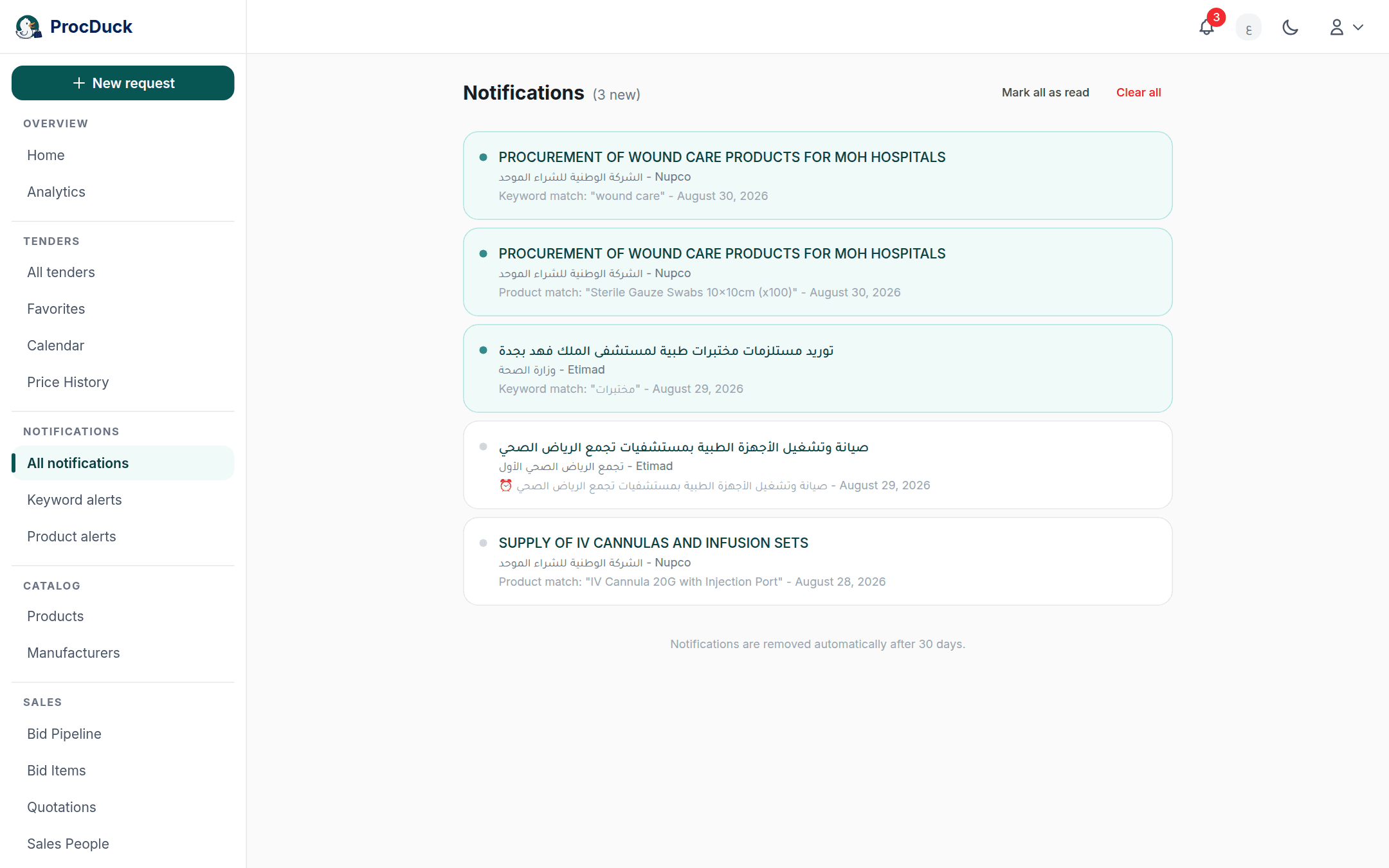
All notifications, the first entry of the Notifications section, lists your organization's notifications newest first, with the unread count beside the title. Each notification is a card: the tender's name linking to its page, then its agency and source, then the reason. Keyword match: and the keyword in quotes, or Product match: and the product's name, and the date. Unread ones stand out with a tinted background and a dot in the corner. Mark all as read appears while anything is unread, and Clear all empties the list for the whole organization after a confirmation, with no undo. Notifications are removed on their own after 30 days.
Keyword alerts and product alerts
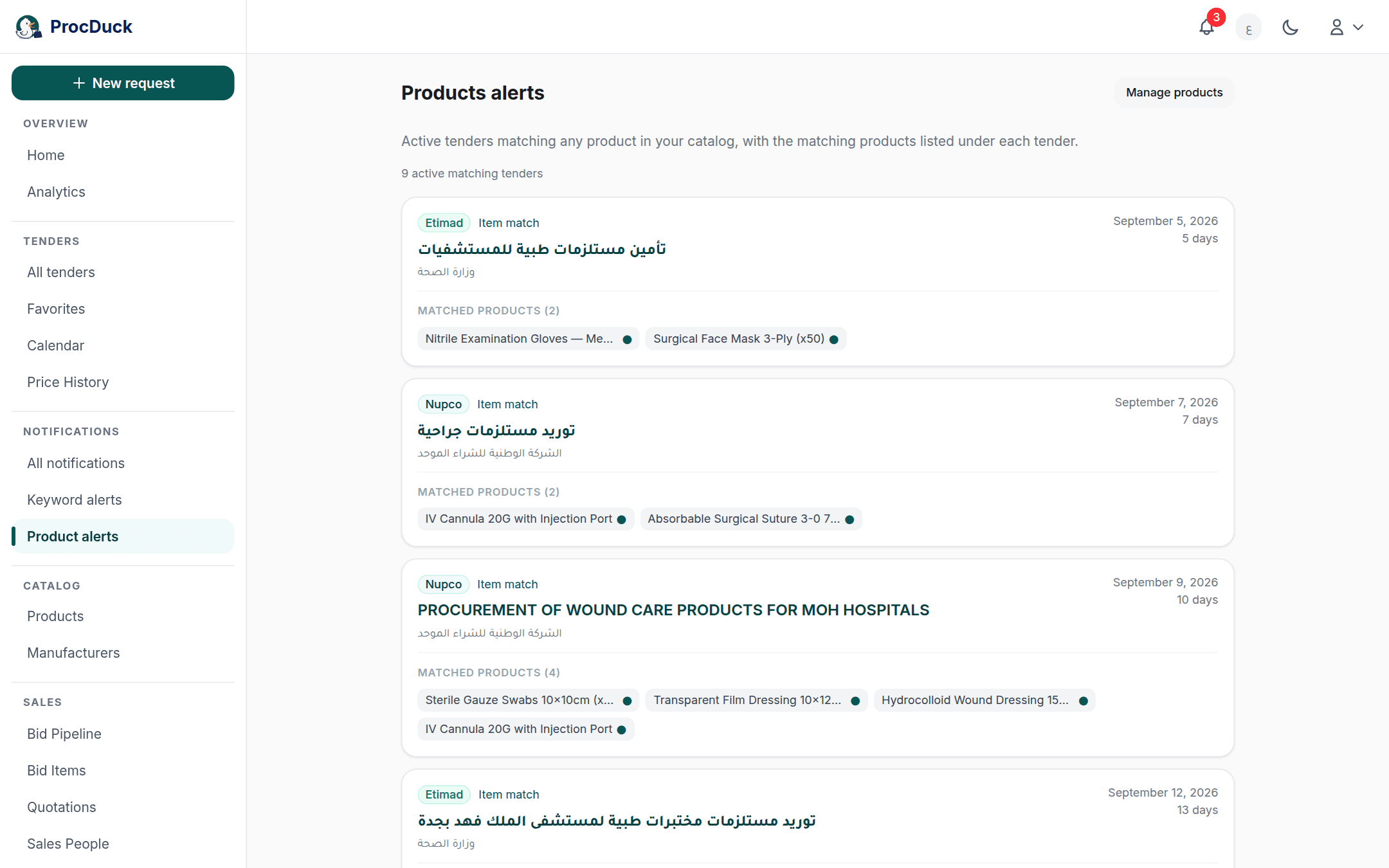
Beside Keyword alerts in the same section is a Product alerts page. Those are not created here: they come from your product catalog, where every product with a saved search query, keywords or linked NUPCO codes matches tenders on its own, the open tenders matching it are listed on that page, and its new matches reach you on the same channels as Product match:, by email to every member of the organization, not to one person, because products belong to the organization. A keyword alert is quicker to create and better for a query tied to no particular product: an agency you follow, a tender number you are waiting to see announced, or a whole category.
Outside the browser
Listing and creating are GET/POST /api/v1/alerts, pausing and deleting PATCH/DELETE /api/v1/alerts/{id}: with the alerts.read and alerts.write scopes. And the alerts_list, alerts_create, alerts_update and alerts_delete tools of the MCP server. The query goes through the same validation as the page and the same plan limit, and PATCH accepts an in-place edit of the keyword text beside is_active. The row returns last_triggered_at, the last time the alert produced a notification. Notifications are at GET /api/v1/notifications with the notifications.read scope and the notifications_list tool. Tell an AI agent "notify me when a tender with ventilators appears" and it creates a keyword alert. That is what the request means. See the API reference and Getting started.