Features
Quotations
Create print-ready quotations from a tender's priced items or from scratch: a bilingual PDF carrying your organization's stamp and the sales person's signature once approved, with the accompanying product documents and bulk package downloads.
The Quotations page (under the Sales section of the navigation bar) is where your prices become a document you hand to a customer: a fixed-layout PDF reproducing your organization's approved price-quote template to the millimetre, addressed to the tender's agency or a customer you name, with priced lines, VAT and computed totals. A quotation is created from tender items you priced under Bid pricing or from scratch, and goes through an approval step: the stamp and the sales person's signature print only on an approved quotation. Quotations belong to the whole organization: what a colleague creates, you see.
The quotations list
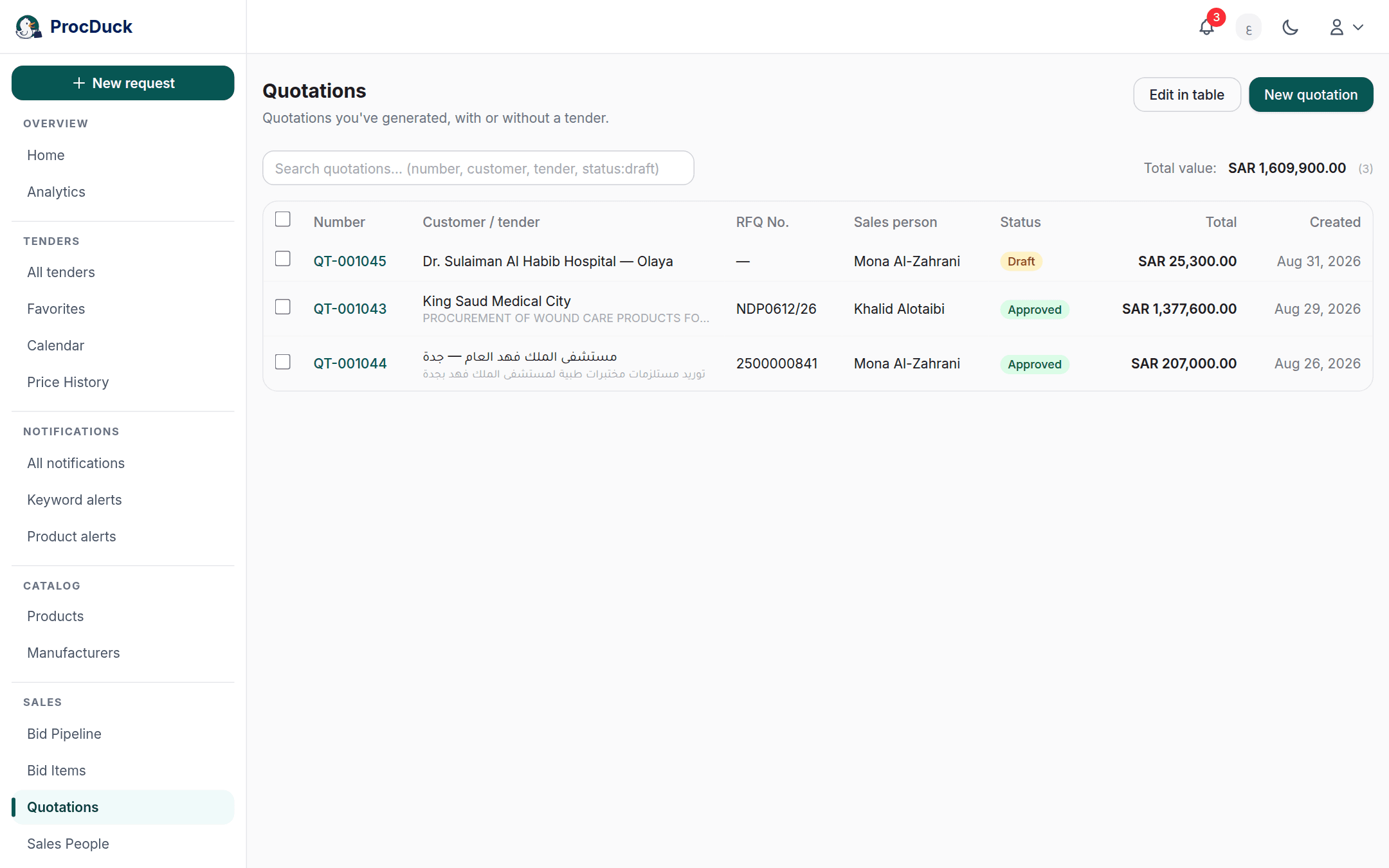
The table shows each quotation by number (linking to its page), the customer: with the tender's name beneath it when the quotation is tender-linked: the RFQ number, the printed sales person, the approval status (Draft or Approved), the total and the creation date. Above the table the Total value of the visible quotations shows, grouped per currency, with their count. It follows the applied filter, so it always describes what you see. Arriving from the All quotations button on a tender's page opens the list filtered to that tender alone, with a chip you close from its ×.
The search box looks for a plain word across the quote number, customer, tender name, agency and RFQ number at once, and understands a structured syntax in the style of the tender search bar with the list's own fields:
| Write | To find |
|---|---|
Q-001355 | The word in the quote number, customer, tender name, agency or RFQ number. |
status:draft or status:approved | Only the drafts, or only the approved. |
number:, customer:, rfq:, tender:, agency:, currency: or salesperson: | The word in that one field, like salesperson:ahmed for one sales person's quotations. |
nupco OR moh, -draft, "exact phrase" | The same grammar: OR for either word, - to exclude, and quotes for an exact phrase. |
Creating a quotation
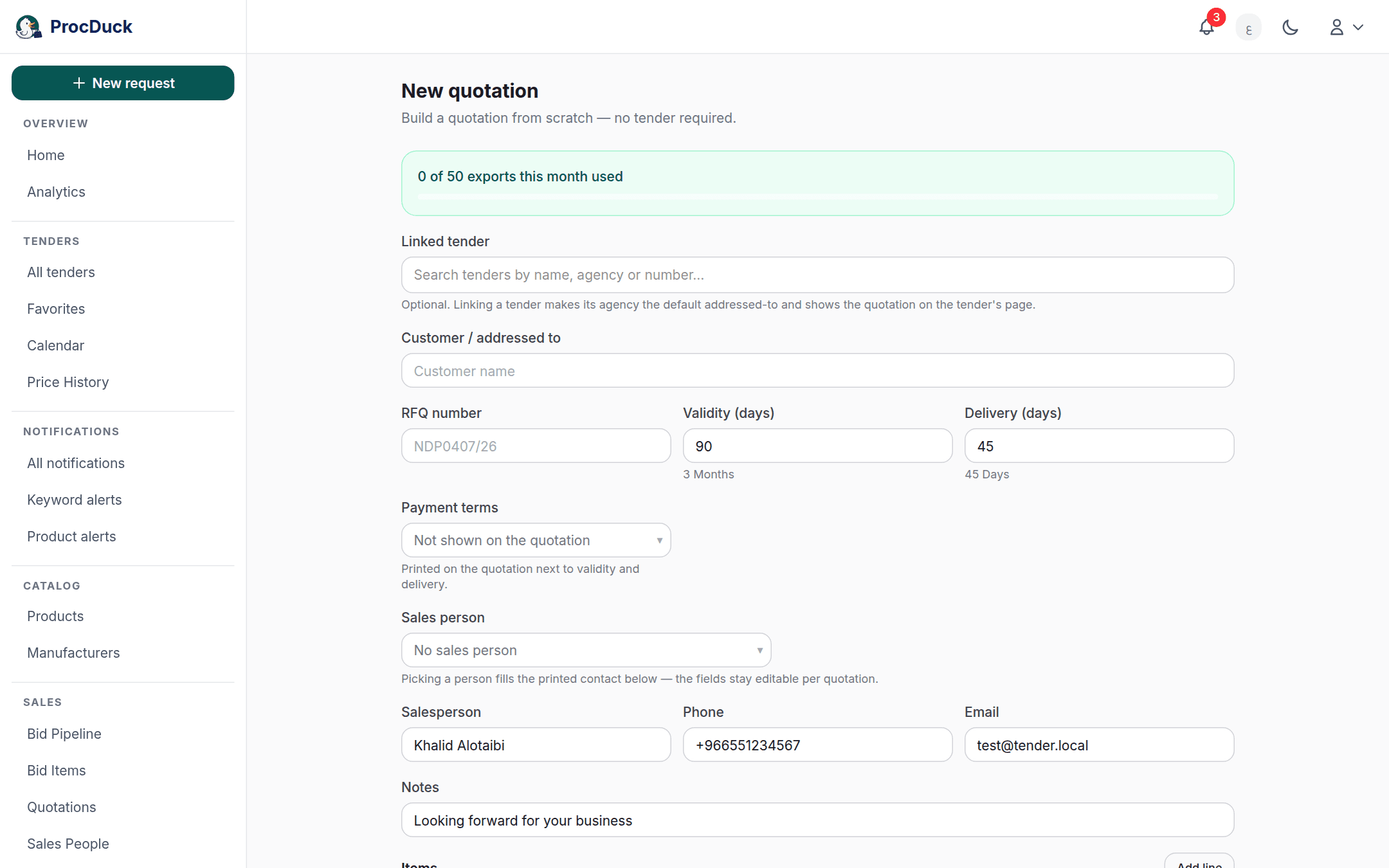
A quotation starts in one of two places. The first and most used is the tender page: select priced items and choose One quote per selected item. What NUPCO asks for, one item per quotation, or One quote for all selected. The items arrive in the form ready: each with its name, NUPCO code, unit, quantity and the price recorded under bid pricing, and the priced ones pre-selected. The second is the New quotation button on this page, for a quotation from scratch, for a private-sector customer, say, with an optional tender link and lines you type yourself. A run that makes several quotations lands on this list filtered to the tender with those quotations already selected, so the actions bar (sales person, approval, downloads) is open on exactly the rows it made.
The header fields
- Customer: the name printed as the addressee; pick one from the customer directory and its legal name is copied, or type it. On a tender-linked quotation the field is optional: leave it blank and the tender's agency prints, type a name and it wins. On a standalone quotation it is required.
- Quote number: minted automatically from your organization's sequential counter on create, and editable later from the edit page. The number is unique within your organization: a taken number is refused with a clear message, and the counter automatically skips any number you typed by hand.
- RFQ number, quote validity and delivery period in days, and notes. All print on the document. Validity and delivery seed from your organization's defaults (set by the owner in the organization settings).
- Payment terms: a ready list of Saudi-market presets (100% advance, 50% advance and the rest on delivery, due on delivery, net 30/60/90 days) printing bilingually, or custom text printed exactly as typed, or none so the row does not print at all. The default comes from the organization settings.
- Sales person: the name, phone and email printed in the contact block. Pick someone from the sales-people roster and the three fields fill from their record, or type them yourself: what the fields say is what prints, whatever the source, and your own details are the default. Picking a roster person links them to the quotation, and that link is what decides the signature printed after approval. See Approval and the stamp.
The lines
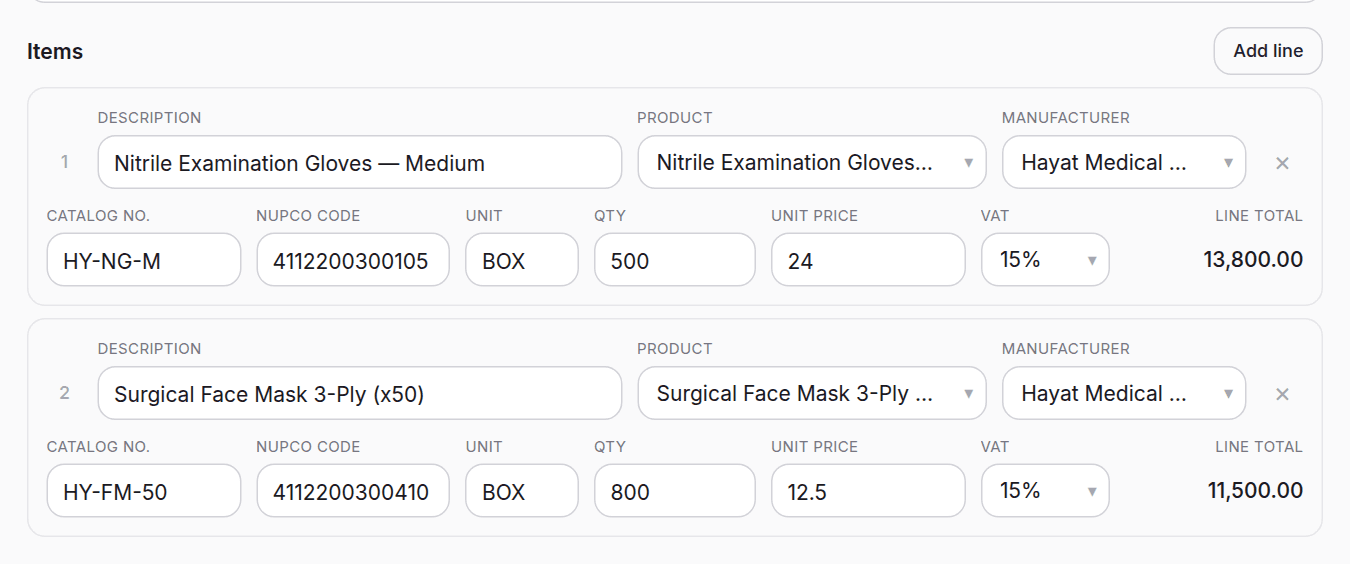
Each line is a row in a table: the description, NUPCO code, catalog number, unit, quantity, unit price and VAT rate. The standard 15% or 0% for zero-rated medical products, plus a checkbox including the line in or leaving it out of the quotation; totals are computed over the selected lines alone and update as you type. Every line also has a link product picker over your catalog: linking fills the description from the product, completes the codes and unit when blank, sets the catalog's recorded sale price when you typed none, switches the VAT automatically by the product's medical flag, and picks its default manufacturer, and the link is what later supplies the product document with the catalog and certificates.
The printed document
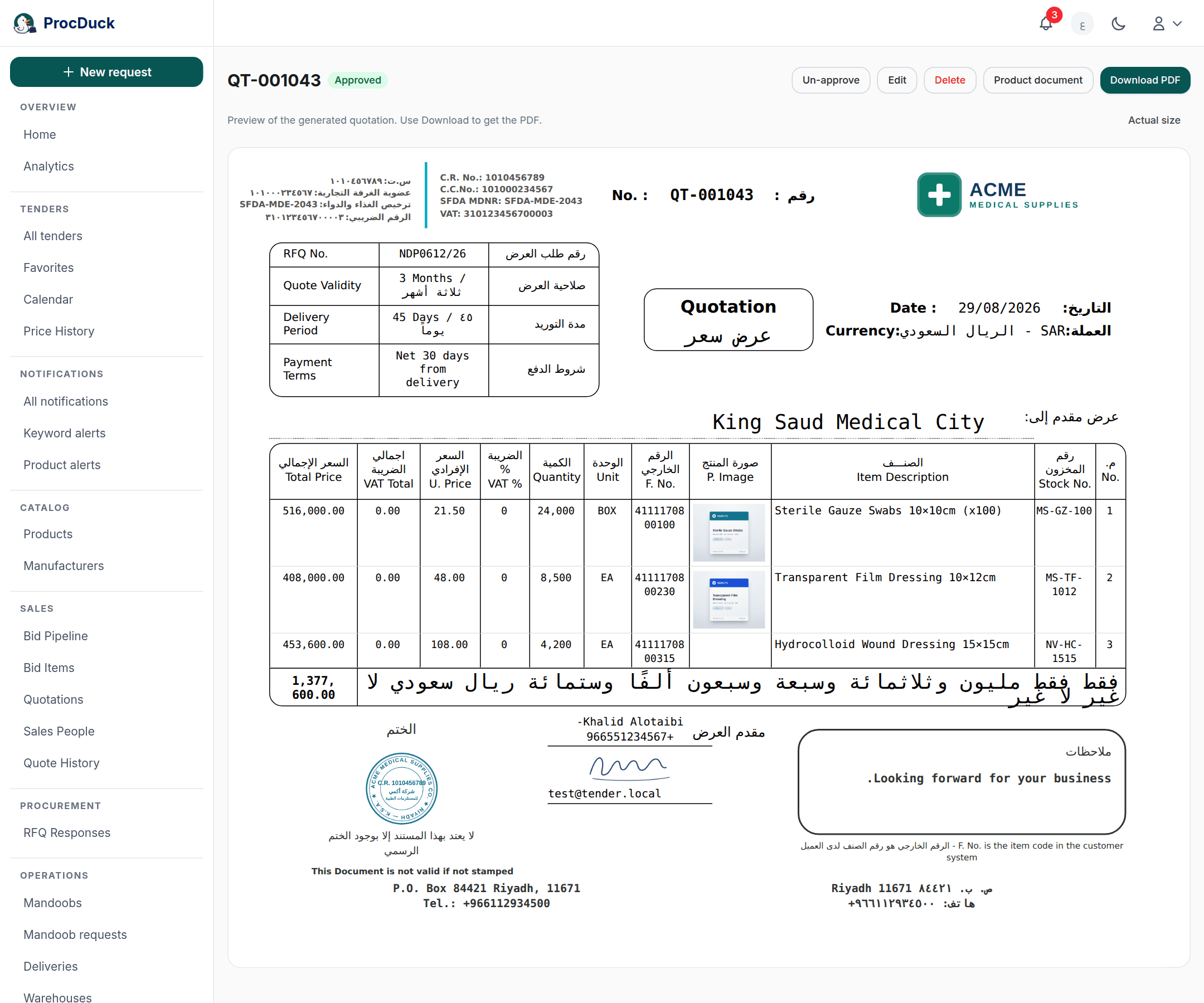
The quotation's page shows the document exactly as it prints: an A4 landscape sheet in the reference price-quote layout, scaled to fit your screen with an Actual size button returning it to print size, and Download PDF downloads it. Your organization's header details (legal name, registrations, logo) are frozen at creation time: editing the organization profile later never changes an issued quotation, so a printed document stays as printed. Each line prints its stock number, F. No. and unit on a small line under its description, and the VAT total prints as its own row above the grand total, which keeps the number columns wide enough that no amount ever wraps. A line linked to a product with photos prints its picture in a dedicated column, and a long quotation flows over pages with automatic numbering.
The PDF's file name is the quote number. Except a single-line quotation on a NUPCO tender, named tender reference, then quote number, then item serial: NUPCO asks for one quotation per item and takes one upload per item, so a whole folder of files stays tellable apart by name alone.
Approval and the stamp

Every quotation is either a Draft or Approved, and approval is what makes the document issuable: the organization stamp uploaded in the organization settings and the sales person's signature print only while the quotation is approved, and the document itself states it is not valid unstamped, so a printed draft says so on its own. The printed signature is the linked roster sales person's: when they are a team member who drew their signature in their personal settings, it prints under their name; otherwise the quotation prints without one, and approval does not depend on it existing.
Approving and un-approving is owner and admin only: from the approval button on the quotation's page, or in bulk by selecting rows in the list. In return, any content edit automatically returns the quotation to draft: the stamp certifies the exact content that was approved, so changing a line or the header means a fresh approval before the stamp prints again.
Editing
Edit on the quotation's page opens the full form: the header, quote number, tender link and every line are editable. To edit many at once, Edit in table on the list turns the visible rows into a sheet whose cells you edit directly: quote number, customer, RFQ number, validity, delivery, payment terms, currency, notes and the sales person's details; header fields only, the lines are never touched from this path. Review changes shows how many rows changed and Confirm saves them together; a row that fails (a taken quote number, say) fails alone and is named, and what saved stays saved. And remember: the edited rows return to draft.
The product document
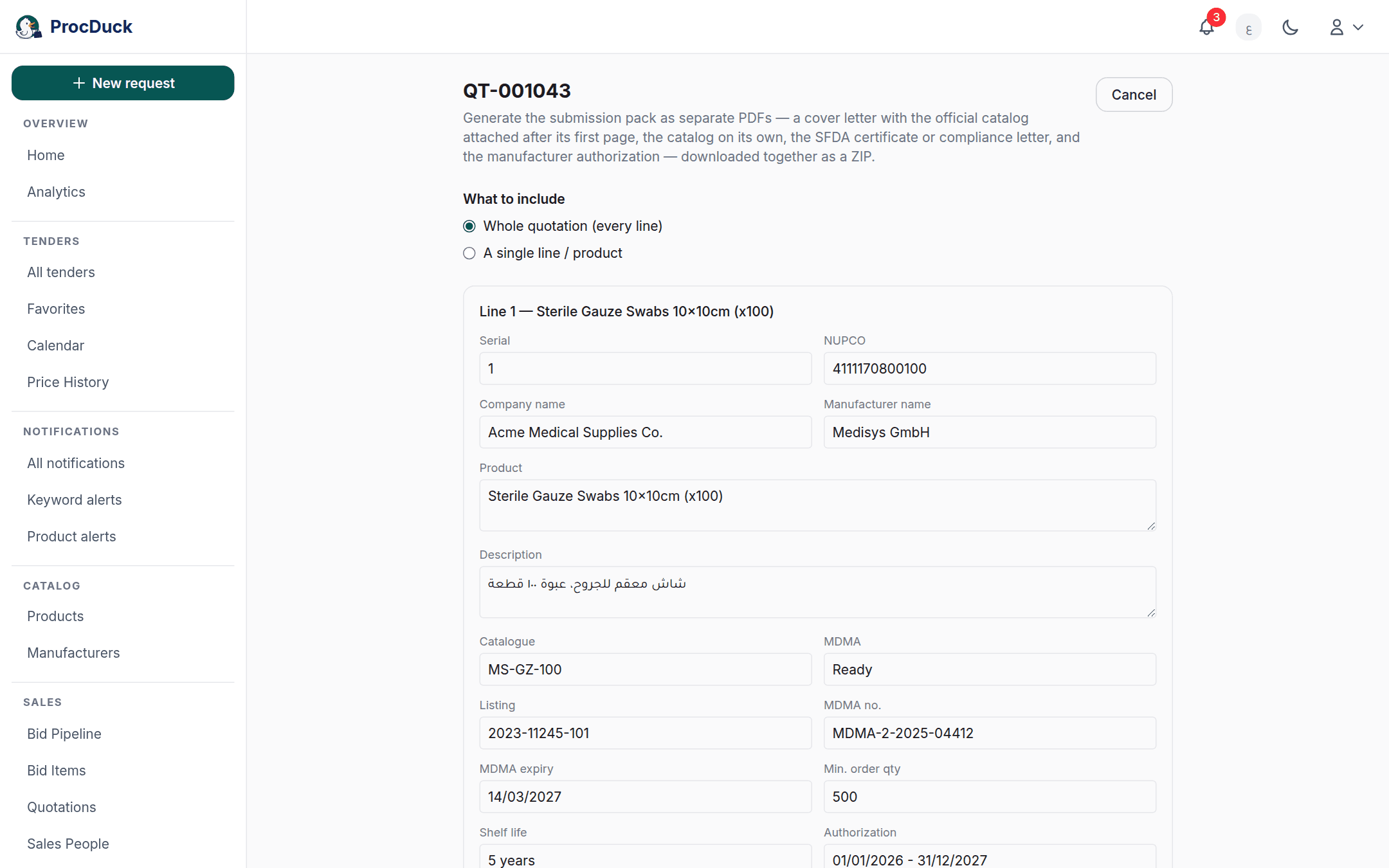
The Product document button on the quotation's page generates the technical-documents file that accompanies the quotation into a submission: a ZIP holding, per line, a cover letter with the product's summary page followed by its catalog, the catalog on its own, the SFDA document: the certificate stored on the product, or a generated compliance letter when there is none: the manufacturer's authorization letter, and a plain-text registration-info file. Choose combined for all lines or a single item, review each line's fields prefilled from the product and adjust what you need, and upload a replacement catalog PDF per line to override the stored one. The catalog and certificates come from the line's linked product and its manufacturer: the one picked on the line, else the product's default, else its sole linked one, so a line with no linked product comes out without a catalog and says so before generating.
Downloading and deleting in bulk
Selecting rows in the list opens the actions bar, with two download buttons: Download PDFs fetches each selected quotation's document one after another with a progress counter, and Download all files builds one flat ZIP holding every selected quotation's complete package. The quotation PDF plus the product document's per-line files. Side by side, each name starting with its quote number so many quotations' files stay tellable apart once extracted. A quotation that fails to render is named by number in the error message, never silently dropped. The same bar carries the bulk Approve and Un-approve and a Delete behind a confirmation. It also carries Set sales person: pick one person from the roster and every selected quotation is presented by them: their name, phone and email print in the contact block, and their signature after approval. Like any edit, that returns those quotations to draft, so the selection stays put for the Approve that follows.
Who sees and edits what
Quotations are sale-side pricing end to end, so they follow the sale-pricing rule: the whole page (and its navigation link) is withheld from the viewer without pricing and technical roles. Whoever sees it can download the documents; creating, editing and deleting is for the working roles: owner, admin, sales and purchasing; and approving and un-approving is owner and admin only. Creating a new quotation counts against the plan's monthly generated-documents quota, and the usage banner on the create page shows the balance.
Outside the browser
Everything here is on the API under the quotations.read and quotations.write scopes: listing and creating at GET/POST /api/v1/quotations, one quotation at GET/PATCH/DELETE /api/v1/quotations/{id} (where omitted PATCH fields mean "unchanged", and only a sent items replaces the lines) bulk approval at POST /api/v1/quotations/approval, batch header edits at PATCH /api/v1/quotations/bulk, the defaults at GET /api/v1/quotations/defaults, the documents at /api/v1/quotations/{id}/pdf, /package and /product-document with the whole-selection bundle at POST /api/v1/quotations/packages, and one tender's quotations and their generation at GET/POST /api/v1/tenders/{id}/quotations.
On the MCP server the same family exists as tools: quotations_list, quotations_get, quotations_create, quotations_update, quotations_delete, quotations_set_approval, quotations_bulk_update and quotations_defaults_get, the documents through quotation_pdf, quotation_package, quotation_packages_bundle and quotation_product_document, and a tender's quotations through tender_quotations_list, tender_quotations_generate. The same regeneration-safe path, and tender_quotation_pdf_bundle. The sheet_import tool with the quotation_items target builds a whole quotation from an Excel file of lines. So send the WhatsApp assistant a price sheet and say "make a quotation out of this", and it creates one through these very tools under your same role limits, and hands you the PDF right in the chat. See the API reference and Getting started.