Features
Manufacturers
Your organization's manufacturer directory: each company's contact, authorization and files in one place, tied to your catalog products, submission documents, authorization letters and supplier prices.
The Manufacturers page: under the Catalog section of the navigation bar, beside Products. Is your organization's directory of the companies that make what you sell. A company recorded here is more than a contact line: it is linked to catalog products from the Manufacturers card on each product's page, its name shows in the product list, its filters and the tender items table, its name and country print into generated documents and the NUPCO files. The country of origin is what fills the local-manufacturing percentage in the NUPCO response file. Its uploaded authorization letter rides with its products in submission packs, and ready-to-sign authorization letters are generated from it. The directory belongs to the whole organization: what a colleague adds, you see.
The directory list
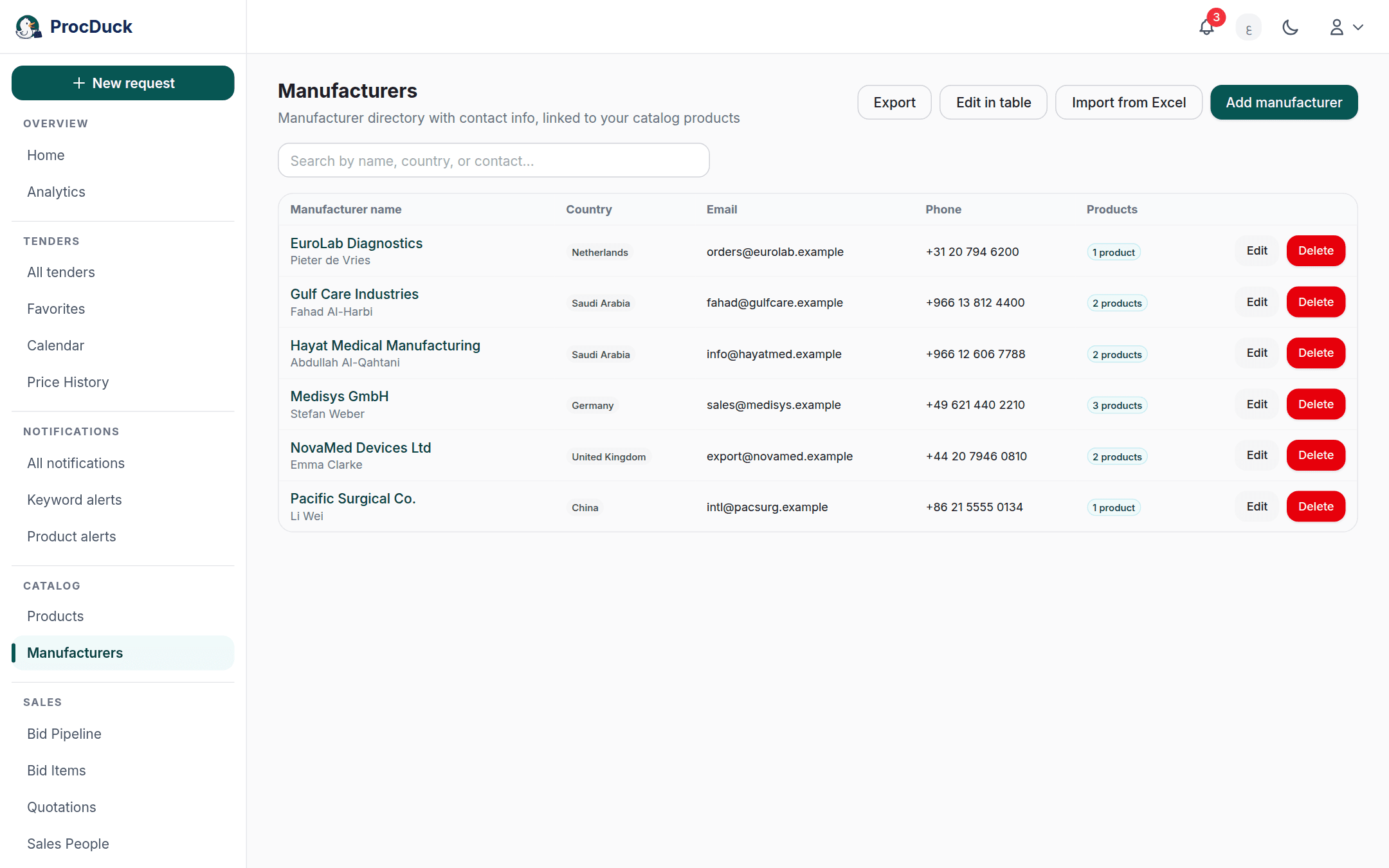
The table shows 50 companies per page: the name (linking to the company's page) with the contact person beneath it when set, then the Country, Email and Phone, and an N products chip counting the catalog products linked to it. There is no plan limit here. The directory does not count against plan quotas. The search and the page number mirror into the URL, so a copied link opens on the same slice.
The search box (Search by name, country, or contact…) looks for a plain word across the name, country, contact person and email at once, and understands a structured syntax in the style of the tender search bar with the directory's own fields:
| Write | To find |
|---|---|
braun | The word in the company's name, country, contact person or email. |
country:germany | That country's companies: type the country's name in Arabic or English, or its code; the platform resolves it to the stored country whichever language you typed. |
name:, contact:, email:, phone: or website: | The word in that one field. A plain word does not search the phone or website, so target them by field. |
braun OR medtron, -china, "exact phrase" | The same grammar: OR for either word, - to exclude, and quotes for an exact phrase. |
Above the table an Export button (for owners and admins) downloads the whole directory as Excel (.xlsx) or CSV with every field and each company's product count, whatever search is applied.
Adding a manufacturer
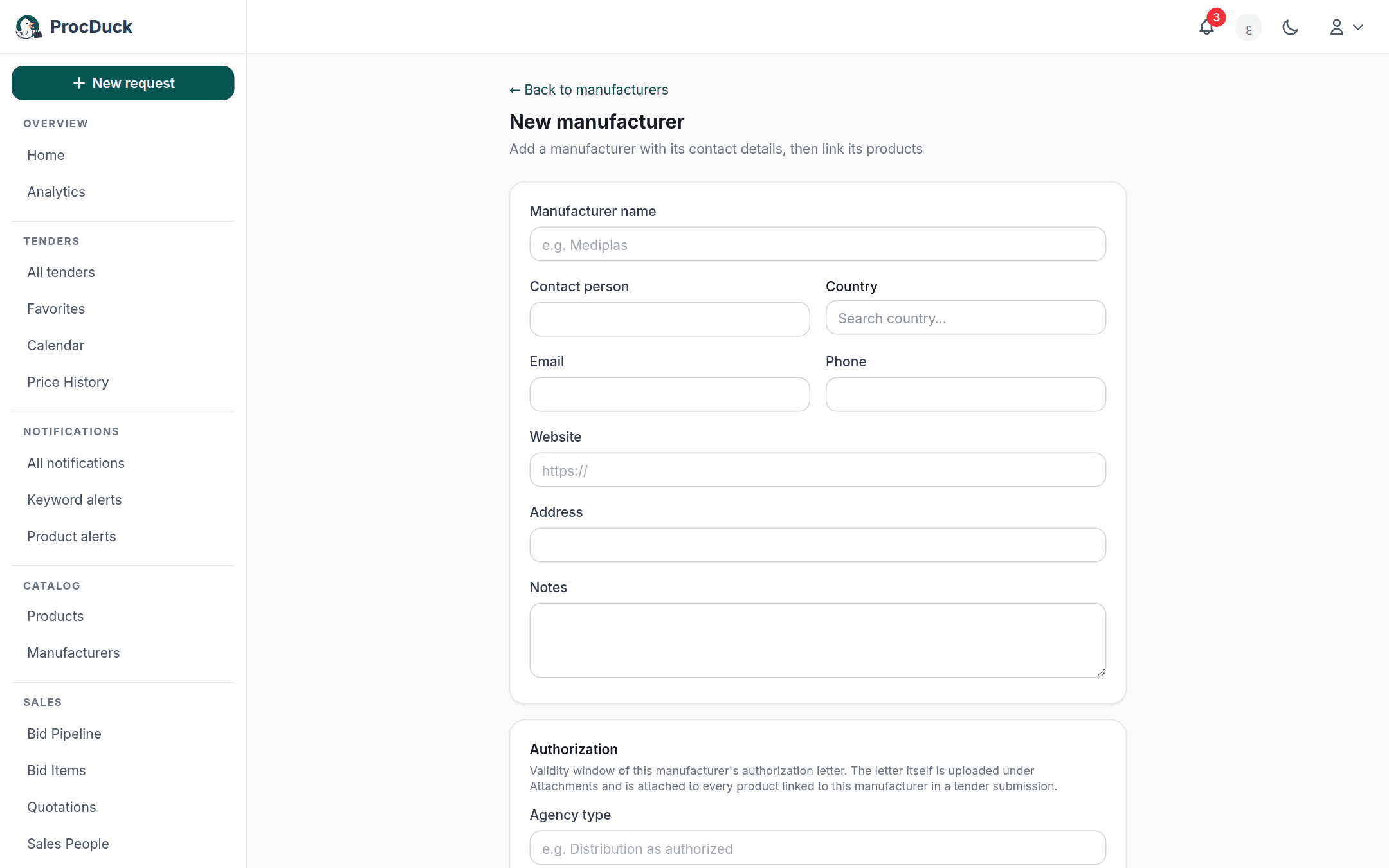
The Add manufacturer button opens the create page with a three-card form where only the name is required, and the name is unique within your organization: a duplicate is refused with a clear message:
- Contact details: the name, contact person, country, email, phone, website, address and free notes. The email here is what the platform uses when writing to the company as a supplier. Such as the RFQs sent from the tender page.
- Authorization: the Agency type (e.g. "Distribution as authorized") and the start and end dates of the authorization letter's validity. This is the validity window of the signed letter you hold; the letter itself is uploaded in the attachments card under the Authorization letter category, and it is what accompanies every product linked to this company in tender submission packs.
- Attachments: appear after the first save: save the company first to add files, then upload them from the edit page or view them on the company's page. The attachments section below explains the categories.
Below the form two optional sections tie the company to the catalog from the start: linking existing products with a picker searching your catalog by name or NUPCO code, and a new-products sheet (an excel-like sheet like the products page's Bulk add, with photos per row) creating new products already linked to the company. Saving is one atomic request: the company, its new products and the links are created together or not at all, and the new products count against the products plan limit.
Editing many at once
Edit in table
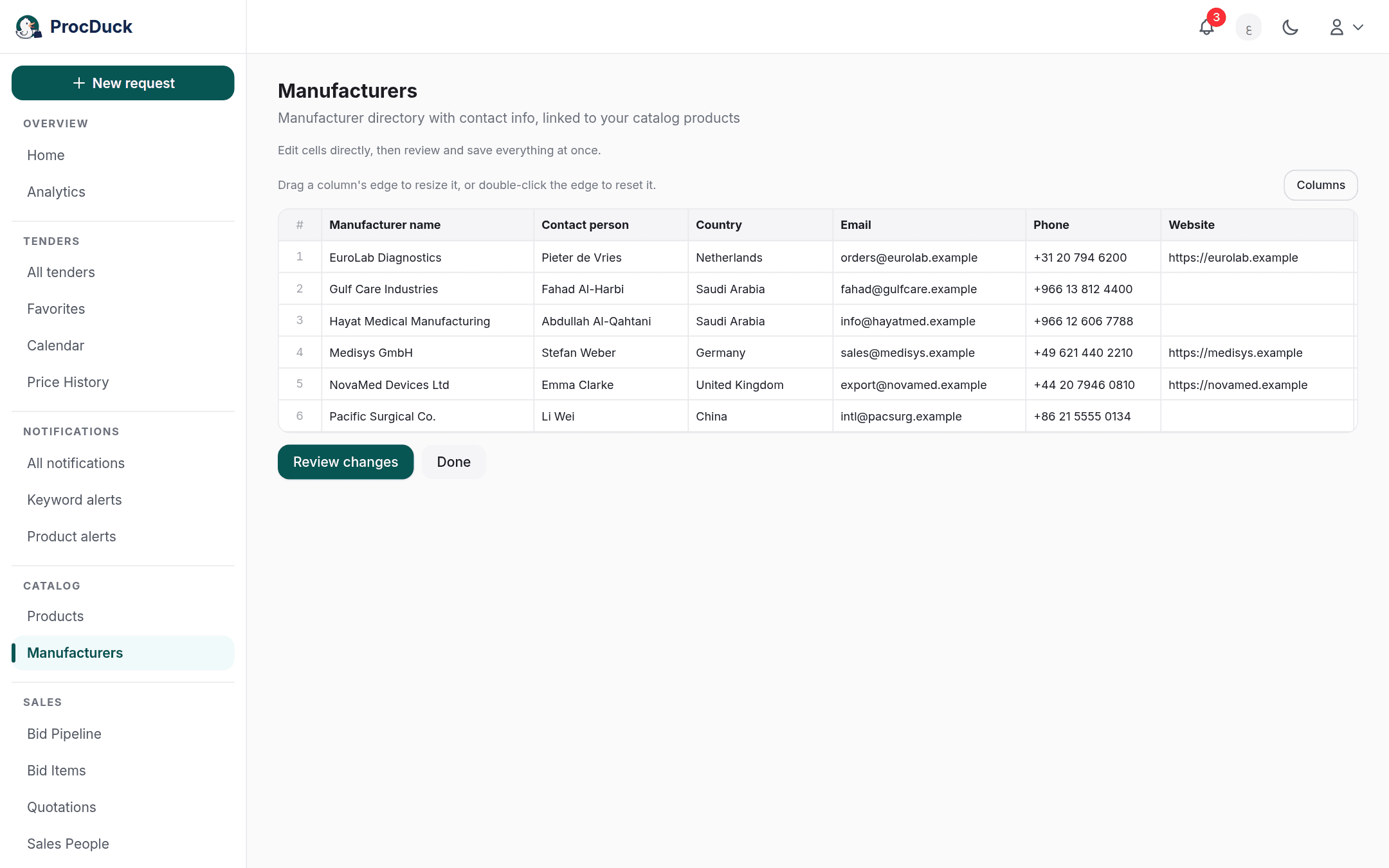
Edit in table turns the current list page into a sheet whose cells you edit directly (name, contact person, country, email, phone, website and address) with live validation: a name cannot be left empty or duplicated, and an invalid email or country is refused before saving. Review changes shows how many rows changed and Confirm and save saves them together; other pages are edited page by page.
Import from Excel
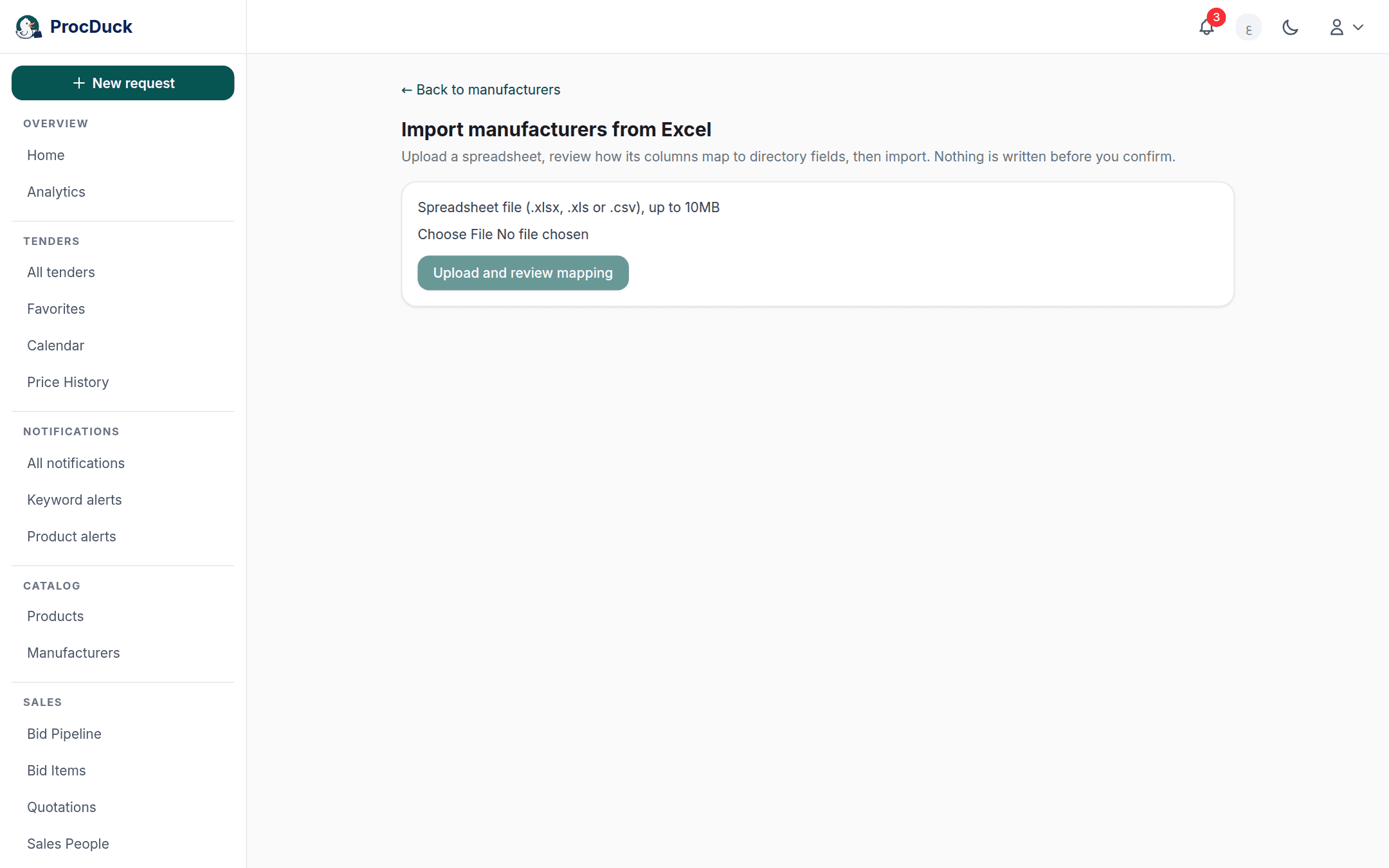
Import from Excel is the same wizard as the products import aimed at the directory: an .xlsx, .xls or .csv file with any column labels, a review of how each column was understood with corrections where needed, and nothing written before you confirm. The essential difference here is that the import adds and never updates: a name already in your directory has its whole row skipped and named by the completion report, so a supplier file containing companies you know creates no duplicates and touches none of their recorded data, and a row with an invalid email or country imports without them, counted as a note.
The manufacturer page
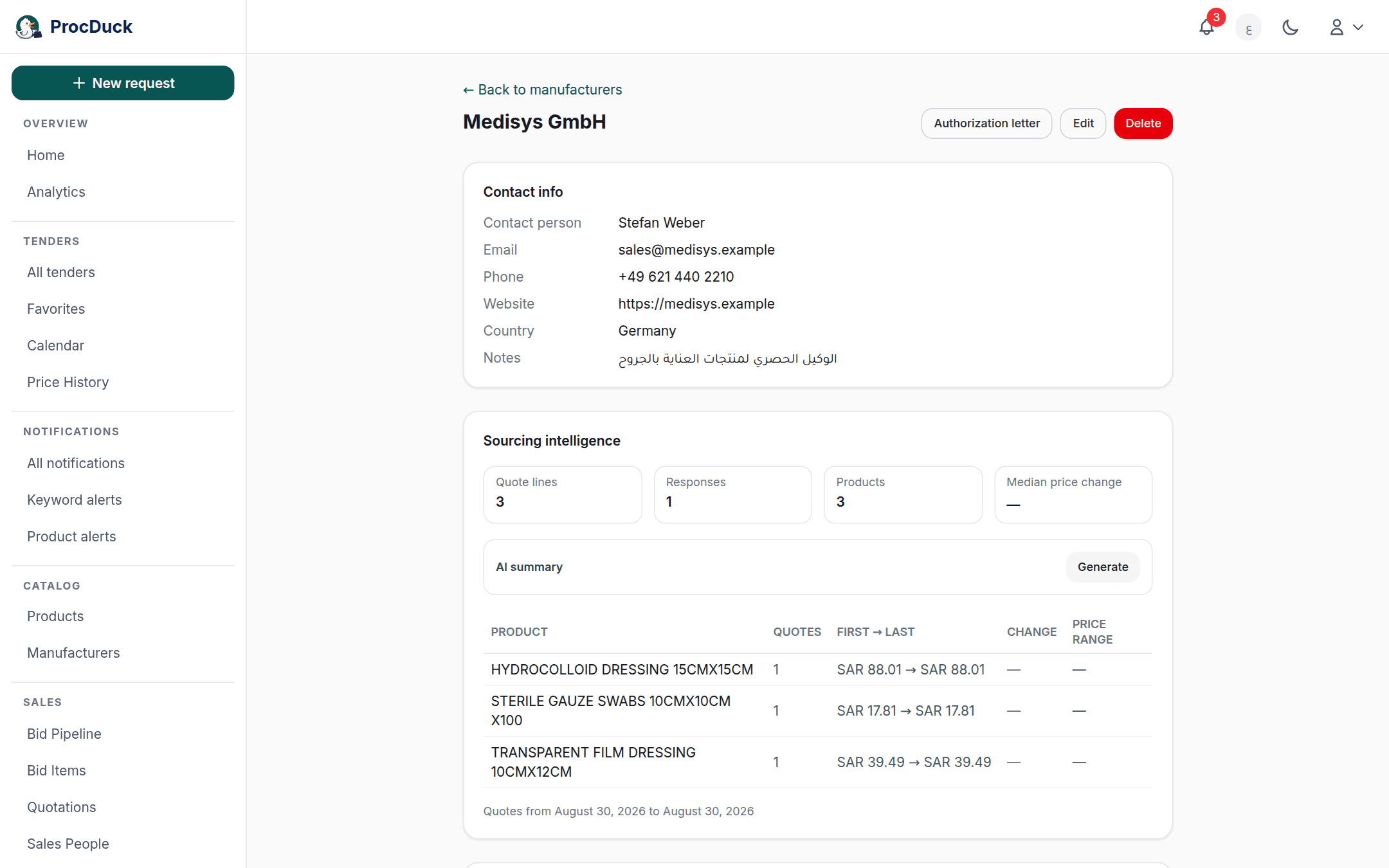
Clicking a company opens its page: a Contact details card with every recorded field and the notes, and at the top the Authorization letter, Edit and Delete buttons. Then come the page's cards:
Attachments and files
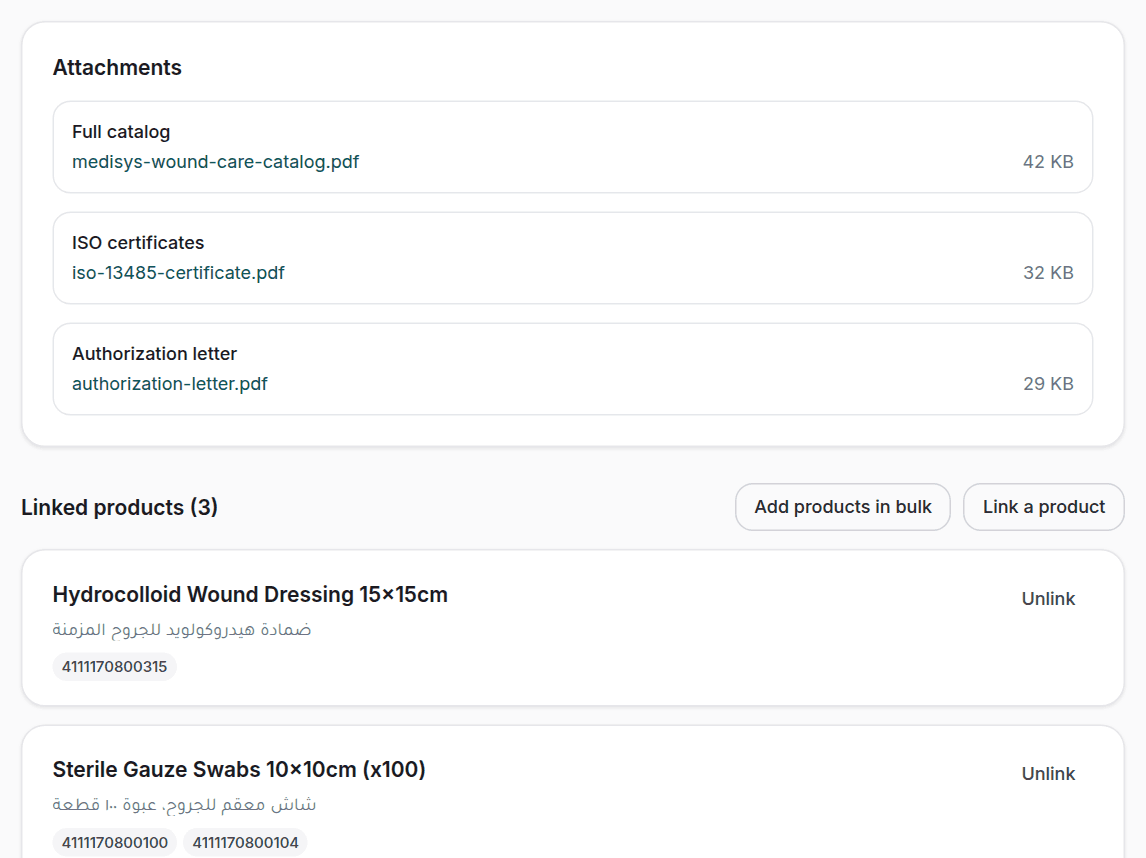
The company's files are uploaded from the edit page. PDFs, images and Office documents, in four categories: Full catalog, SFDA AR (the SFDA authorized-representative registration), ISO certificates and Authorization letter. The last category is the one that works hardest: the signed authorization letter uploaded here is pulled automatically into submission documents with every product linked to this company. One upload covers all its products instead of attaching it product by product. The company's page shows the uploaded files by category for download, and each file is removed from the × beside it on the edit page.
Price intelligence
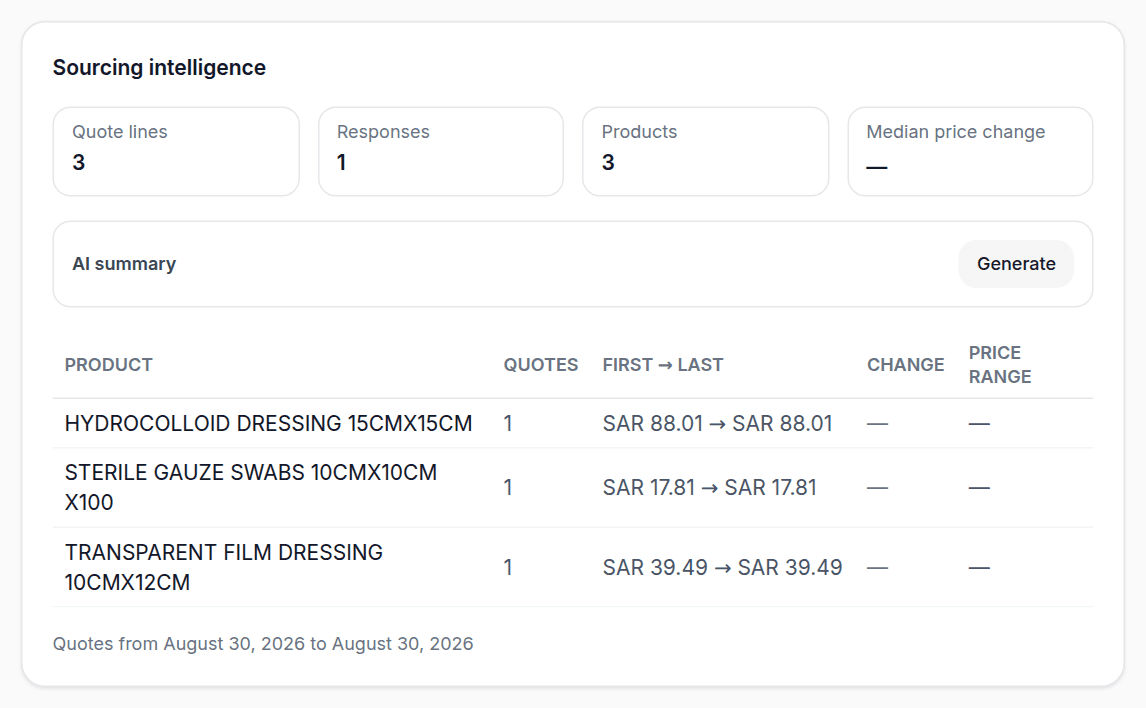
The Price intelligence card is computed from your organization's own data alone: the price lines this supplier returned to the RFQs sent from your platform. It shows counters for quote lines, responses and products with the median price change, chips for the top price increases and same item at different prices, and a per-product table with the first and latest price, the change and the range, so you enter the next negotiation knowing how their prices have moved with you. It also carries an AI summary: a bilingual narrative generated on demand from the Generate/Refresh button: from the aggregated price data only, and never regenerated unless the data changed. The card is cost-side data, so it appears only to the roles that see supplier responses. See roles.
Linked products
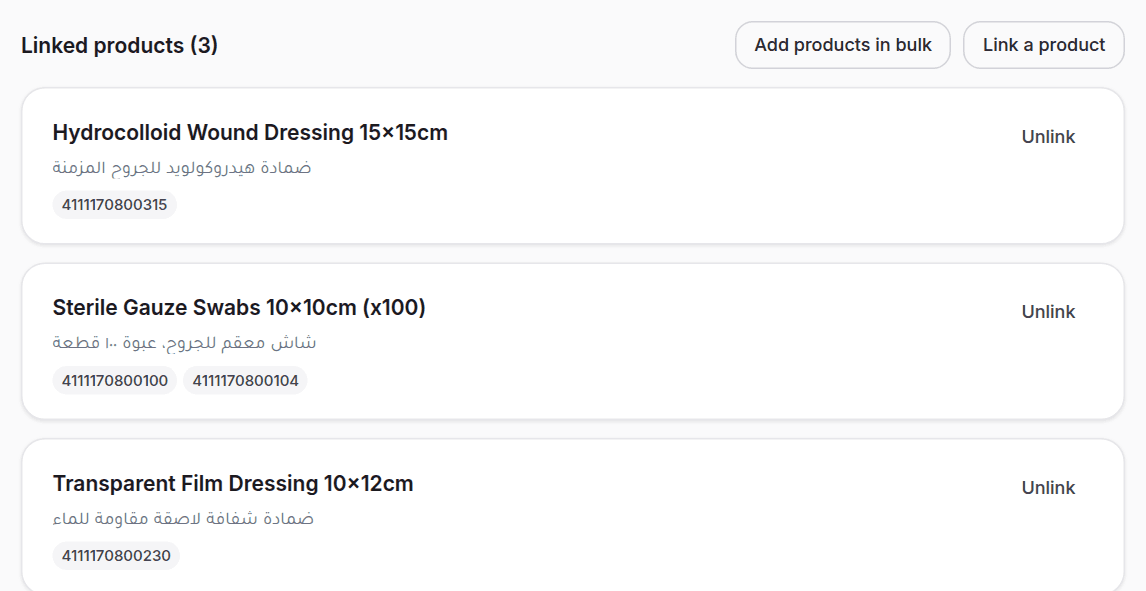
The Linked products (N) section lists the catalog products this company makes, each with its name, description and NUPCO codes, and an Unlink beside each. Link product opens a picker searching the catalog by name or code, and Bulk add products opens the same new-products sheet as the create page, every row becomes a product linked to this company in one atomic request. The link is the same one shown on the product page, where the Default manufacturer generated documents pick is set.
Authorization letters
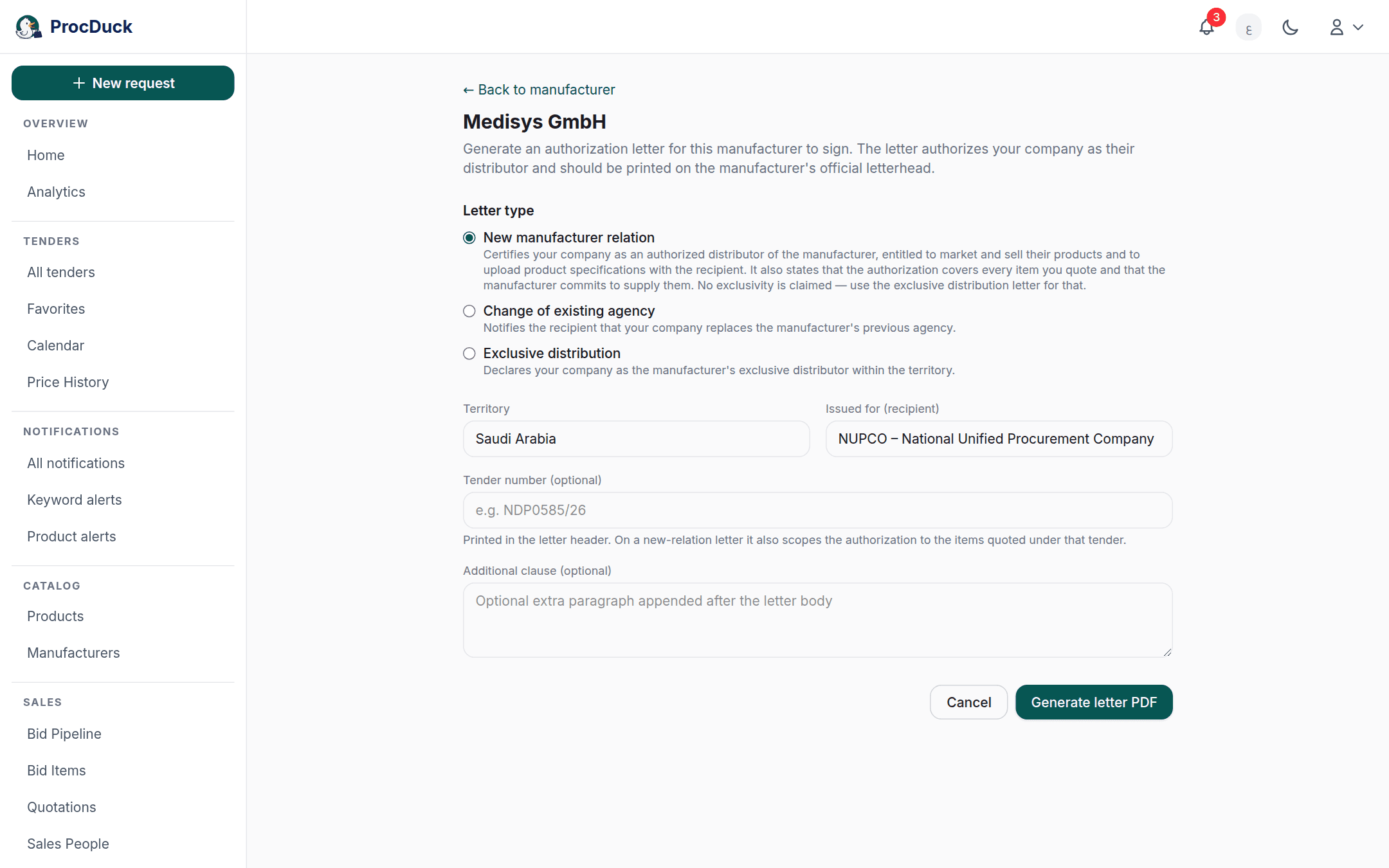
The Authorization letter button on the company's page opens the letter generator: pick a type and download a ready PDF to be printed on the manufacturer's own letterhead and signed by them. The letter is issued by the manufacturer in your organization's favour. Three types:
- New manufacturer relation: certifies your company as an authorized distributor of the manufacturer, entitled to market and sell their products and to upload product specifications with the recipient, and states that the authorization covers every item you quote and that the manufacturer commits to supply them. No exclusivity is claimed. Exclusivity has the third letter.
- Change of existing agency: notifies the recipient that your company replaces the manufacturer's previous agency, and requires the previous agency name.
- Exclusive distribution: declares your company the manufacturer's exclusive distributor within the stated territory.
The shared fields: the Territory (defaulting to Saudi Arabia), the Recipient (defaulting to NUPCO), an optional tender number printed in the letter's header. Which on a new-relation letter also scopes the authorization to the items quoted under that tender, and an optional extra clause appended after the letter body.
Deleting a manufacturer
Who sees and edits what
Every member sees the directory itself. Editing. Adding, editing, deleting, importing, linking and the letters. Is for the working roles: owner, admin, sales and purchasing; viewers and the technical role are read-only, and exporting is owner/admin only. The Price intelligence card alone follows the cost-pricing rule: supplier prices are withheld from the sales role, the viewer without pricing and the technical role, so the card never appears for them. Withheld by the server, not merely the screen.
Outside the browser
The whole directory is on the API under the manufacturers.read and manufacturers.write scopes: listing and creating at GET/POST /api/v1/manufacturers (with the same structured q including country:, product counts and pagination), one company at GET/PATCH/DELETE /api/v1/manufacturers/{id} (where omitted PATCH fields mean "unchanged", never "clear") batches at PATCH /api/v1/manufacturers/bulk, the export at GET /api/v1/manufacturers/export with the export scope, attachments at /api/v1/manufacturers/{id}/attachment, the letter at POST /api/v1/manufacturers/{id}/letter, the intelligence at GET/POST /api/v1/manufacturers/{id}/intel, and the product links at /api/v1/product-manufacturers with the products.write scope.
On the MCP server the same family exists as tools: manufacturers_list, manufacturers_get, manufacturers_create, manufacturers_update, manufacturers_delete, manufacturers_bulk_update, manufacturers_export_csv, manufacturer_letter_pdf, manufacturer_intel_get, manufacturer_intel_generate plus the attachment and product-link tools, and the sheet_import tool with the manufacturers target imports an Excel file down the same path as the page, under its same rule: known names are skipped, never updated. So send the WhatsApp assistant a supplier list (a file or a photo) and say "add these companies to the directory", and it creates them through these very tools under your same role limits. See the API reference and Getting started.