Features
Sales People
Your organization's roster of the sales people its quotations are presented by: picking one on a quotation fills its printed contact block, and linking one to a team member is what makes their signature print after approval.
The Sales People page, under the Sales section of the navigation bar, beside Quotations. Is your organization's roster of the people its quotations are presented by. A roster entry is not an account or a login: it is who the printed quotation says to contact. A name, an email and a phone. Picking a person on a quotation fills its printed contact block, lets the quotations list filter by their name, and (when they are a team member) decides the signature printed after approval. The roster belongs to the whole organization: what a colleague adds, you see.
The roster list
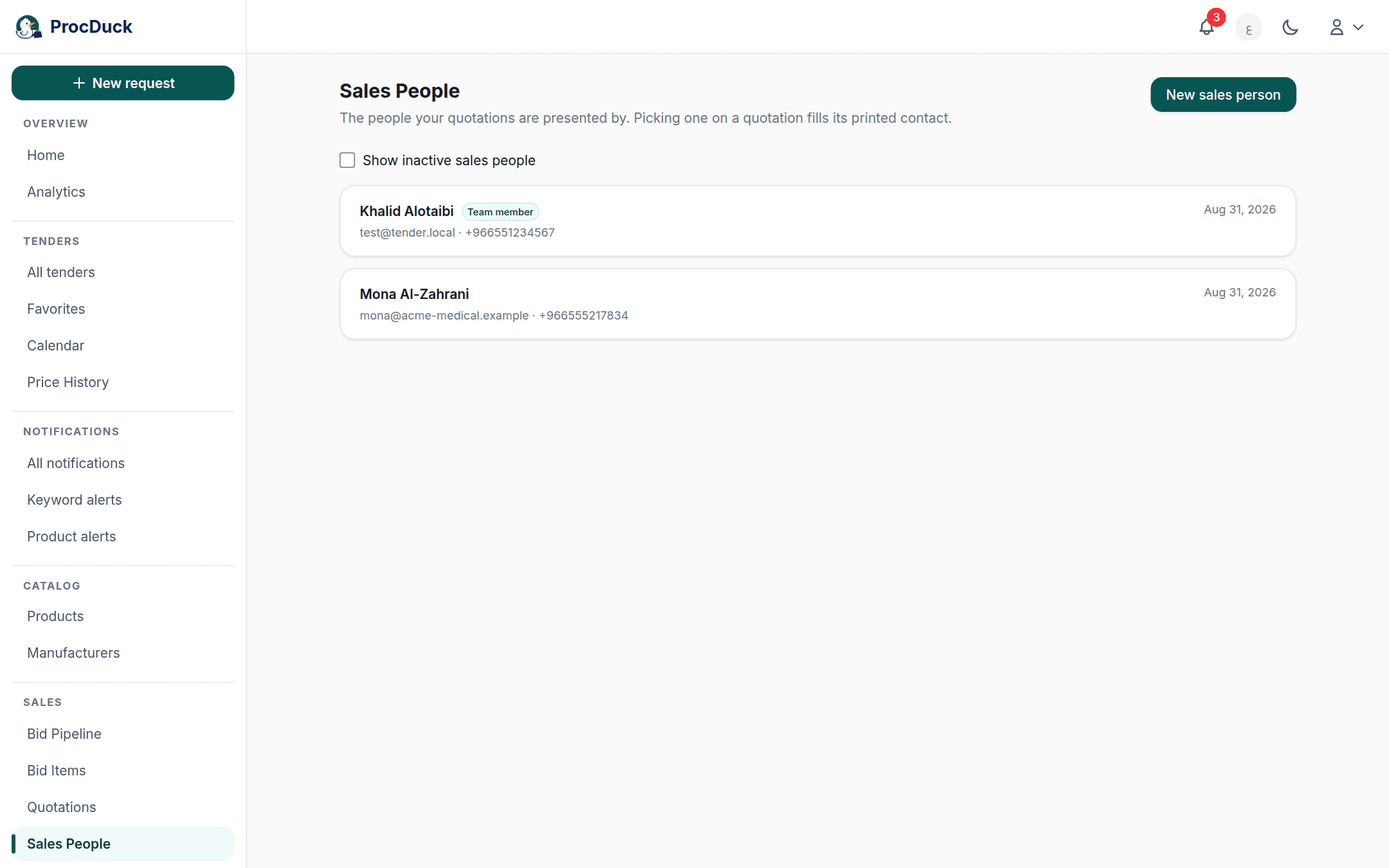
The list is cards, newest first: the name with a Team member badge when the entry is linked to a member's account and an Inactive badge when deactivated, the email and phone beneath when recorded, and the date added on the other side. Clicking a card opens the edit page directly. There is no separate detail page here. Deactivated people are hidden by default (the same default as the picker inside the quotation form) the Show inactive sales people checkbox reveals them, and the New sales person button shows for the editing roles.
Adding a sales person
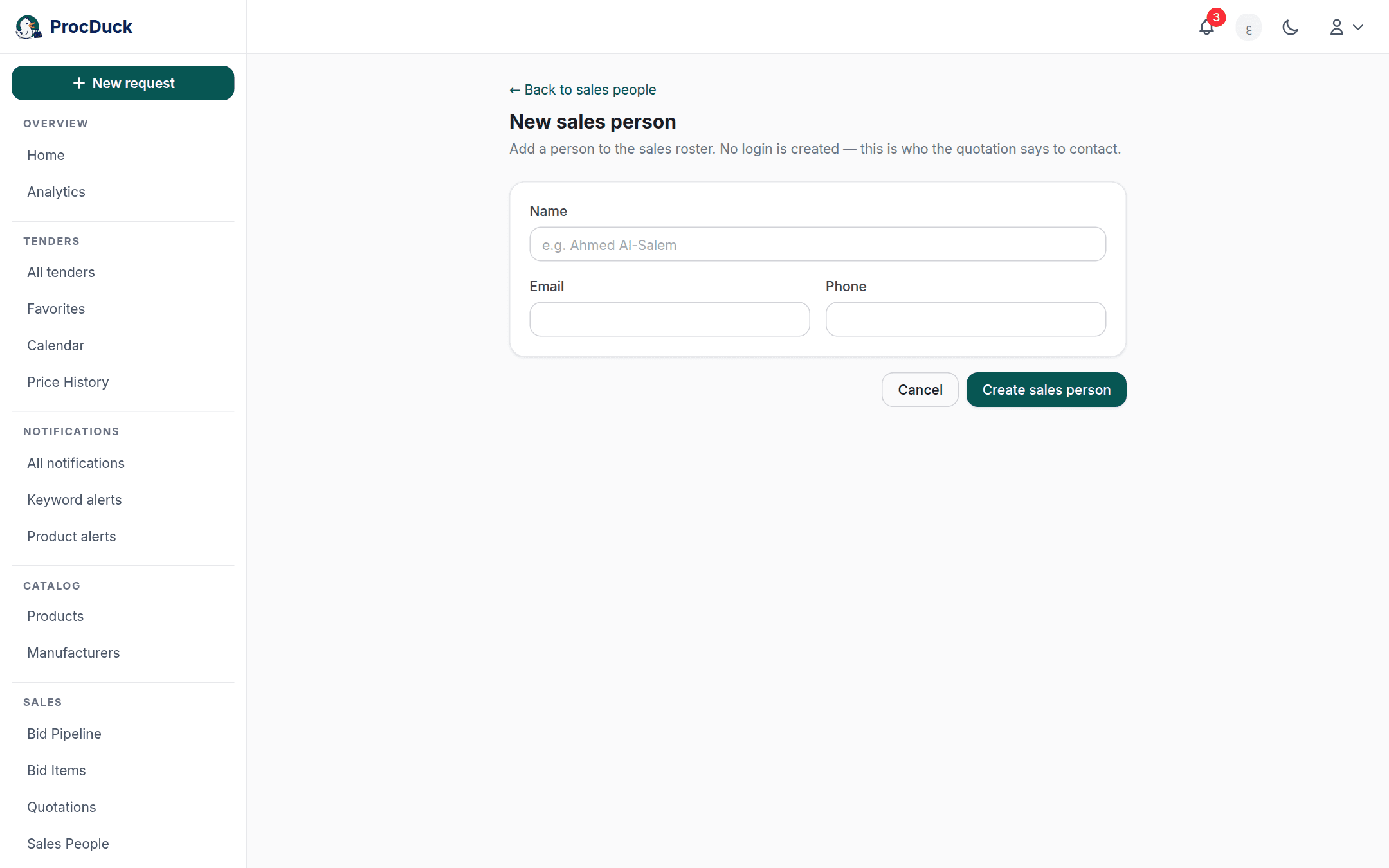
The New sales person button opens the create page with a three-field form: only the Name is required; the Email and Phone are optional. No login is created. These three fields are what picking the person fills into a quotation's printed contact block, nothing more. So a salesperson who never uses the platform is recorded here as they are.
Adding from your team
Below the list the Add from team card: for the editing roles. Shows the organization's members not yet on the roster, each with the name, email and mobile number from their profile. The Add button creates the entry copying all three, and keeps it linked: whenever the member edits their profile, their roster entry's details update automatically. The edit page notes this, and the list marks it with the Team member badge. One roster entry per member: adding an already-linked member is refused. The link to the team member is also what makes their signature printable on quotations. See the next section.
On quotations
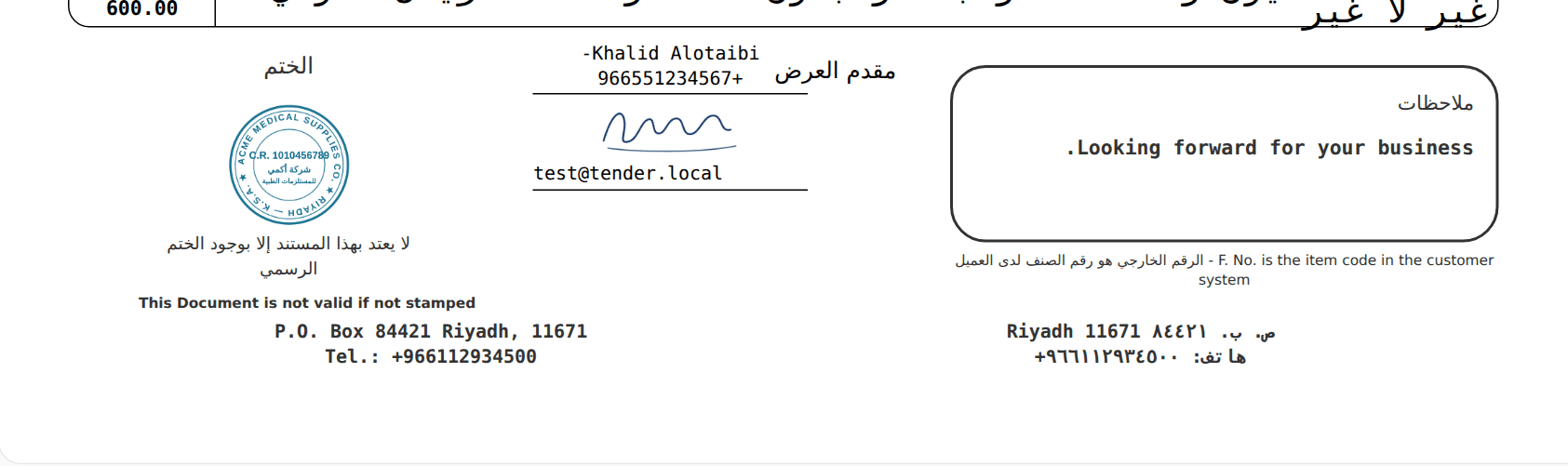
In the quotation's header fields you pick a person from the roster and the name, phone and email fields fill from their record, and stay editable: what the fields say is what prints, whatever the source. In the quotations list the sales people appear as a ready filter, and a salesperson: term in the search box targets one person's quotations.
And the signature: when the person linked to a quotation is a team member who saved their signature in their personal settings, that signature prints under their name on the approved quotation. See Approval and the stamp. There is deliberately no substitute: a quotation with no person picked, a roster person not linked to a team member, or a member with no saved signature all print without one (never someone else's) and approval itself does not depend on it existing.
Deactivating and deleting
The Active checkbox on the edit page is the gentle way to take someone out of service: untick it and they disappear from the quotation form's picker and the roster's default view, while their entry stays recorded and their old quotations stay linked. The Delete sales person button asks for confirmation and then acts by the case: when no quotation references them they are deleted outright, and when quotations do, they are deactivated instead of deleted so the link in those quotations keeps meaning something, and either way printed documents are untouched.
Who sees and edits what
Every member sees the roster. Viewers read-only. Editing. Adding by either path, editing, deactivating and deleting. Is for the working roles: owner, admin, sales and purchasing, and the Add from team card shows only to those roles because it exposes members' contact details. The technical role does not have this page in its navigation at all. It is part of the bid workspace that sits outside its slice.
Outside the browser
The whole roster is on the API under the sales_persons.read and sales_persons.write scopes: listing and adding at GET/POST /api/v1/sales-persons. The list is paginated, include_inactive=1 includes the deactivated, and include_team=1 also returns the not-yet-added team members for the editing roles. The create accepts either a new person's details or a member's user_id to add them from the team. One person sits at GET/PATCH/DELETE /api/v1/sales-persons/{id}, where omitted PATCH fields mean "unchanged", never "clear", and DELETE answers with what actually happened: deleted or deactivated.
On the MCP server the same family exists as tools: sales_persons_list, sales_persons_get, sales_persons_create, sales_persons_update and sales_persons_delete, and they are what the quotation tools pick a quotation's person with via sales_person_id. So tell the WhatsApp assistant "add my colleague Ahmed as a sales person and make him the last quotation's salesperson", and it does so through these very tools under your same role limits. See the API reference and Getting started.